
I cannot find the answer to this online. Microsoft allow Entra ID admins to block two authentication protocols that are misused by phishers, one more prevalent in the wild than the other – but do I need two rules to block the two authentication flows, or just one?
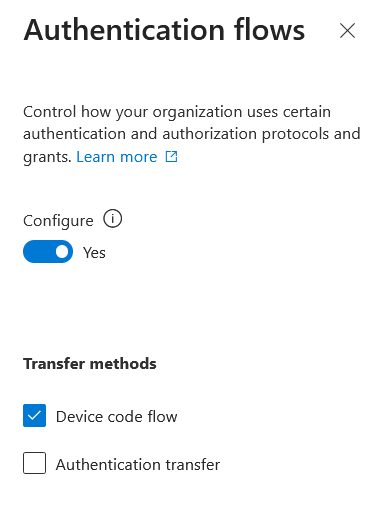
The screenshot above shows a Conditional Access condition to react to “Device code flow”. Ideally this is blocked tenant wide, and if you have not created your own device code flow policy already there should be a Microsoft created on in your tenant by now.
But what about both “Authentication Transfer” and “Device Code Flow” options, both selected, in a single rule. Can I do that? Well it seems you can. If the conditions for both are the same that is.
So what do I mean. Lets say you have no known uses of “Device Code Flow”, so you create a rule to block it for every user, for every resource, for all locations – no exceptions. Now if you also want to block “Authentication Transfer” in the same policy, as long as the conditions match you can do that. With both options selected, its an either/or policy match. You do not have to do both authentication flows (which is impossible) in the same session for the conditional access restriction to take effect.
Therefore, a conditional access rule that does the following will work:
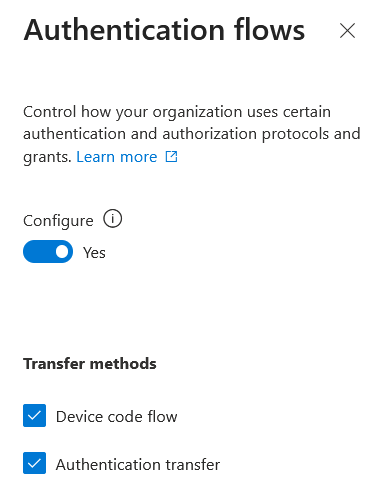
This is also easy to test once the rule is created (device code flow that is, authentication transfer is not so easy to test). From PowerShell with the Entra Module installed, run Connect-Entra -UseDeviceCode. This will return the message: To sign in, use a web browser to open the page https://login.microsoft.com/device and enter the code X1X2X3X4X to authenticate. You can open the URL provided and then enter the code requested. You will need to select the user if you have more than one session open in the browser, but then you are testing your “device code flow” restriction.
With both options selected in the same conditional access rule, there is no change of behaviour than if you only have “device code flow” selected on its own. If you are blocked with one selected, you are blocked with both selected.
To test Authentication Transfer, the scenario from Microsoft for this is to use Outlook and transfer your session to your mobile device via a QR Code. Currently (March 2026) I cannot find this option in Outlook when connected to an enterprise account (Exchange Online). It was suggested to be available in the documentation in 2024, but I have no idea if it has now been removed again or if it was never actually there.
Photo by Pixabay: https://www.pexels.com/photo/gray-scale-photography-of-clock-near-trees-277458/
Leave a Reply