
There are many many security settings in Microsoft 365, including Entra ID, SharePoint, Exchange Online etc. But knowing where to look and what to change has been complex, even for people skilled in this range of products.
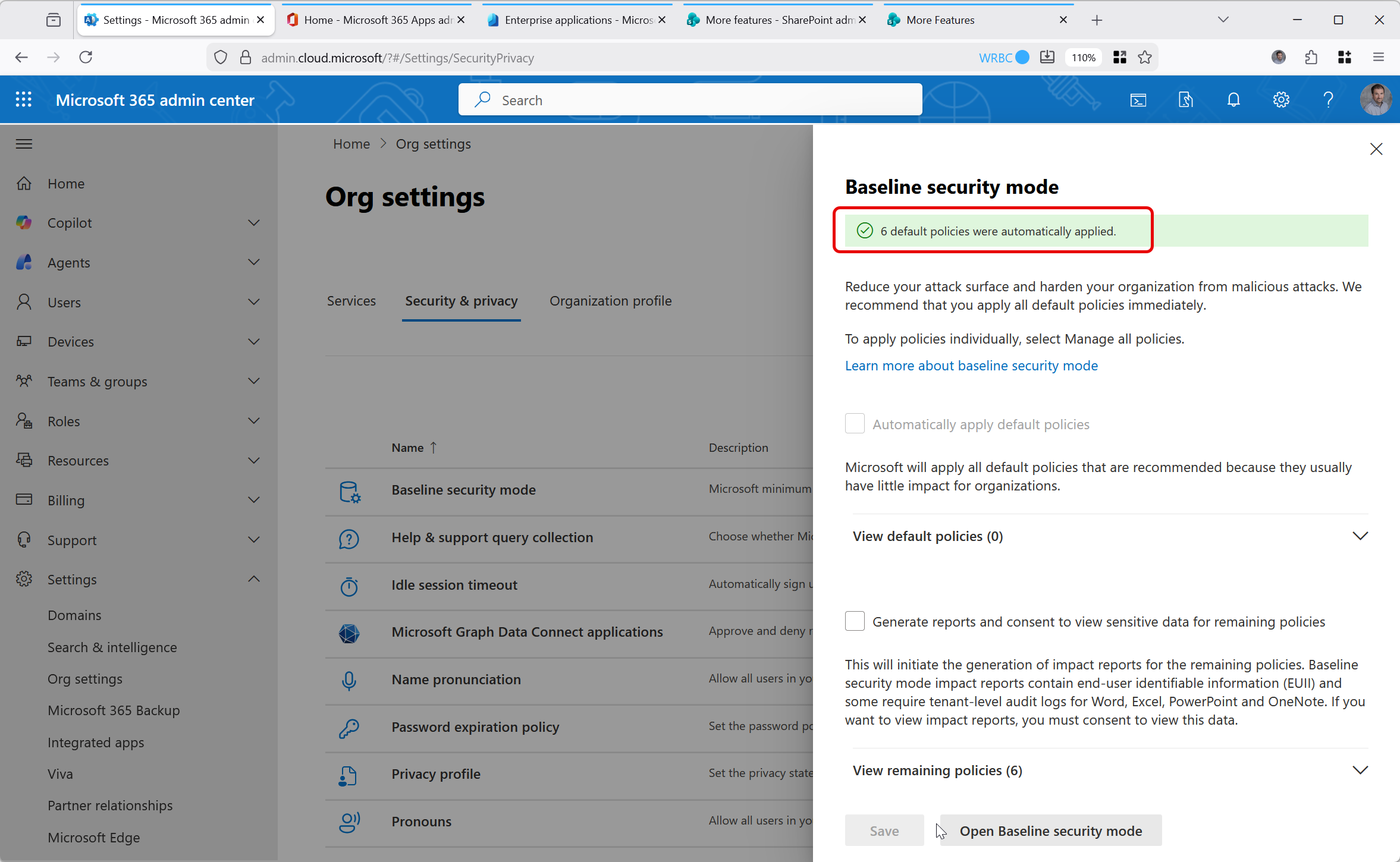
Well this is about to change with Microsoft 365 Baseline Security Mode. This is reachable via the M365 Admin Center > Settings > Org Settings > Security & Privacy and then Baseline Security Mode:
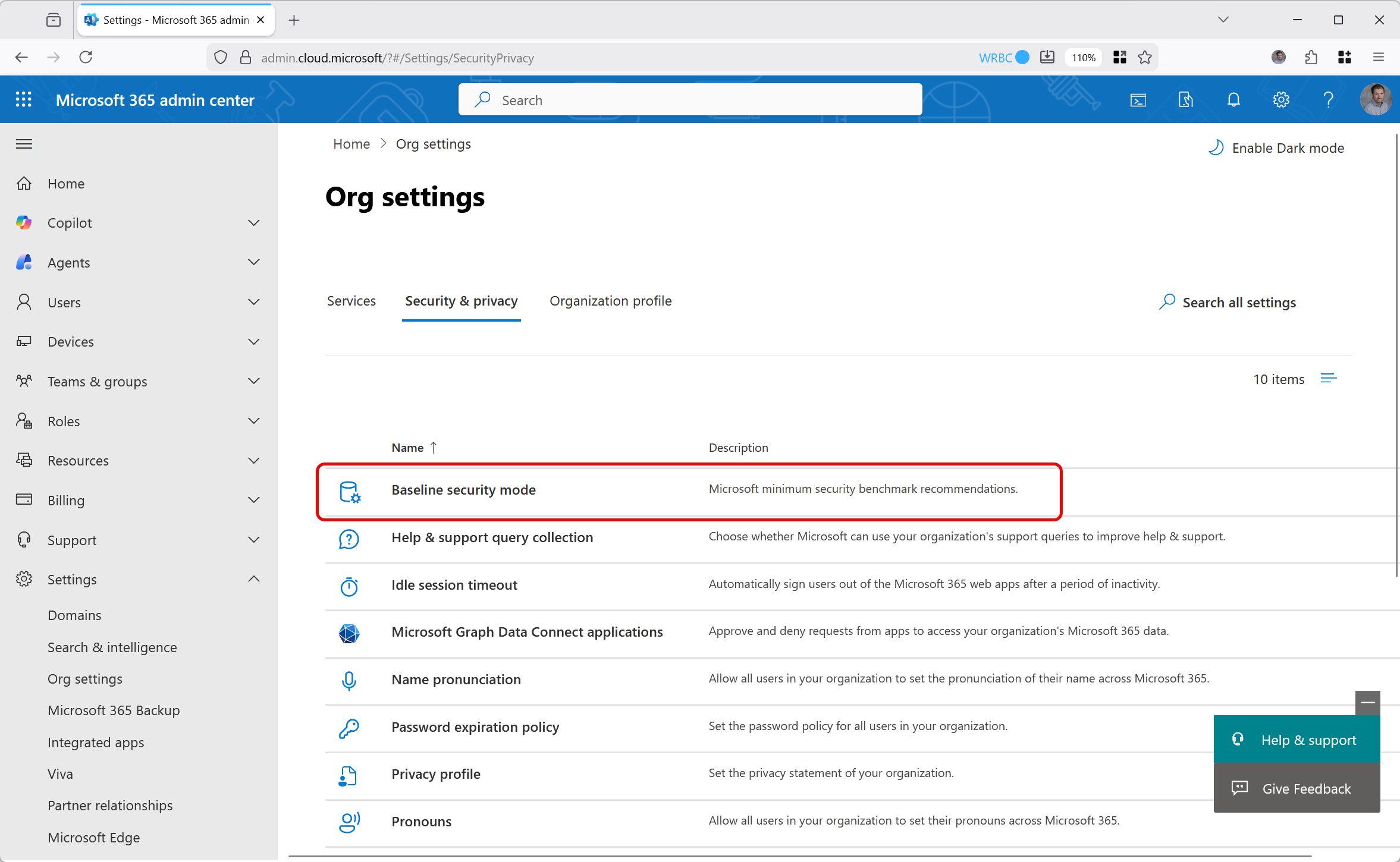
This allows you to reduce your attack surface with the click of a button, or for the cautious, allow you to start logging data and then review the impact of the change some time later (30 days of logging data is kept).
Clicking the link in the Org Settings page shown above pops out a page that allows you to enable the six default policies and generate reports for the remaining policies. Lets turn on reporting:
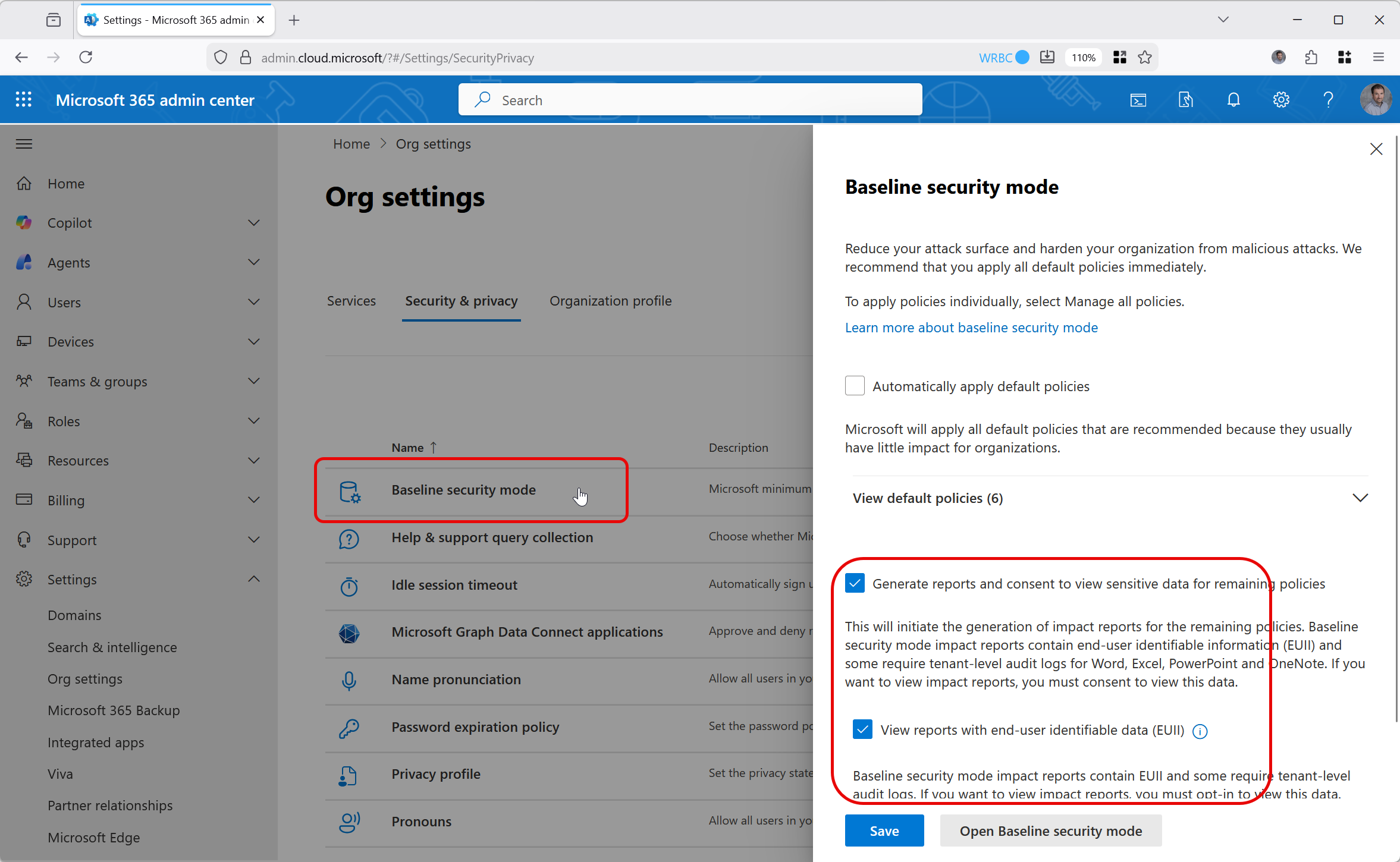
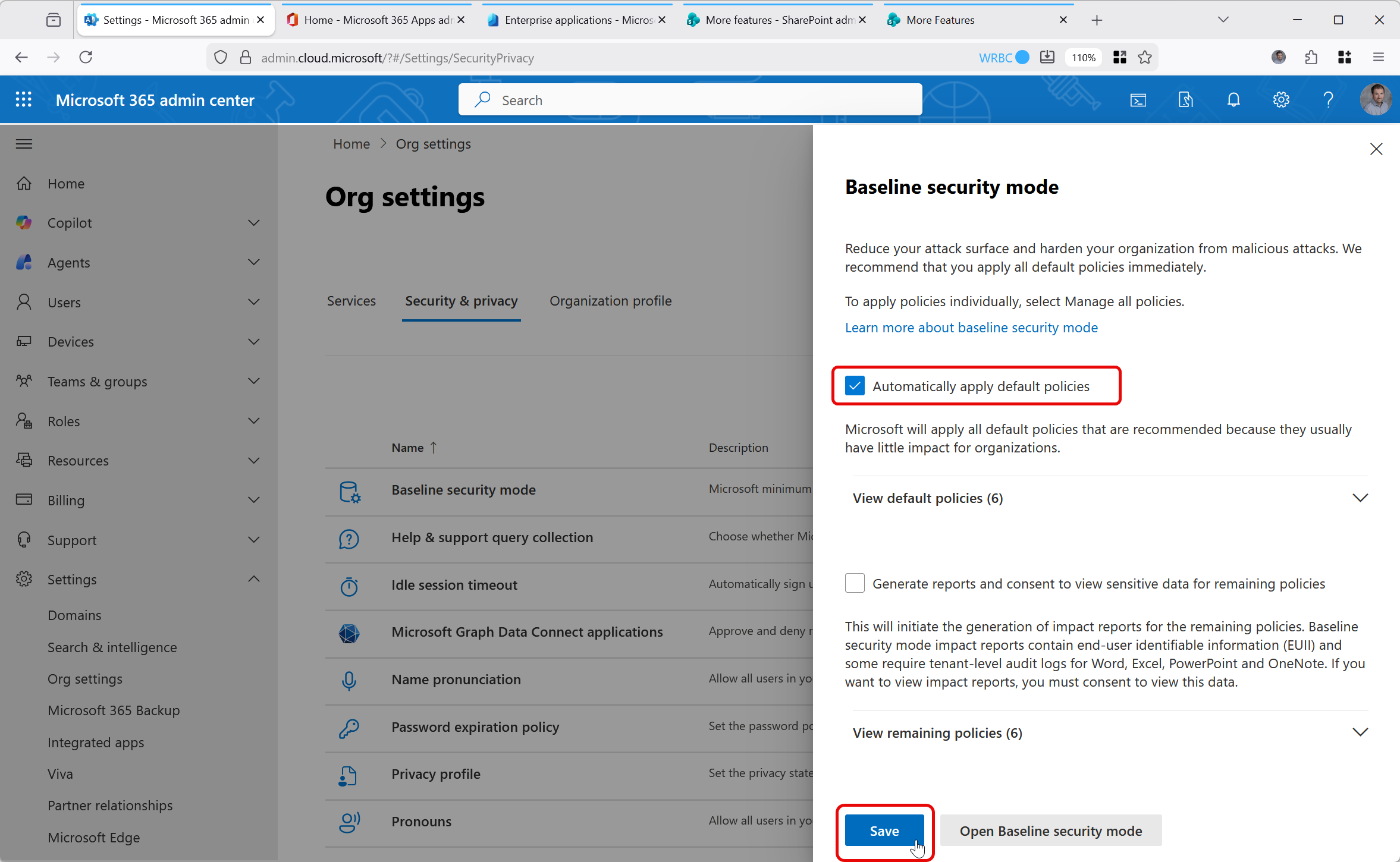
There are three options to enable for baseline mode reporting (two are shown above). Oddly, at the end of turning on these options you get a button that says “Apply Policies”, but it does not seem to do this. It creates the container for the policies in the Microsoft 365 Apps admin center (https://config.office.com) but does not enable any of the settings.
The six default policies at the time of writing are as follows, with these impacting Entra ID, SharePoint and Microsoft 365 Apps respectively:
- Turn on restricted management user consent settings
- Remove access to Microsoft Store for SharePoint
- Block files from opening with FPRPC protocol
- Open ancient legacy formats in Protected View and disallow editing
- Open old legacy formats in Protected View and save as modern format
- Block OLE Graph and OrgChart objects
Turning on these default policies will make changes for you in Entra ID > Enterprise Apps > Consent, SharePoint Admin Center > More Features > Apps and will add some settings to the newly created “Policies for all users” M365 Apps cloud policy.
Though you can easily turn on all six default policies, you also have the option to open “Baseline Security Mode” and enable just the policies you want. Here you can enable them, disable them and view the impact (if you have turned on reporting and left it enough time to collect the logs). In Baseline Security Mode page you also have the (current) other 8 policies also available. I’m sure as time goes on there will be more default policies and optional extra policies as well.
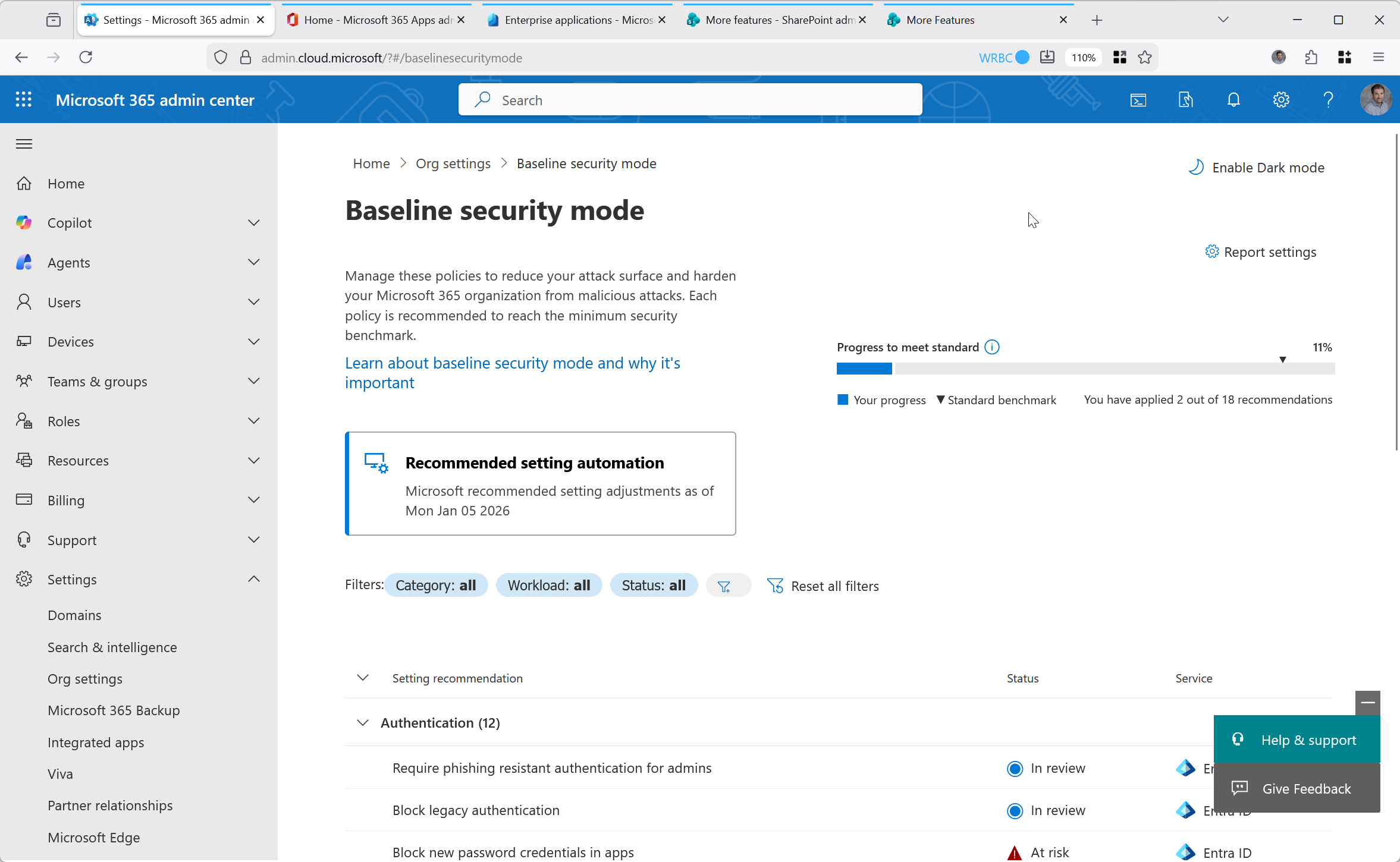
You can also turn on and off the policies in their own admin centers, but the whole point of this baseline is to make it easy to do centrally.
So lets turn on some of these policies, and see the matching setting in the source admin centre:
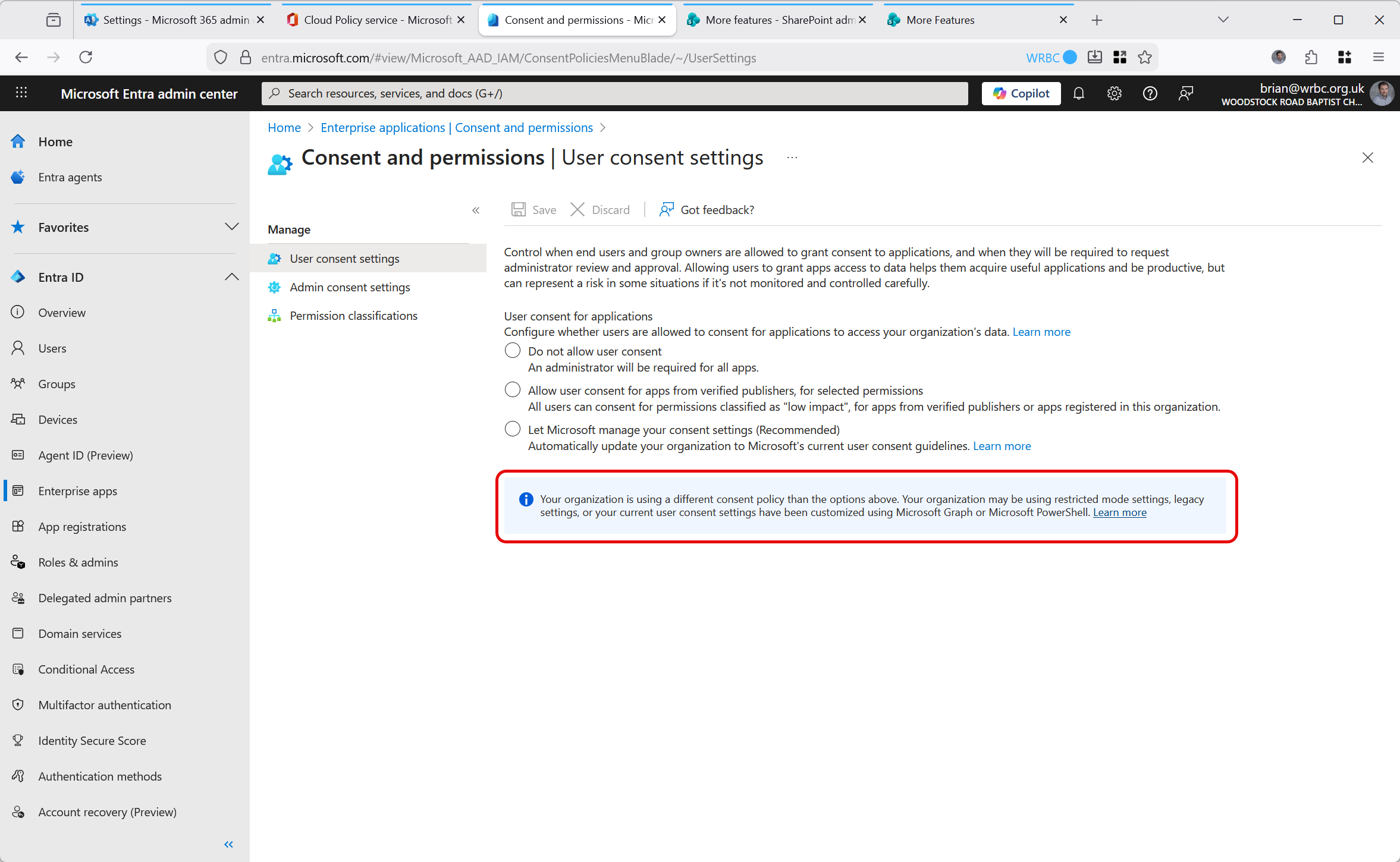
For the “restricted management user consent settings”, these can be seen via Graph or PowerShell, because if you look in Entra ID > Enterprise Apps > Consent and permissions you will see this:
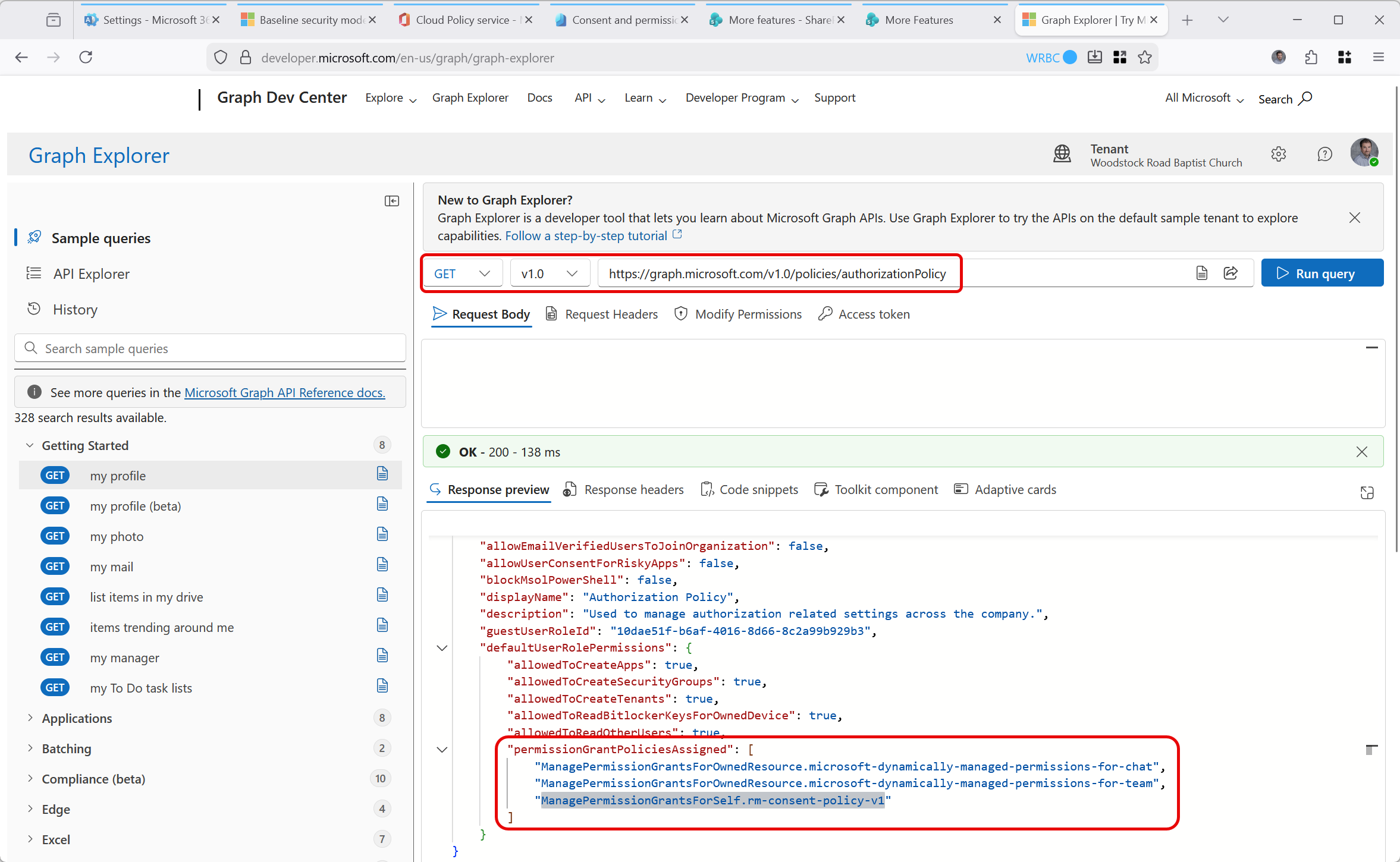
To see this policy you need to use PowerShell or Graph. In the following screenshot we have opened Graph Explorer (https://aka.ms/ge) and viewed the tenant authorizationPolicy (GET https://graph.microsoft.com/v1.0/policies/authorizationPolicy). This returns a response that contains permissionGrantPoliciesAssigned = “ManagePermissionGrantsForSelf.rm-consent-policy-v1” (and other values). This is an internal Microsoft permission policy setting, and so it is not visible for representation in the above Consent and Permissions page!
The four settings that are listed as Microsoft 365 App policy settings are comprised of 31 separate policies in the tenant wide policy called “Policies for all users”, and some of these can be seen below:
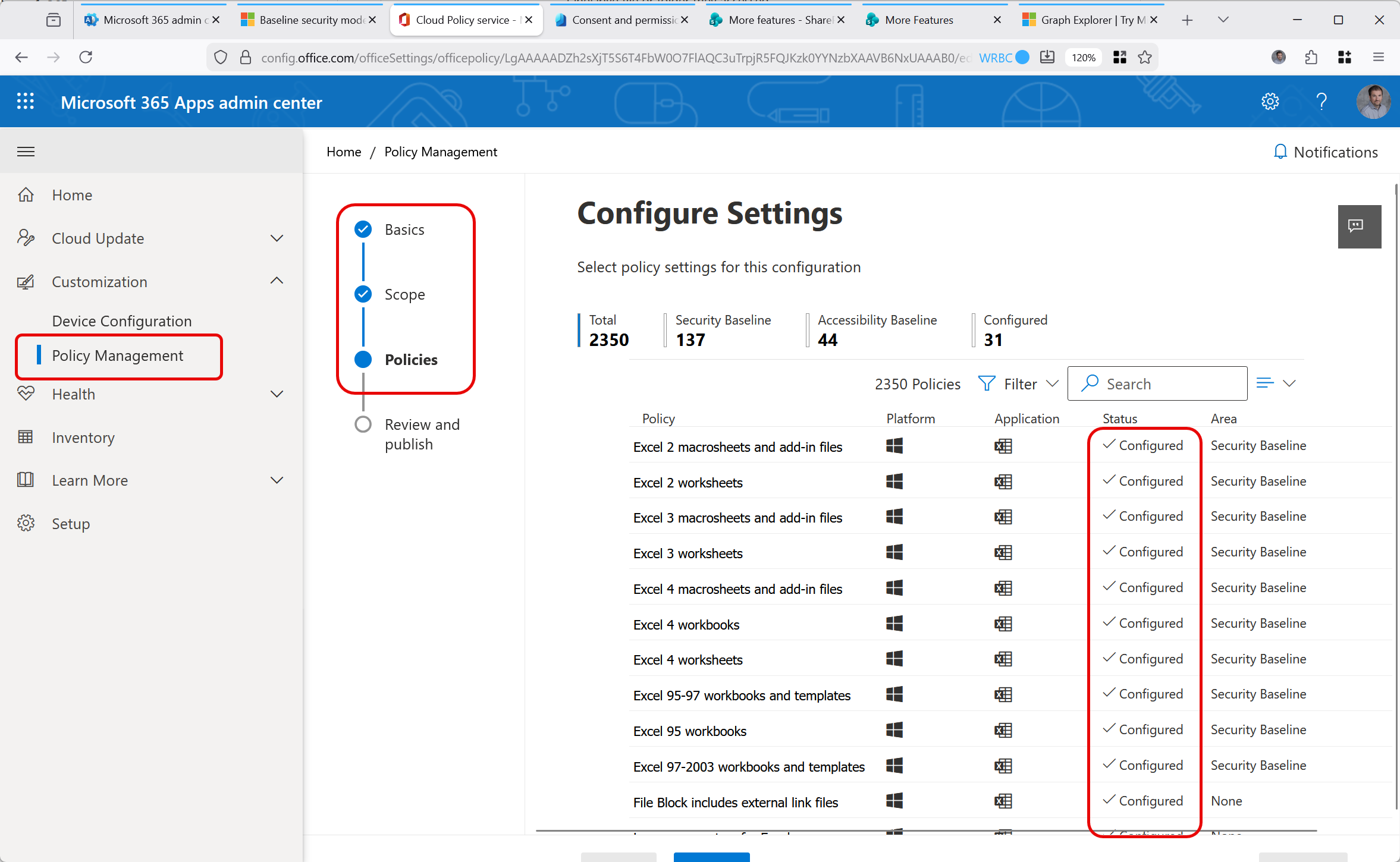
For example, the above contains the “Restrict Apps from FPRPC Fallback” setting, which the baseline policy sets to Enabled. Or, the “Word 2000 binary documents and templates” policy, which is set to “Enabled” and “Allow editing and open in Protected View”. So after application of this policy, you cannot use the old FrontPage editing features which are legacy but if you open an old Office document format it opens in read only “protected” view so macros etc cannot run. If you save it, you need to save it in a modern format for ongoing use. Both of the examples called out in this paragraph are configured, just not shown in the screenshot above.
Then finally, you have all the policies, including the defaults and the additional ones – at the time of writing, 20 policies – 12 for authentication, 6 for files and 2 for room devices, some of which may not be applicable to your tenant and licences. Each of these are listed under the Baseline Security Mode, which is visible in the third picture from the top.
Then as long as you enabled the reporting, you can revisit this portal and check the determined impact of any setting. For a setting with an impact you can decide to ignore, remediate and then implement or implement and cause a block – but knowing that you are now more secure, and to fix any possible impact post policy deployment.
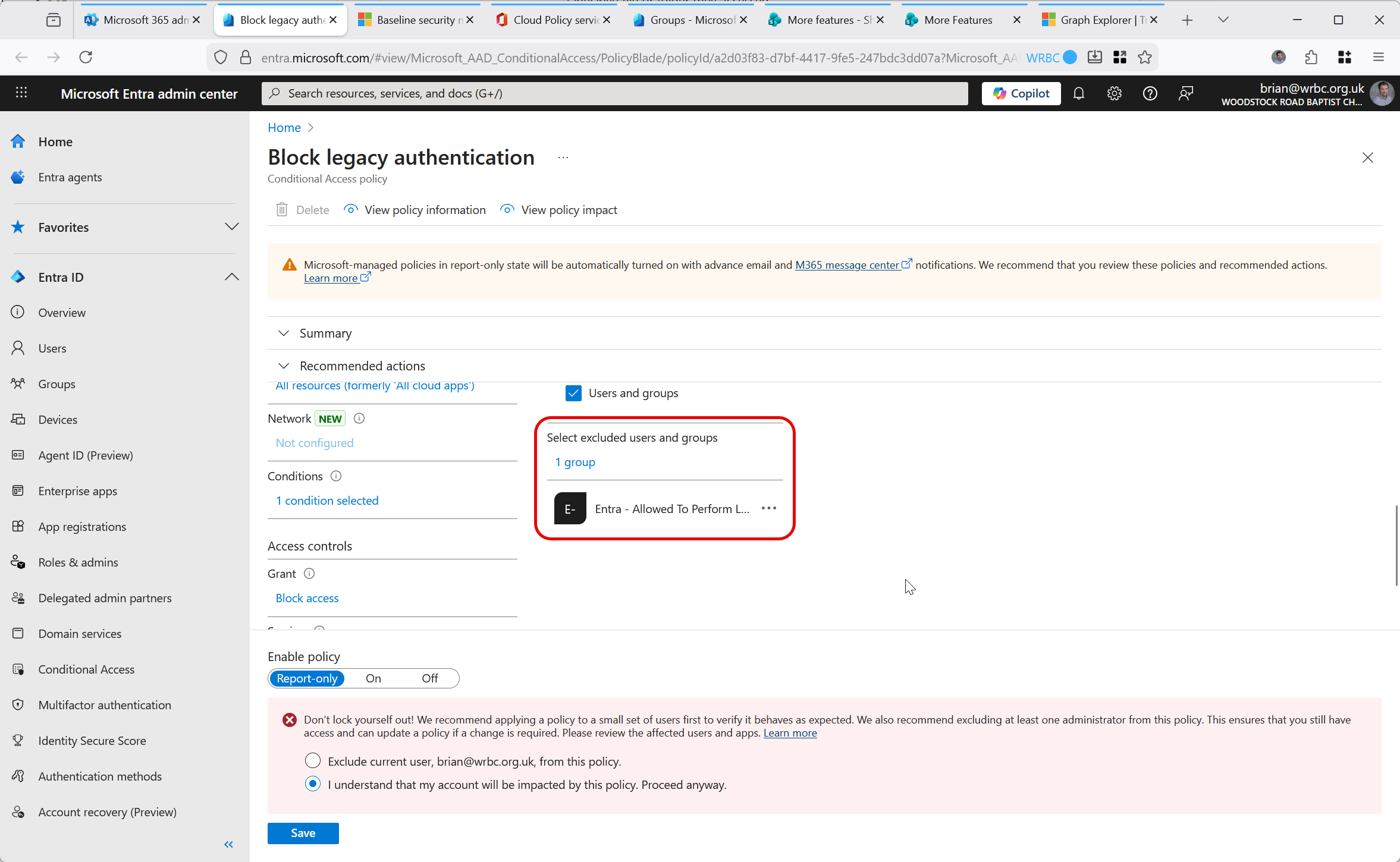
For example, you should have next to no legacy authentication happening in Entra ID anymore. The current exceptions will be SMTP based authentication and that is disabled in October 2026 anyway. So you would use the reporting, determine who in the previous days since you enabled the reporting is doing legacy authentication and then enable the policy with these users/groups being exempt from the policy. For example, running the baseline reports shows that there is one user doing SMTP Authentication, so we create a group called “Entra – Allowed To Perform Legacy Authentication” and add this user to the group, and then exempt this group in the baseline policy:
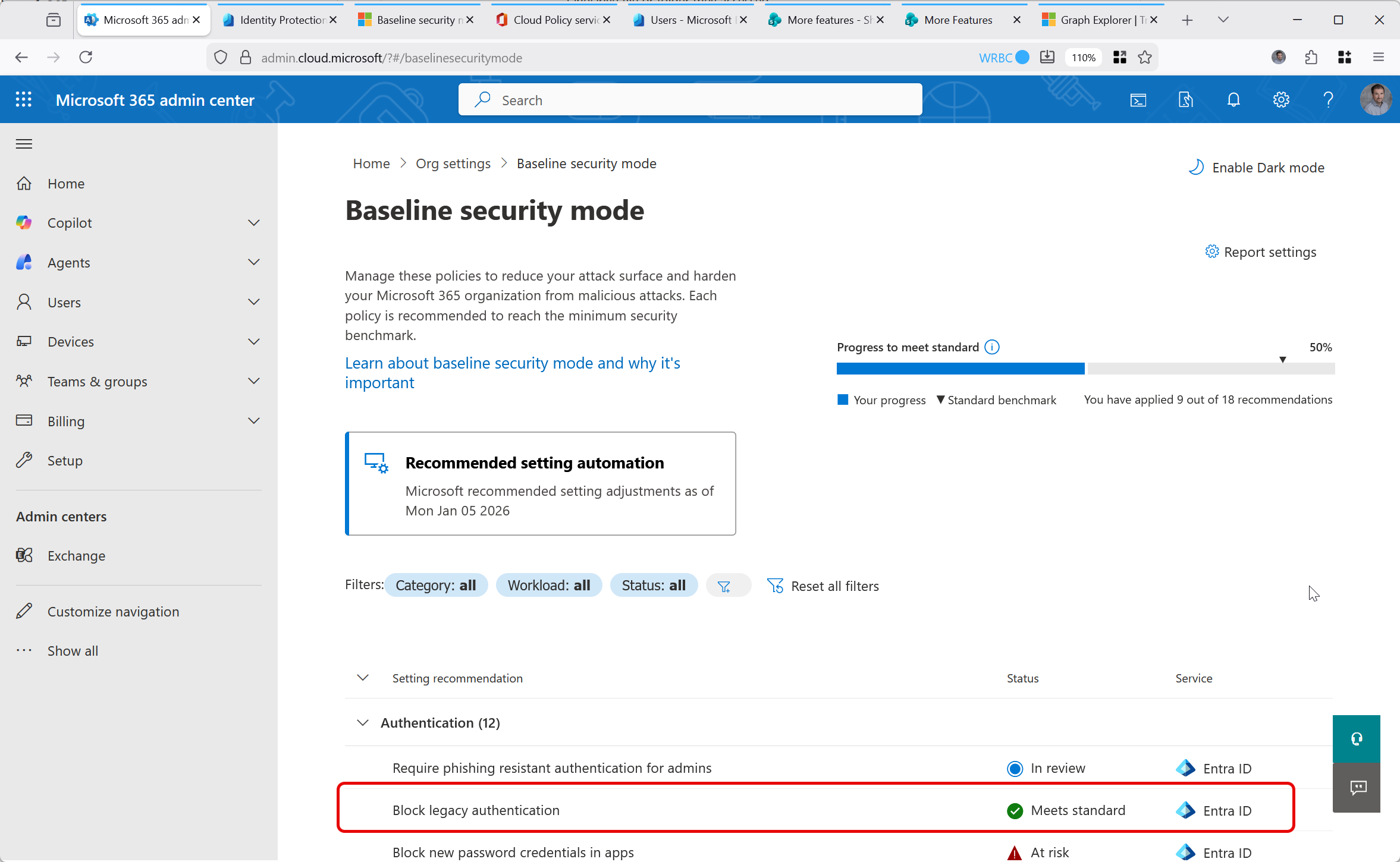
Then once you are happy, you change the policy from “Report-Only” to “On” and the baseline view will update to show the policy is active:
Entra ID policies take effect at next token refresh, which is at next login or within an hour if logged in. Microsoft 365 Apps policies are downloaded when M365 apps start and every 8 hours in between, so should take effect within 24 hours. For example, you can check the Registry on a machine running the Office apps to see if the policy has downloaded, it should be visible at “Computer\HKEY_LOCAL_MACHINE\SOFTWARE\Policies\Microsoft\cloud\office” (note the “cloud” container, so this does not clash with other policy the machine might be getting) or “Computer\HKEY_CURRENT_USER\Software\Policies\Microsoft\xxxx_ADAL” (where xxxx is unique to each tenant, but is not the tenant ID!)
Photo by Pixabay: https://www.pexels.com/photo/pile-of-folders-357514/
Leave a Reply