
Since July 2026 the Microsoft 365 E5 licence has included the previously named Intune Suite product. Everything in Intune Suite is available for E5 users and some things are available for the M365 E3 licence holder, including Remote Help, which is the subject of this blog post.
It takes seconds to set this up, but there are a few things to consider including RBAC roles, Conditional Access rules and a weird Trial Licence warning. Lets start with this one – even though you have the E3 or E5 licence if you also have a trial licence then that will appear and count down even though you actually have a full licence available:
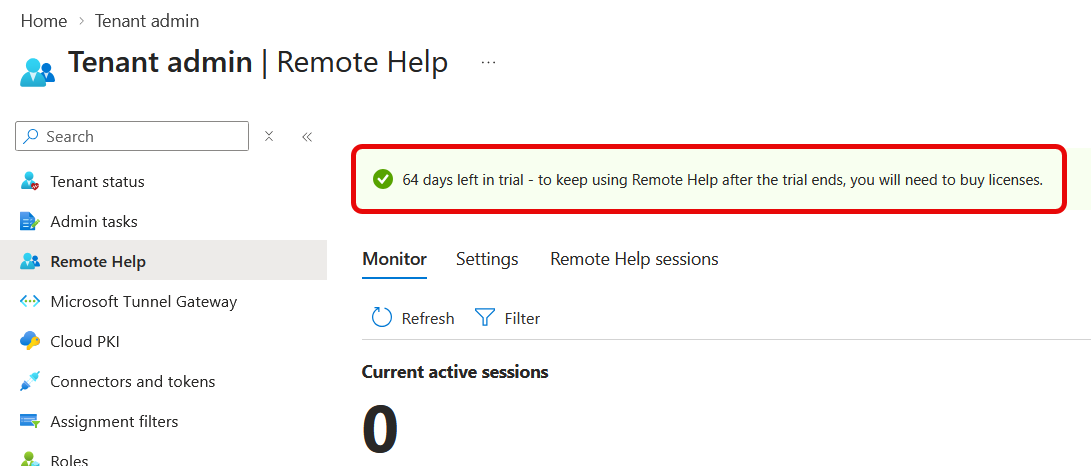
Once you have the licence, and you need it for the end user who will be helped via Remote Help, and for the Helpdesk user who will initiate Remote Help, you set up the configuration in the Intune Admin Portal. The settings are found via Tenant Administration > Remote Help and are shown in the screenshot above.
To configure change to the Settings tab and click Configure.
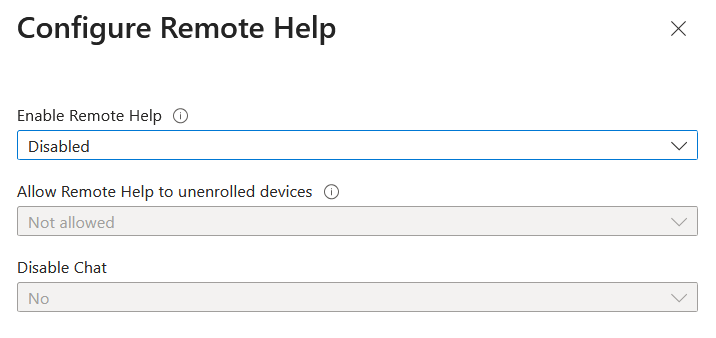
Change the settings so Remote Help is enabled, and optionally if you want to help users on unenrolled devices. Remote Help includes Chat, and that can be turned off if needed (it defaults to enabled).
Done! It really does not take long. The tenant is set up for Remote Help:

The Helpdesk admin who’s providing help need to be configured in Roles in Intune. The permissions are given to Helpdesk operator group in Intune by default, but it is possible to create a custom RBAC role and assign only the options that would satisfy your organizational requirements such as Can View Screen but Can Not Take Full Control etc.
The helper and the end user both need the Remote Help application deployed, though there is a web app available for scenarios where the app is not installed.
The Remote Help application is available for Windows, macOS and Android and also as a web app. For Windows it can be downloaded from http://aka.ms/downloadremotehelp or deployed via Intune, with the app being in the respective app stores for the other OS’s. When either the end user or the helper is using the application, the other party also needs to be using the application. The only exception to this is when the helper is helping an end user using macOS, and in this case the helper needs to use the web app and not the application.
The reason for this mismatch in apps and web apps is to do with the authentication code. The application presents and requires a six character code, but the web app presents and requires an eight character code! And so does the app on the macOS. So if your end user is on a macOS device and is given an eight character code to pass to their helper, the helper needs to use the web app and not the Remote Help application.
In situations where the end user needs assistance but is unable to install the native application for macOS or Windows, they can use the Web App to share their screen to a helper, and the web app is available at https://aka.ms/rh for the end user, and at https://aka.ms/rhh for the helper (/rh compared to /rhh for the helper) or https://remotehelp.microsoft.com for the end user or https://remotehelp.microsoft.com/helper. This web app provides view only capabilities to the helper, allowing them to guide the user through resolving issues, though if the end user is using the web app on a macOS client, remote control is possible.
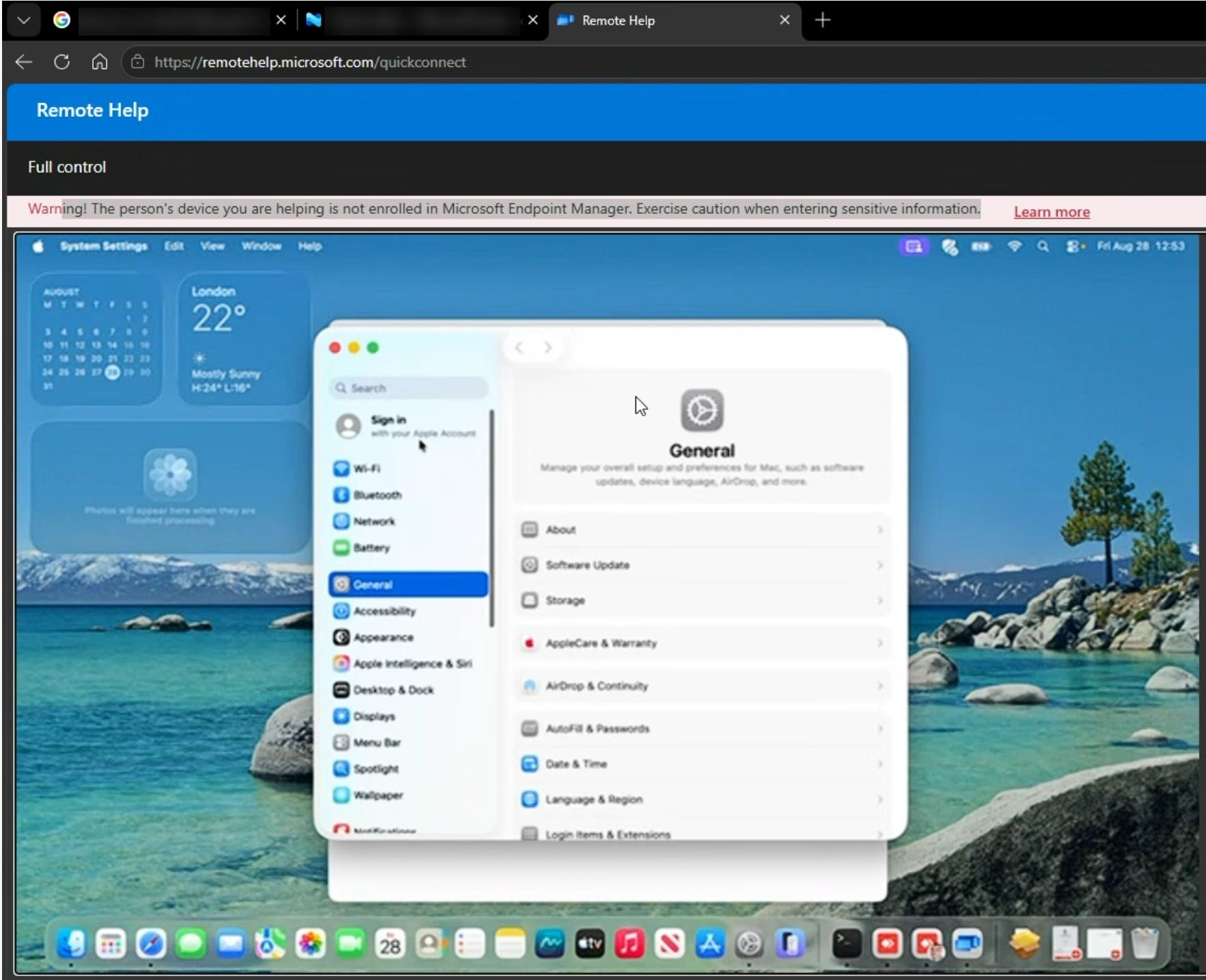
Notice also in the above screenshot, that when you are connected to a device outside your tenant (not in Intune, or “Microsoft Endpoint Manager” as is shows above – looks like a Microsoft rebranding change was missed on this service!) you get a warning at the top of the screen about exercising caution before sharing.
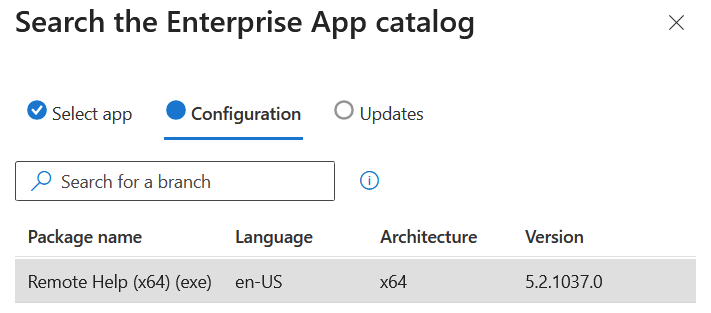
For tenants with the M365 E5 licence, another feature that you got in July 2026 is the Enterprise App Catalog and that you can deploy the app from here. Without this you need to download the app and package.
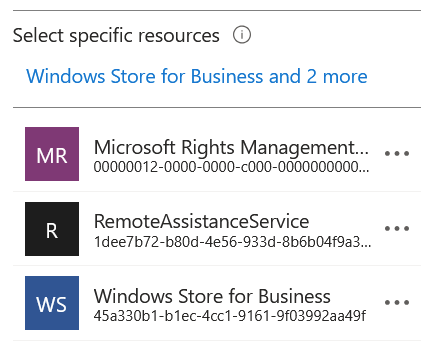
Once you have set up the roles and deployed the app, you can use the service. By default the Remote Help service is covered by the Conditional Access “All Cloud Apps” resource. But if you want to make a specific Conditional Access rule for the app you need to register the RemoteAssistantService (the backend service for Remote Help) as an Enterprise App in your tenant.
Install-Module Microsoft.Graph -Scope CurrentUser
Connect-MgGraph -Scopes "Application.ReadWrite.All"
New-MgServicePrincipal -AppId "1dee7b72-b80d-4e56-933d-8b6b04f9a3e2"
Once you have done that you will be able to target Remote Help to a specific Conditional Access rule.
Once the app is installed, the service configured in Intune and the users given the correct roles you can start! The app is on the Start Menu as Remote Help:
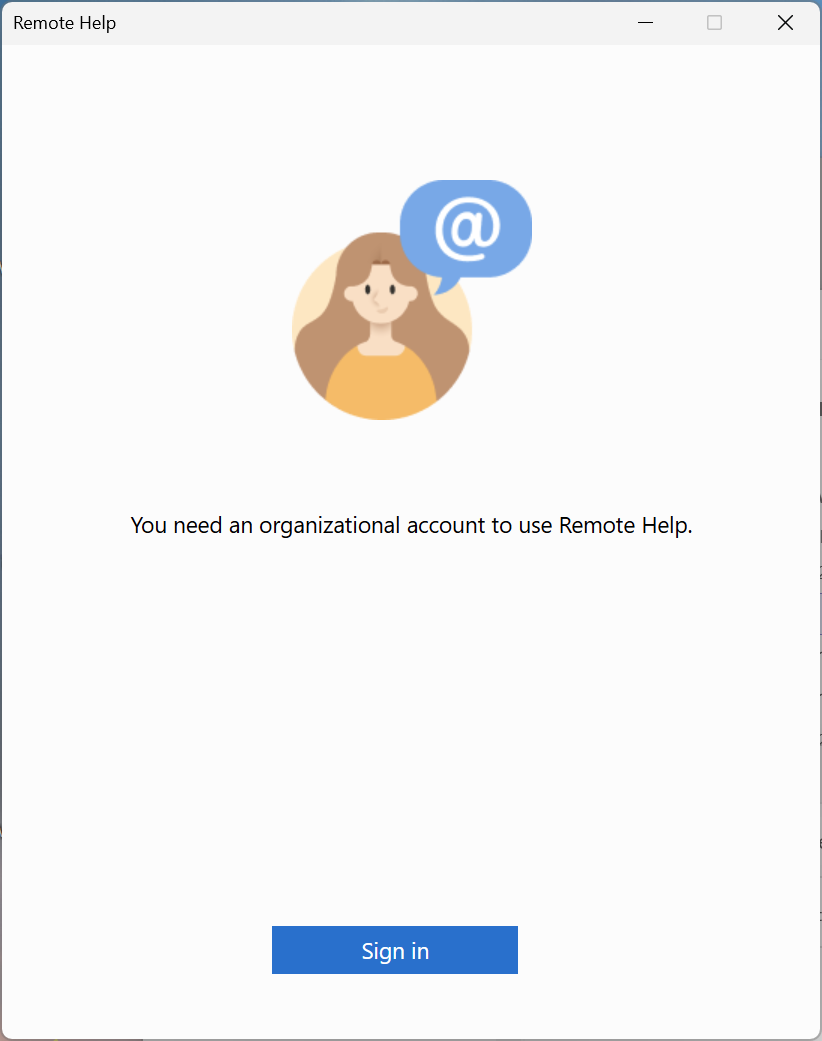
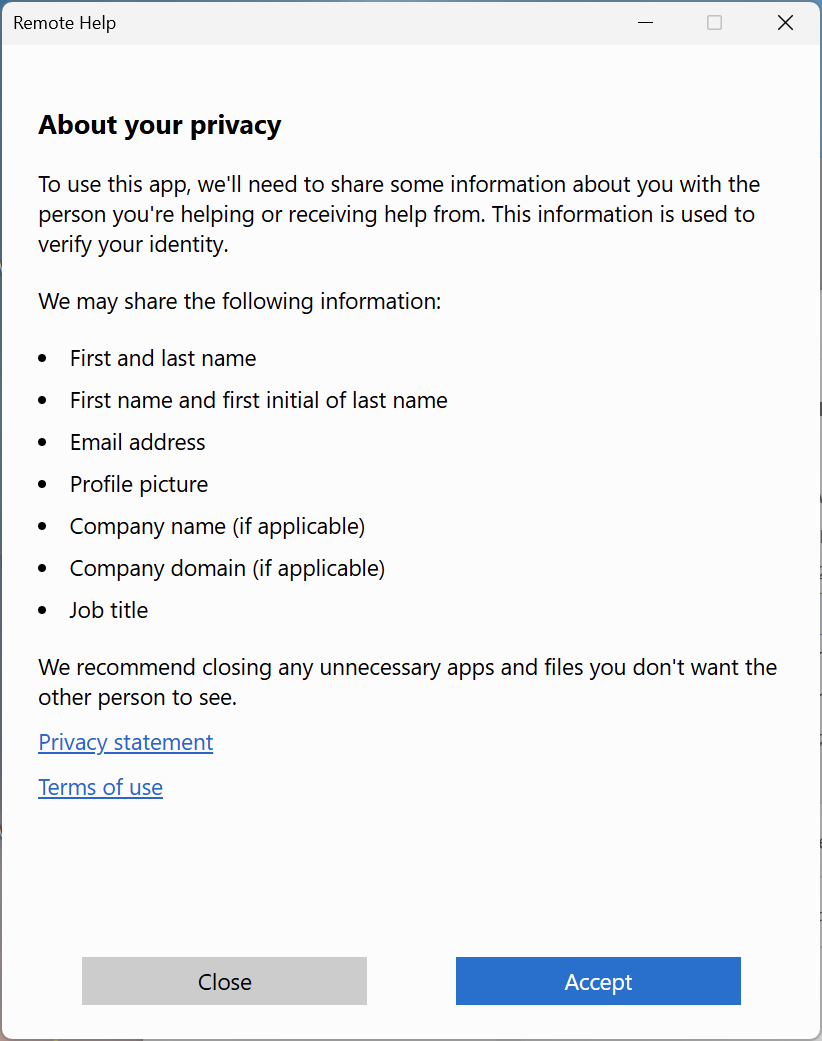
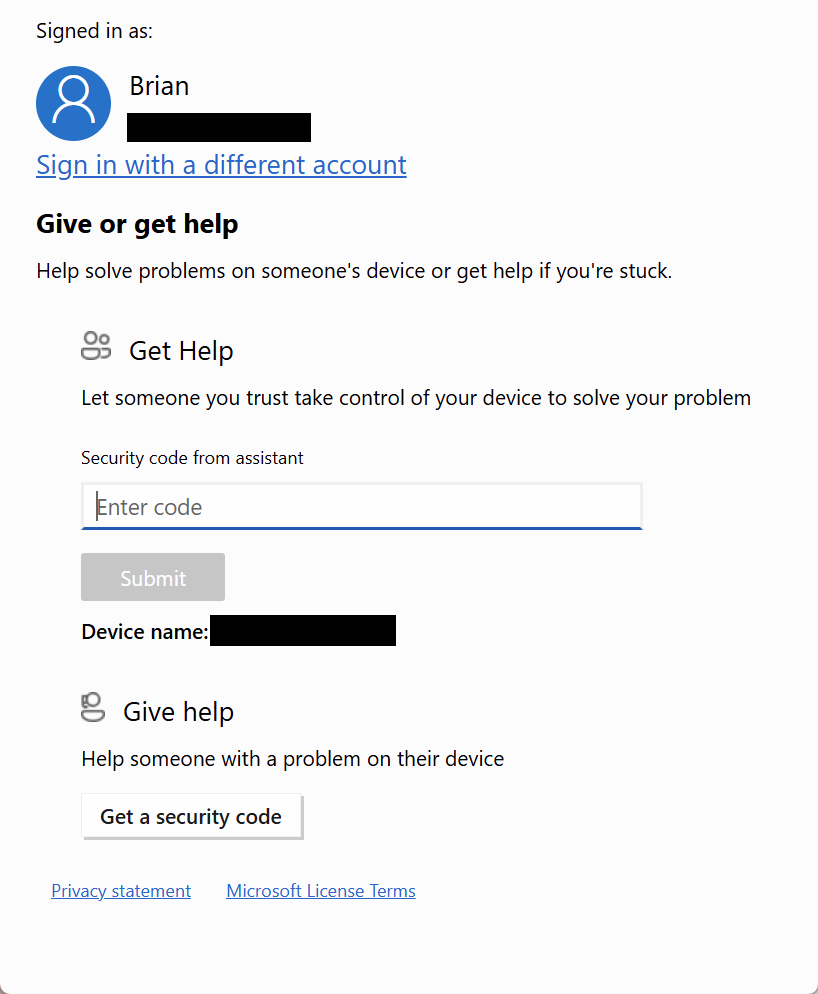
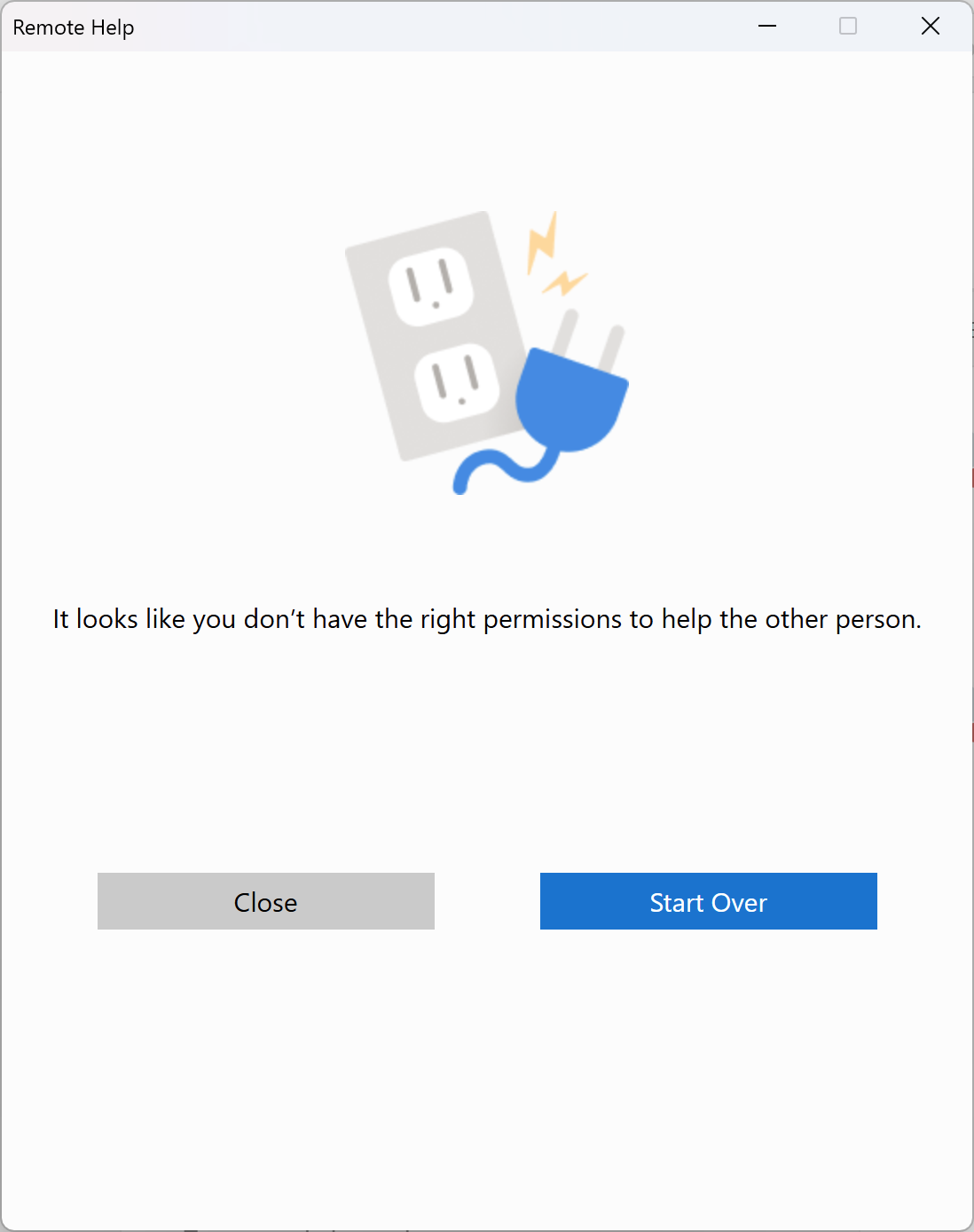
To give help to someone you need to click the “Get a security code” button. Provide the person the code and have them enter it in the “Security code from assistant” field. The code expires in 10 minutes if not used. And if the assistant does not have the correct roles to offer help they will be told this after providing the code to the end user:
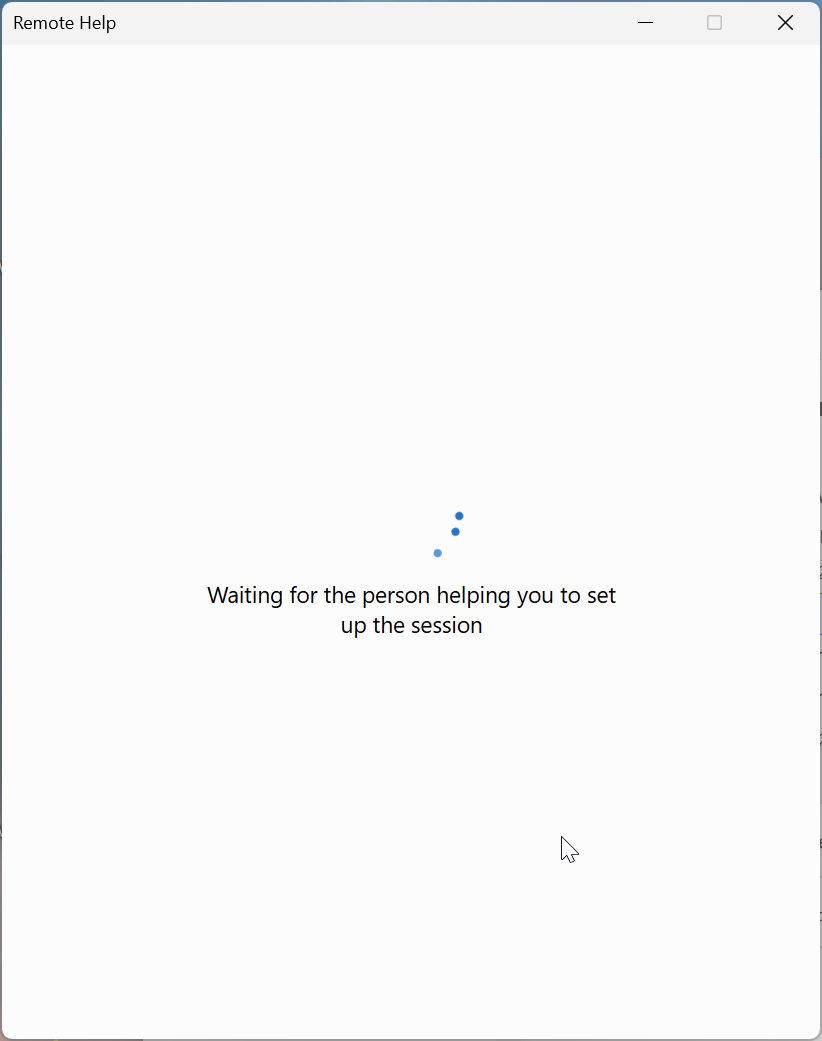
The above screenshot stays in place until the helper requests a level of sharing, so either “Take Full Control” or “View Screen”, with viewing being the default option.
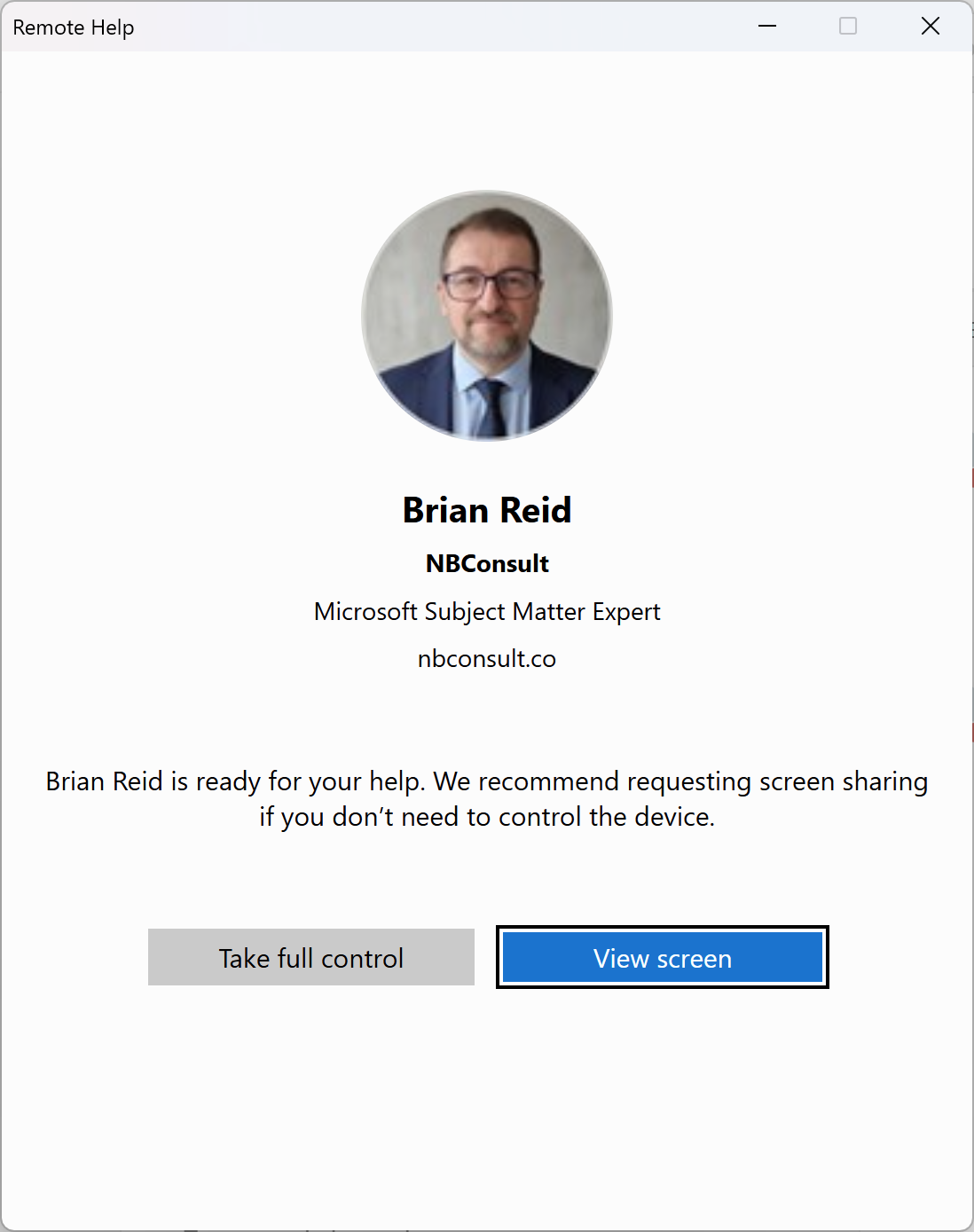
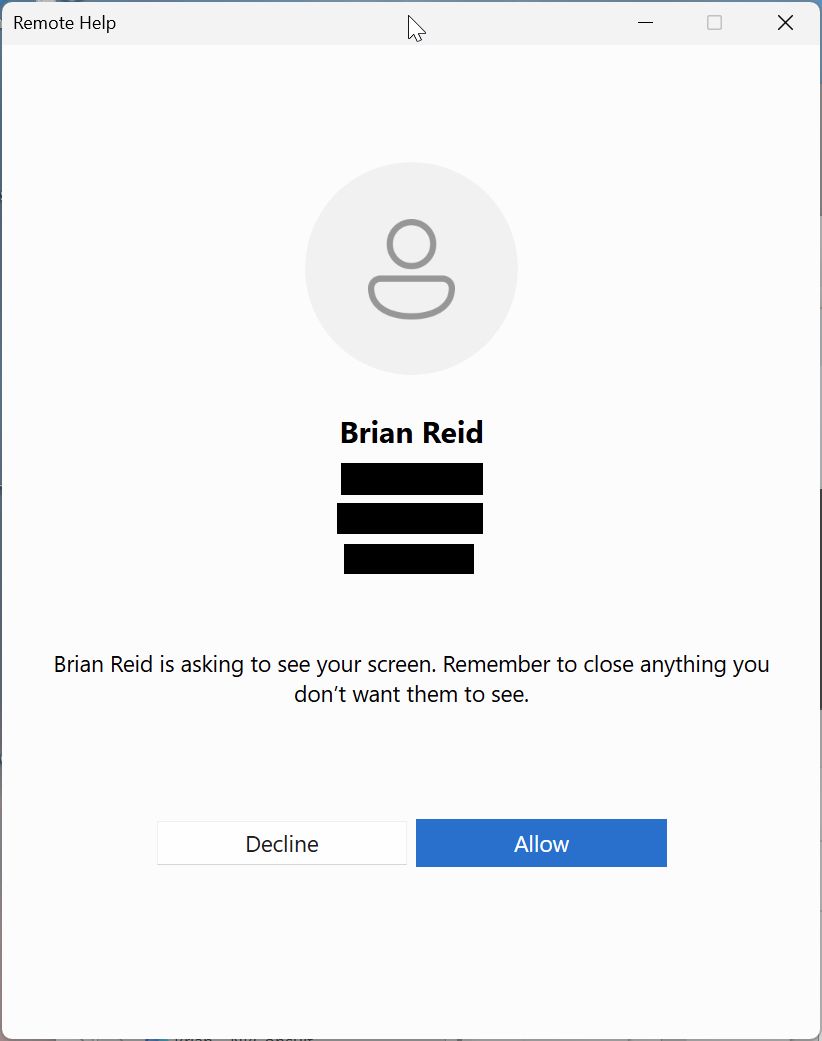
Ignore the above where the helper and the helpee are both named Brian Reid! They are two different users and the one with the admin roles is the helper. So the below is what the helpee sees, the user display name title and company.
Once you accept help, the resolution of your screens might drop to improve the speed of the help. This will return once the help session ends.
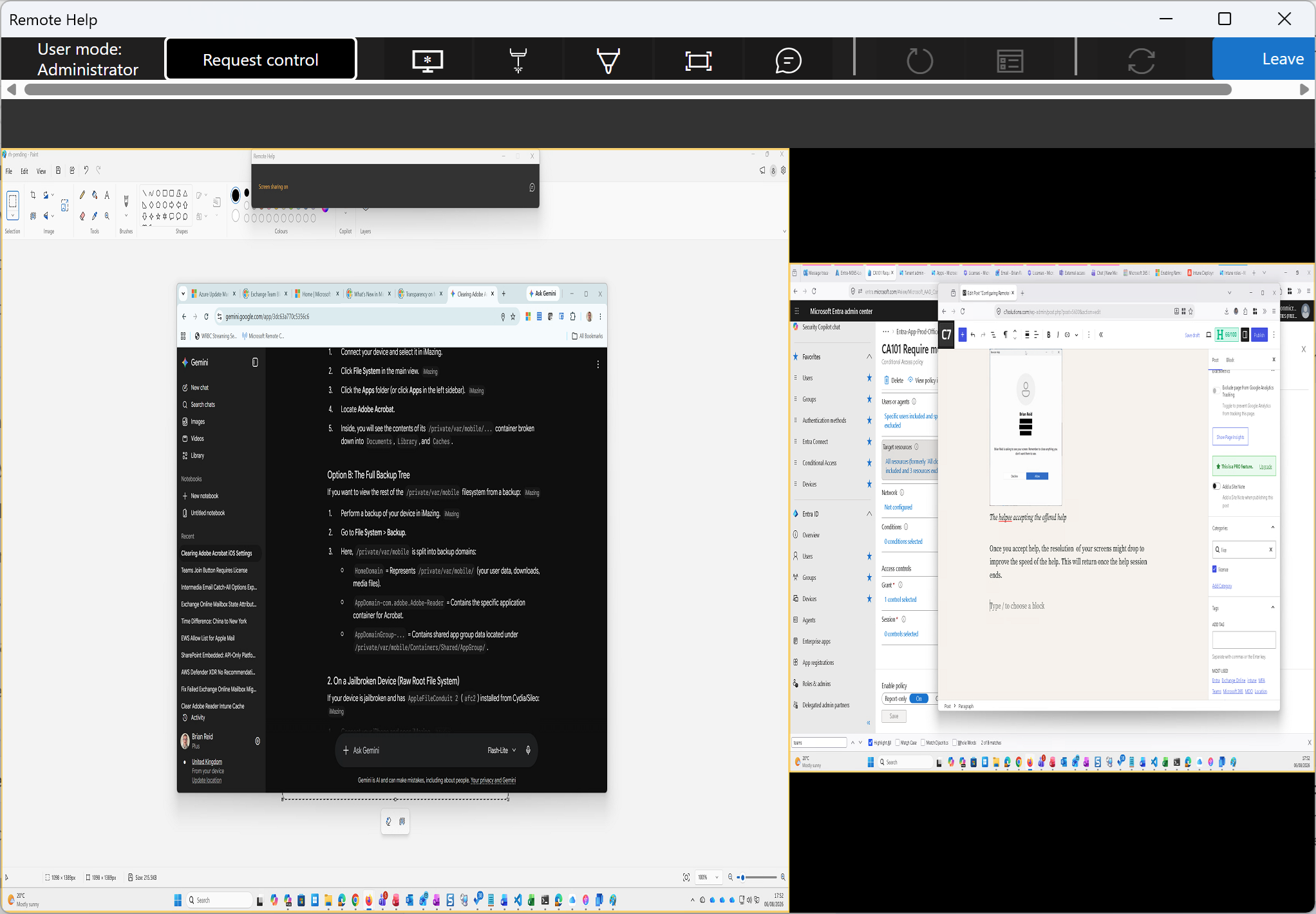
In the above, you can see the two screens of the helpee, and on the right you can see the editing of this blog post, and an Entra ID session. On the left is Paint and Chrome open.
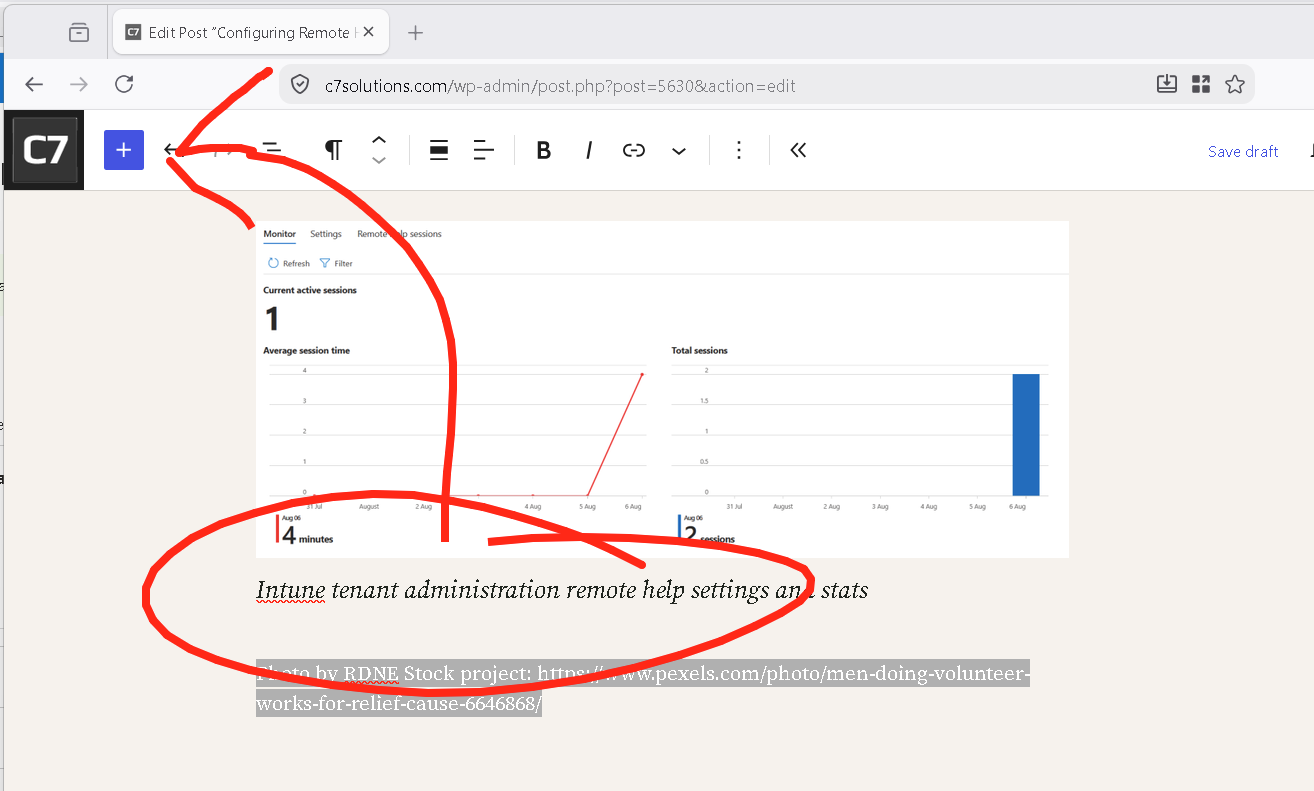
From the Remote Help application for the helper, they can select which monitor to use, which makes multi-monitor end users easier (and in my case fixes the resolution resize that happens as the two monitors are different resolutions). Also from the Remote Help application, the helper can chat and draw on the screen. They can also interact with the screen if they connected with that option, and can “Request Control” if they need to but started only as viewing the screen.
Finally, for this article, the chat view from the helpee perspective. This appears anchored to the top of the primary monitor and informs the end user that screen sharing is on.
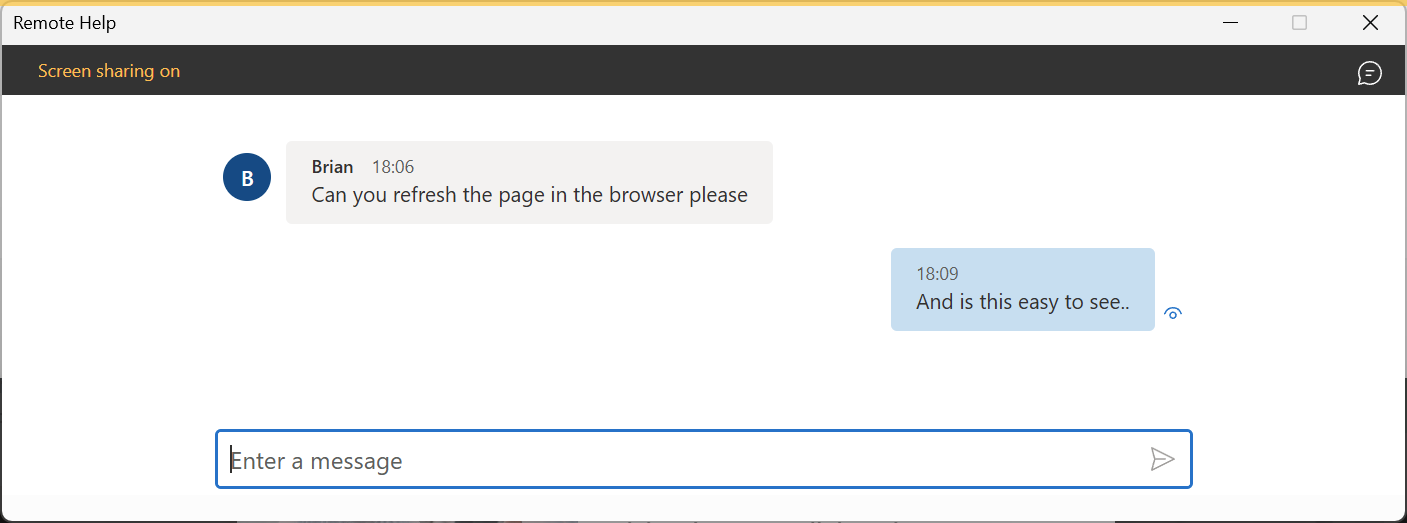
Closing this window ends the session. The helper can end the session as well.
Once you start helping users in your tenant, basic stats about connections and sessions can be viewed from the Intune Admin Portal, Tenant Administration > Remote Help.
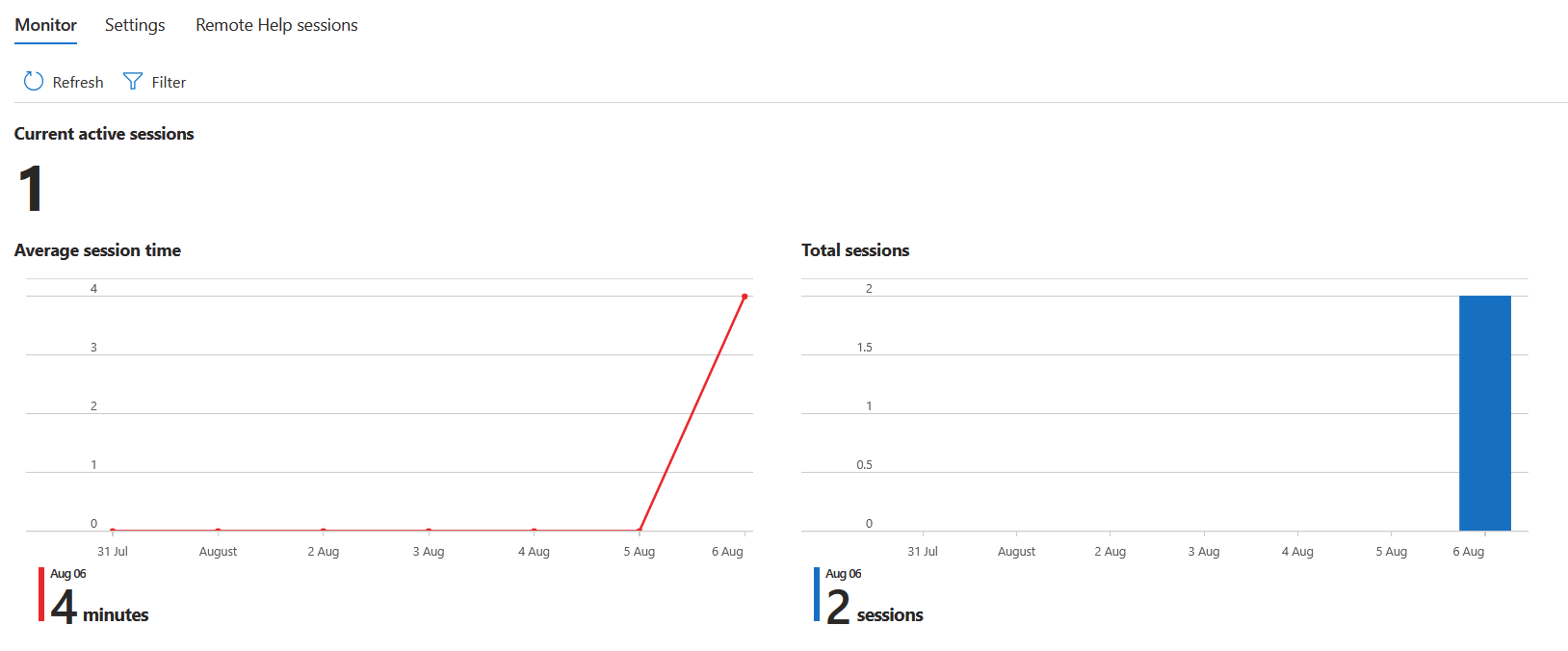
Photo by RDNE Stock project: https://www.pexels.com/photo/men-doing-volunteer-works-for-relief-cause-6646868/
Leave a Reply