
Updated 18th May 2026 with reference to the new Exchange Online writeback feature and Contact SOA changes.
A recent addition to all licenced versions of Entra ID is the ability to manage synchronized users, groups and contacts from on-premises Active Directory fully in Entra ID. Before this feature was enabled, an Active Directory synced object was mostly modified in Active Directory and you waited for sync to complete for the changes to appear in Entra ID and the other services directories. The only exception to these synced objects was Entra ID exclusive attributes and properties, for example Licences, and a couple of other attributes such as Archive (in Exchange Online) and mobile for setting SMS MFA (when that was a recommended thing!).
When I first saw the article on this feature it was a quick read and I was “good, I understand all that”. Its a feature known as User Source of Authority (or Group Source of Authority) etc. and it is enabled by setting a property to say that the object IsCloudManaged=TRUE. But more recently I have become aware of some other settings and more things to be generally aware of – so I thought I would write them out here and clarify the bits I initially missed.
IsCloudManaged vs IsExchangeCloudManaged
Firstly, there are two “IsCloudManaged” settings. The second one is “IsExchangeCloudManaged” and when I first read the documentation I skipped over the fact it was an entirely different property and I understood it to be a single setting. Its not. IsCloudManaged is an Entra ID setting and IsExchangeCloudManaged, is of course, an Exchange Online setting.
If I work for a small organization and I am responsible for both Entra ID and Exchange Online, then I am really only interested in IsCloudManaged. But if separation of duties exists in my organization, and someone else is responsible for Exchange Online from the Entra ID people, then both properties may be more interesting.
If I set IsCloudManaged=TRUE on a object in Entra ID (via Graph only at the moment) then I can modify a synced user in Entra ID and Exchange Online. The user, group or contact source of authority has changed and what was a synced user etc., and still in scope for sync with Entra Connect or Entra Cloud Sync, but is no longer synced. I do not need to descope the object or containing OU in Active Directory to take the object out of sync. I can set IsCloudManaged=TRUE via the Graph and (as long as I am running Entra Connect Sync 2.5.190.0 or later or Entra Cloud Sync) this object stops being synced to the cloud and the cloud portals or command lines (such as Graph PowerShell or Exchange Online PowerShell) can be used to modify the object. Setting IsCloudManaged=FALSE and the object gets synced from Active Directory again (overwriting any Entra ID/Exchange attributes you had set when it was cloud managed).
IsExchangeCloudManaged
But if I am an Exchange Online administrator, I might want to investigate doing Exchange attribute modifications in the cloud portals whilst the Entra ID administrators are still syncing the user and managing them on-premises. In this case, the forward sync between Entra ID and Exchange Online Directory Service (EXODS) is blocked for the IsExchangeCloudManaged=TRUE object. Here, I have not had to set IsCloudManaged (the Entra ID property) and only the Exchange Online property IsExchangeCloudManaged. I can only modify in the cloud Exchange attributes – so for example I could change the proxyAddresses attribute, but not the DisplayName attribute (as that is not dedicated to email, and so an Entra ID responsible object.
Unlike Entra ID, setting IsExchangeCloudManaged can be set in Exchange Online PowerShell and does not require manipulation of properties in Graph.
A full list of the attributes that can be edited in Exchange Online after changing User Source of Authority to all Exchange attributes to be modified (so IsExchangeCloudManaged=TRUE) can be found here. Note that if you are using Entra Connect Sync, the version needs to be 2.5.190.0 or later and not the earlier version that IsCloudManaged can work with. This is because a bug exists in 2.5.79.0 that will try and write the Exchange changes back to Active Directory and fail with an error.
Microsoft advises to wait 24 hours + your sync time from your last changes on an object before changing that objects source of authority to the cloud. So if sync at your organization takes a few hours to complete, wait 24 hours plus those few hours. Once this time has passed you can run Set-Mailbox identity -IsExchangeCloudManaged $true in Exchange Online PowerShell.
Lets take a look at how IsExchangeCloudManaged behaves in the following screenshot. This starts with trying to change a synced user and failing. We will see that IsDirSynced=True for this user. We will then change IsExchangeCloudManaged to $true (and nothing else on the same cmdlet) and then try the same modification as earlier, but this time successful.
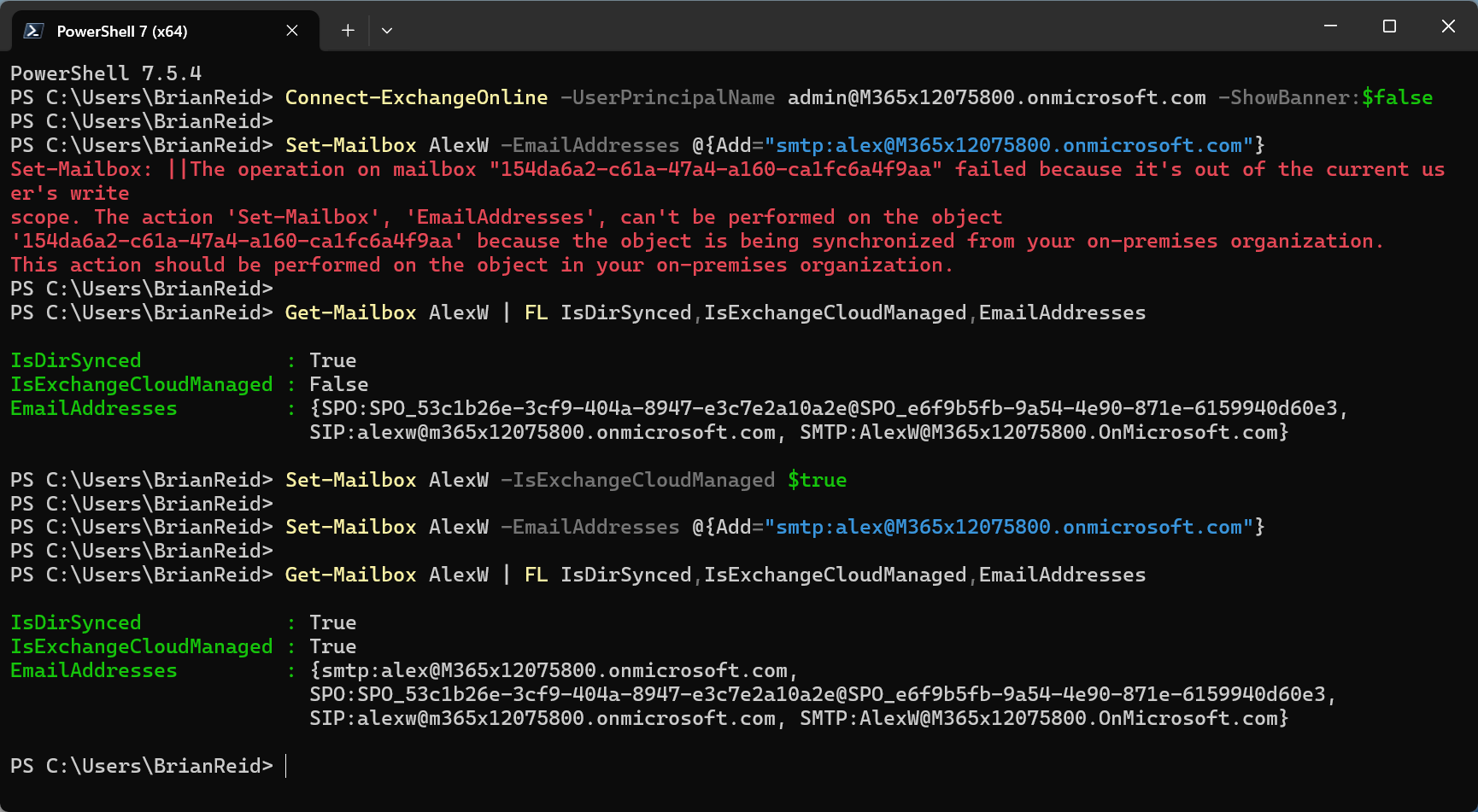
In the above screenshot, we ran the following Exchange Online PowerShell cmdlets:
Connect-ExchangeOnline -UserPrincipalName admin@M365x12075800.onmicrosoft.com -ShowBanner:$false
Set-Mailbox AlexW -EmailAddresses @{Add="smtp:alex@M365x12075800.onmicrosoft.com"}
Get-Mailbox AlexW | FL IsDirSynced,IsExchangeCloudManaged,EmailAddresses
Set-Mailbox AlexW -IsExchangeCloudManaged $true
Set-Mailbox AlexW -EmailAddresses @{Add="smtp:alex@M365x12075800.onmicrosoft.com"}
Get-Mailbox AlexW | FL IsDirSynced,IsExchangeCloudManaged,EmailAddresses
We can see that the second attempt to update the email address directly in Exchange Online succeeded, whereas the first failed.
So why would we do this – the answer is all about getting rid of the last Exchange Server. If we have no Exchange Servers on-premises we have no supported way of making these changes correctly. With User SOA (Source of Authority), Group SOA and Contact SOA we can modify these objects directly in Exchange Online and not need to run and support and patch an Exchange Server for recipient management on-premises.
Lets try changing a non-Exchange attribute. In this case we will attempt to rename Alex’s display name to indicate that he is the UK based user and not (for example) someone else in the company with the same name:

Here we ran the following, and it failed with an error about this attribute being an “account” attribute and not an “Exchange” attribute.
Set-Mailbox AlexW -DisplayName "Alex Wilber (GB)"
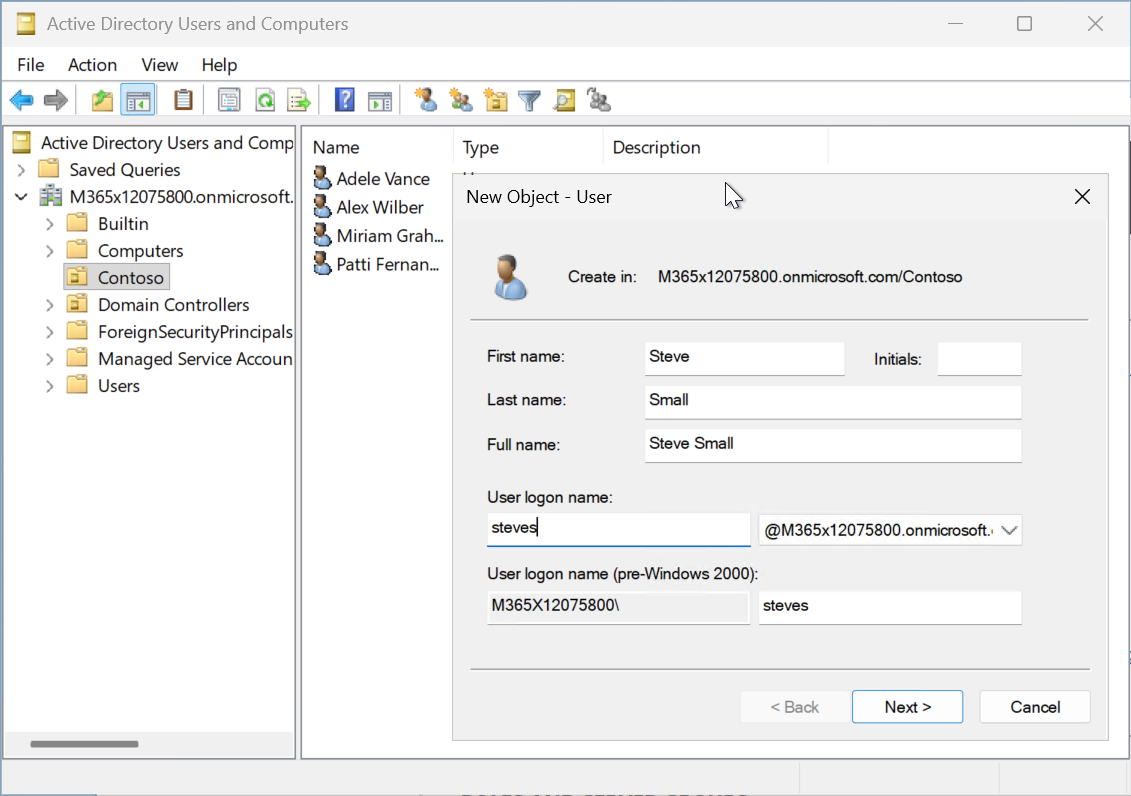
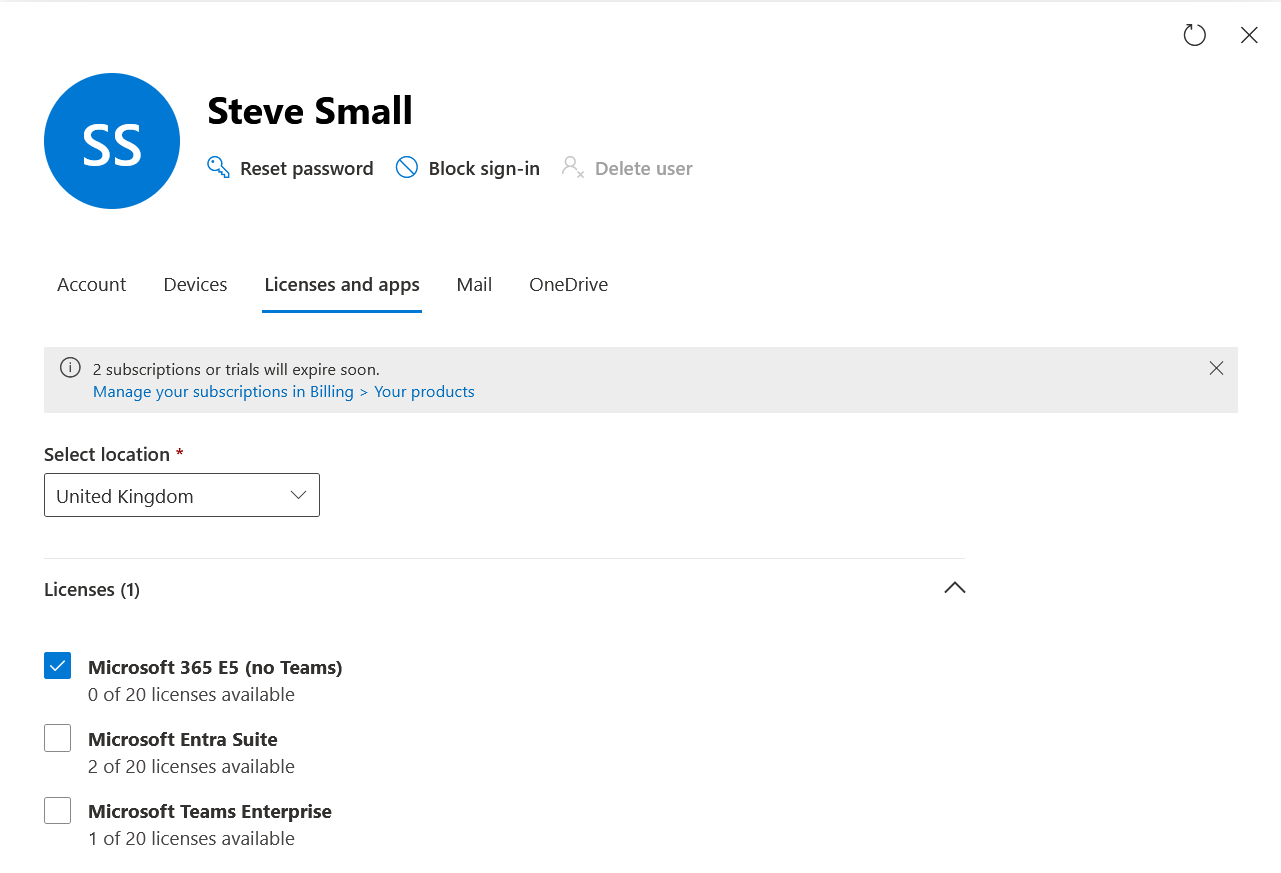
To create new mailboxes for users whilst you are evaluating IsExchangeCloudManaged, create the user on-premises without setting an Exchange attributes. For example, create the user in Active Directory and do not use New/Enable/Set-RemoteMailbox. Let the user sync to Entra ID and then give the user an Exchange Online licence (or any licence that includes Exchange Online). This licence assignment syncs the user to the Exchange Online Directory Service and then you can change the IsExchangeCloudManaged for that user. All further Exchange attribute changes are now done in Exchange Online admin portal, Exchange Online PowerShell or anything else than changes Exchange attributes. Identity attributes are still synced from Active Directory.

In the final screenshot above, we try to set the Office property, which is the physicalDeliveryOfficeName Entra ID attribute and we cannot as that is an Entra ID attribute, but removing that from the cmdlet and we can set a variety of Exchange attributes directly in the cloud.
To delete a user and their mailbox, you just remove the user from on-premises Active Directory (or move it out of scope of sync), even though the Exchange attributes are managed in the cloud. When the deletion is synchronized to the cloud through either of the sync tools, the user’s mailbox is also deleted from the cloud.
And how do you turn this on for all synced identities with mailboxes, groups by default? Well, for ALL mailboxes and synced identities you cannot – but you can turn it on for ALL NEW synced identities, so that you do not need to onboard them individually with IsExchangeCloudManaged. To do this you run:
Set-OrganizationConfig -ExchangeAttributesCloudManagedByDefault
Note that there is no $true or $false, it just swaps the setting from disabled to enabled, or back again. Also not that you cannot see this property if you query it with Get-OrganizationConfig. This is unlike the majority of Exchange Online attributes for modification and why it was done this way I do not understand. Instead you need:
Get-OrganizationConfig | Format-List BlockExchangeProvisioningFromOnPremEnabled
So one cmdlet uses ExchangeAttributesCloudManagedByDefault and the other uses BlockExchangeProvisioningFromOnPremEnabled!
Once you turn on ExchangeAttributesCloudManagedByDefault you no longer use Exchange Server on-premises to create and manage the mailboxes of all future objects, but just create the user in AD and sync it, give the user an Exchange Online licence in M365 and the mailbox that is provisioned is immediately available for modification in the cloud.
Exchange Object Writeback
Writing these changes back to Active Directory was not initially available at the release of IsExchangeCloudManaged, but that changed on May 15th 2026 with the preview release of attribute writeback for Exchange attributes on user objects. Group Source of Authority also supports writeback. Both user and group source of authority writeback to Active Directory is managed by Entra Cloud Sync. Writeback will not come to Entra Connect, only to Cloud Sync. If you already use Cloud Sync to sync from Active Directory to Entra, writeback will need a separate connectors for the reverse direction. That is, you can have Entra Connect Sync from Active Directory to Entra for AD sourced objects, and Cloud Sync from Entra ID back to Active Directory for IsExchangeCloudManaged objects (and for IsCloudManaged once writeback functionality is released for Entra as well as Exchange Online). You can have two connectors both in Cloud Sync, one up and one down, for different objects syncing from the directory where the object is managed.
Looping an object will not work – you cannot have a object that can be changed in both AD and Entra and sync those changes to the other system. The object can either be AD managed like all your synced objects at the moment, or cloud managed. If anyone makes a change to the Active Directory copy of a cloud managed object, then those changes will be lost on the next sync as they will be overwritten by the changes from Entra/Exchange Online.
IsCloudManaged
So now that IsExchangeCloudManaged is covered, lets look at the (easier) IsCloudManaged property. This is only easier in that once it is enabled all the identity attributes that we could not change in Exchange Online or Entra ID portals, shells etc. become manageable. The steps to do this are less easy, in that it is a change via Graph rather than PowerShell, but it will probably come to Entra PowerShell at some point. And finally, as its all about the users identity, anything that has an impact on provisioning these identities needs to be able to work with this change – for example, if you have a HR system updating objects in Active Directory you would only make this change once the HR system can update some objects directly in Entra ID as well.
In this blog post though, its a demo environment, all Active Directory updates are done by hand and so we will turn this on for our test user Alex and see how this is done and what this looks like from our existing Exchange Online PowerShell session.
First, to turn this on – IsCloudManaged is set via Microsoft Graph. For the object that you change the source of authority on, follow the same guidance as Exchange above – wait a period of time around 24 hours plus your sync time from your last changes to the object. Everything recently changed needs to have synced to the cloud before you change IsCloudManaged otherwise any recent and still pending a sync change will not be allowed and not write to the Entra ID object or have opportunity for the Exchange properties to have made it to EXODS. If the object is not an Exchange object then you just need to make sure it has synced the last changes you made to the object.
You should also have synced and changed all your groups to cloud managed before you do any users or contacts. Once a user or contact is cloud managed it cannot be added to a group that is still managed in Active Directory.
Changing the SOA for Groups
Groups, and users and contacts later on, are changed by setting the IsCloudManaged property using Graph. For this you need the Object ID of the group or user, and then check it is not already cloud managed, and then change that property via Graph. These are in the next sequence of screenshots:
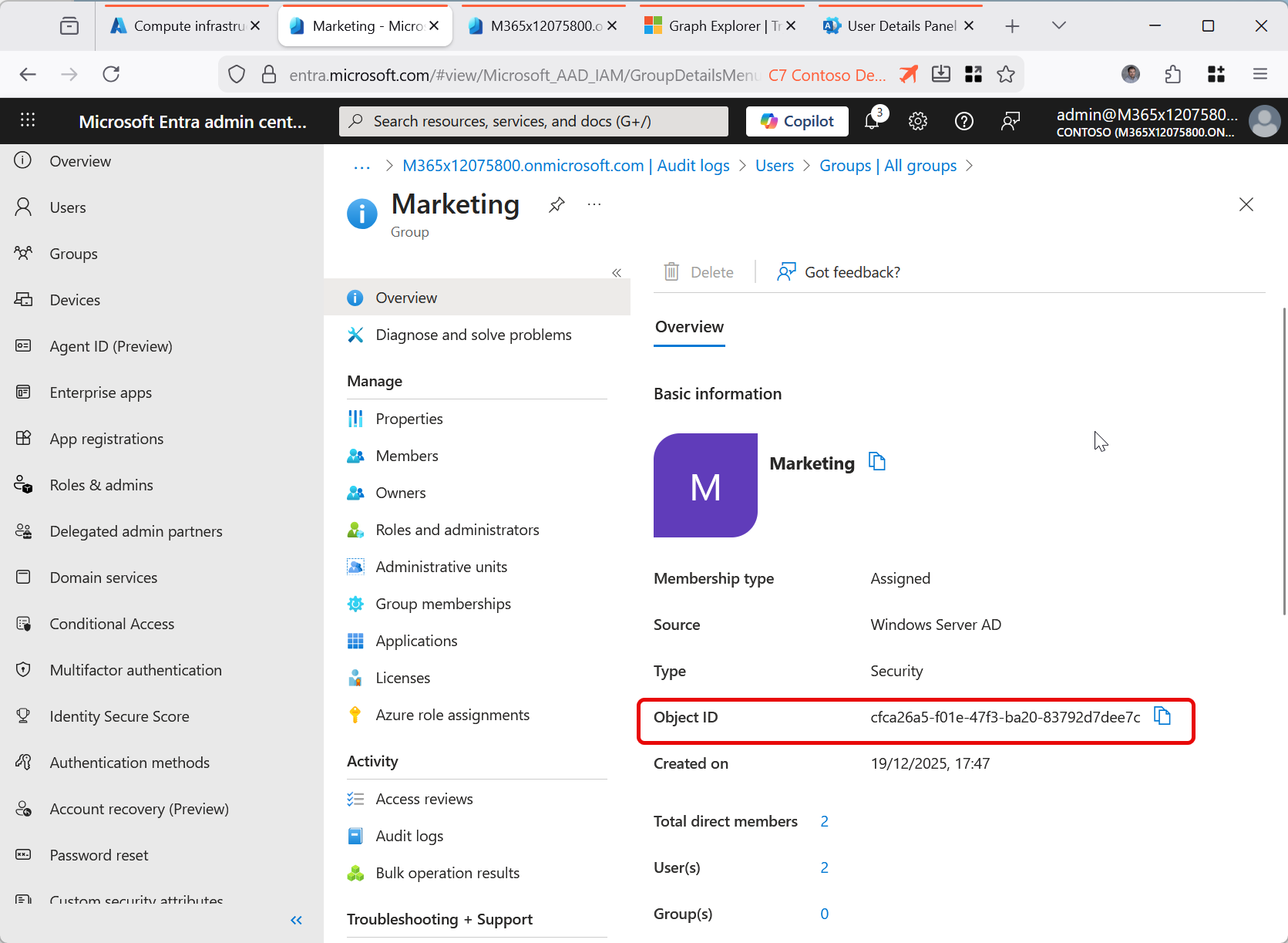
Run the following to check the group is not cloud managed:
GET https://graph.microsoft.com/v1.0/groups/{ID}/onPremisesSyncBehavior?$select=isCloudManaged
If you try this in the Graph Explorer (where all these screenshots are done) [https://aka.ms/ge] and you get a 403, Forbidden error, change to the Modify Permissions tab and consent to the “Group-OnPremisesSyncBehavior.ReadWrite.All” permission. This lets you both read and write the IsCloudManaged attribute for all groups. If that still does not work, remove “/onPremisesSyncBehavior?$select=isCloudManaged” from the query and check you can read the group in Graph Explorer as shown:

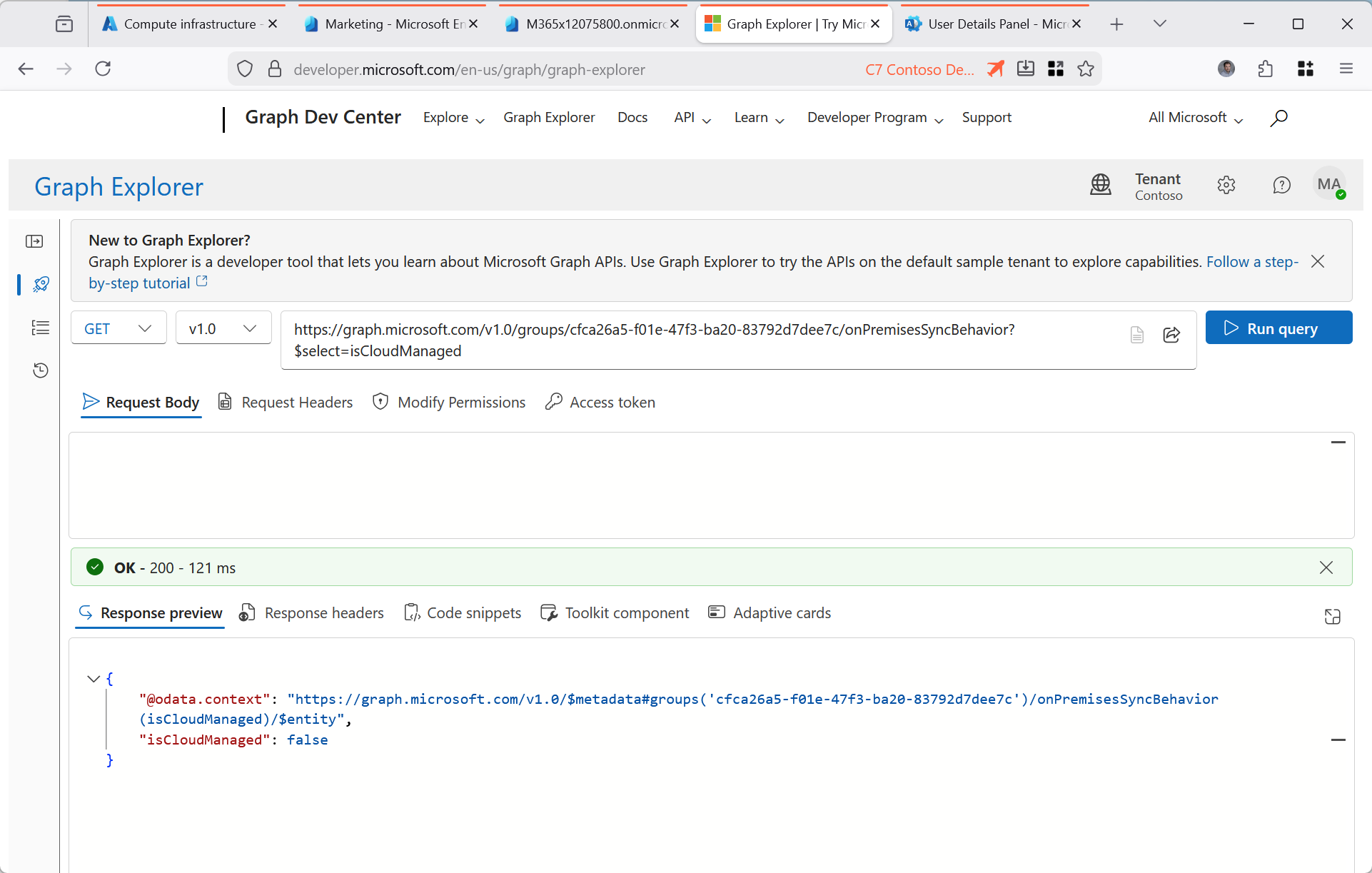
Try and update the group – this should fail at this point, because the group is not cloud managed:
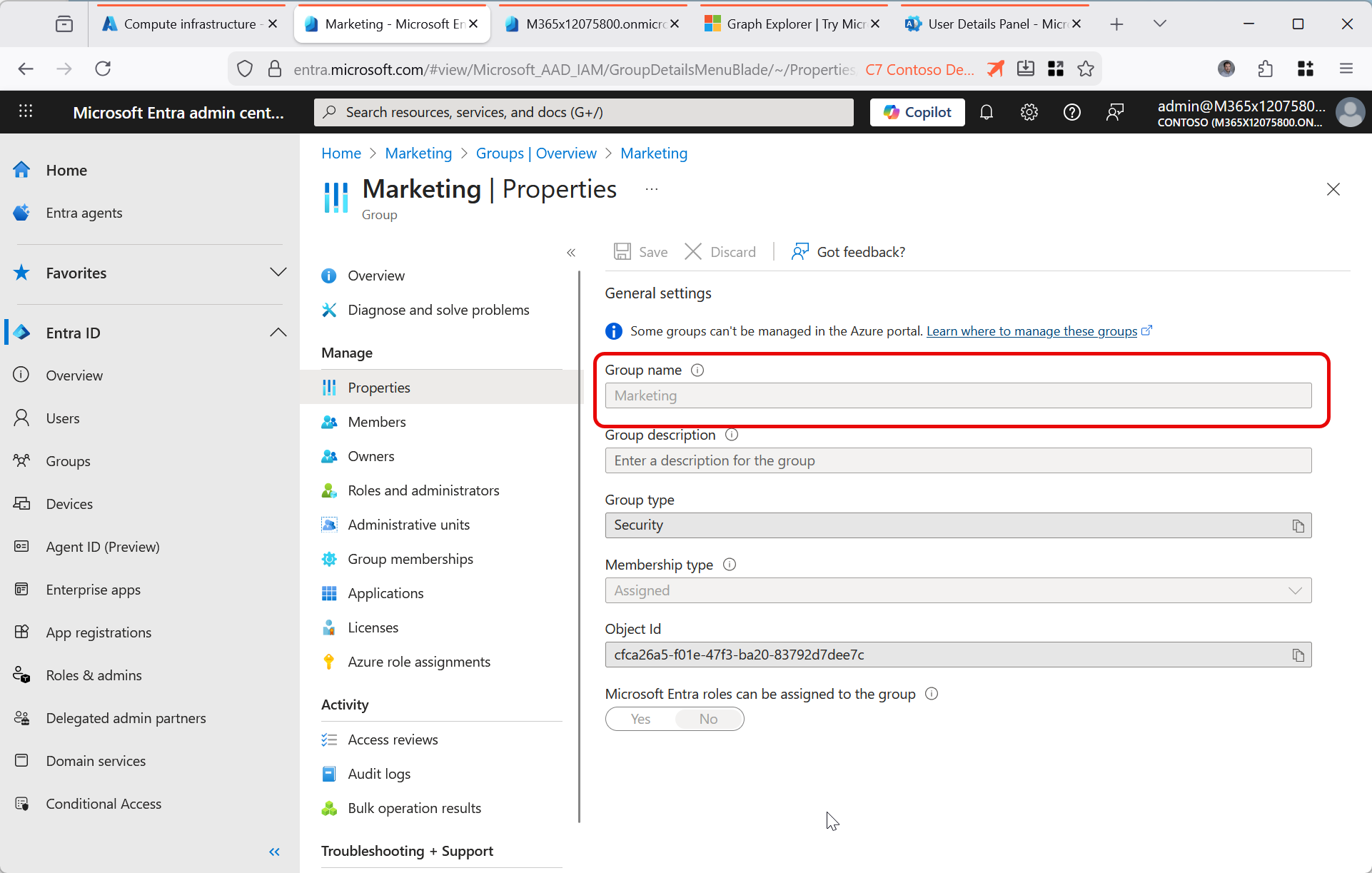

Check your permissions if you cannot modify the object in Graph Explorer – even if you have the correct roles to modify it via the Entra portal, you need the permission Group.ReadWrite.All (at least) to change the group via Graph. You will get a different error from the above if you lack the permissions vs the group being AD managed and therefore not manageable in the cloud.
Update the group so it IsCloudManaged. For this you need to PATCH the object to the following URI:
PATCH https://graph.microsoft.com/v1.0/groups/{ID}/onPremisesSyncBehavior
   {
     "isCloudManaged": true
   }
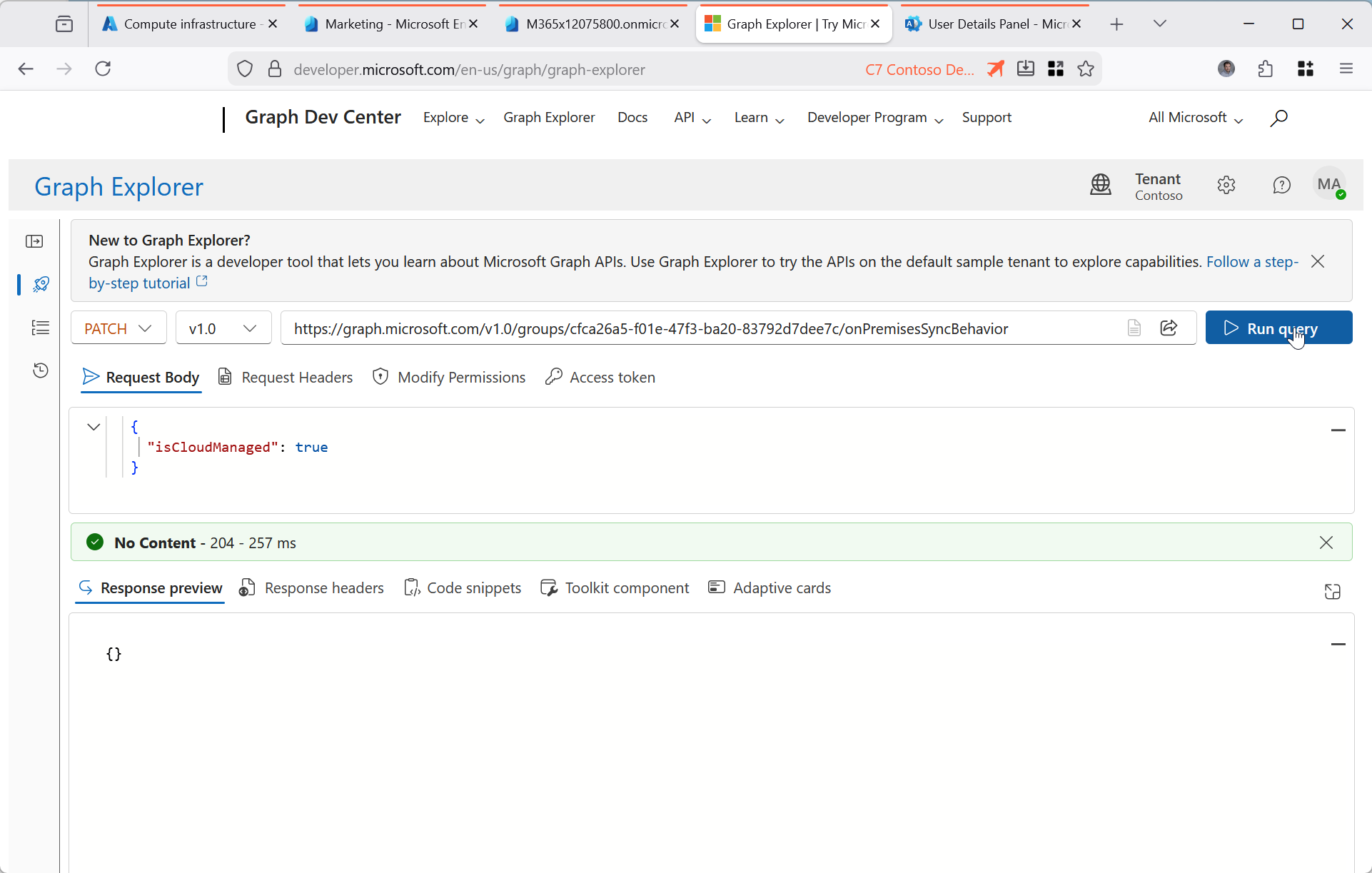
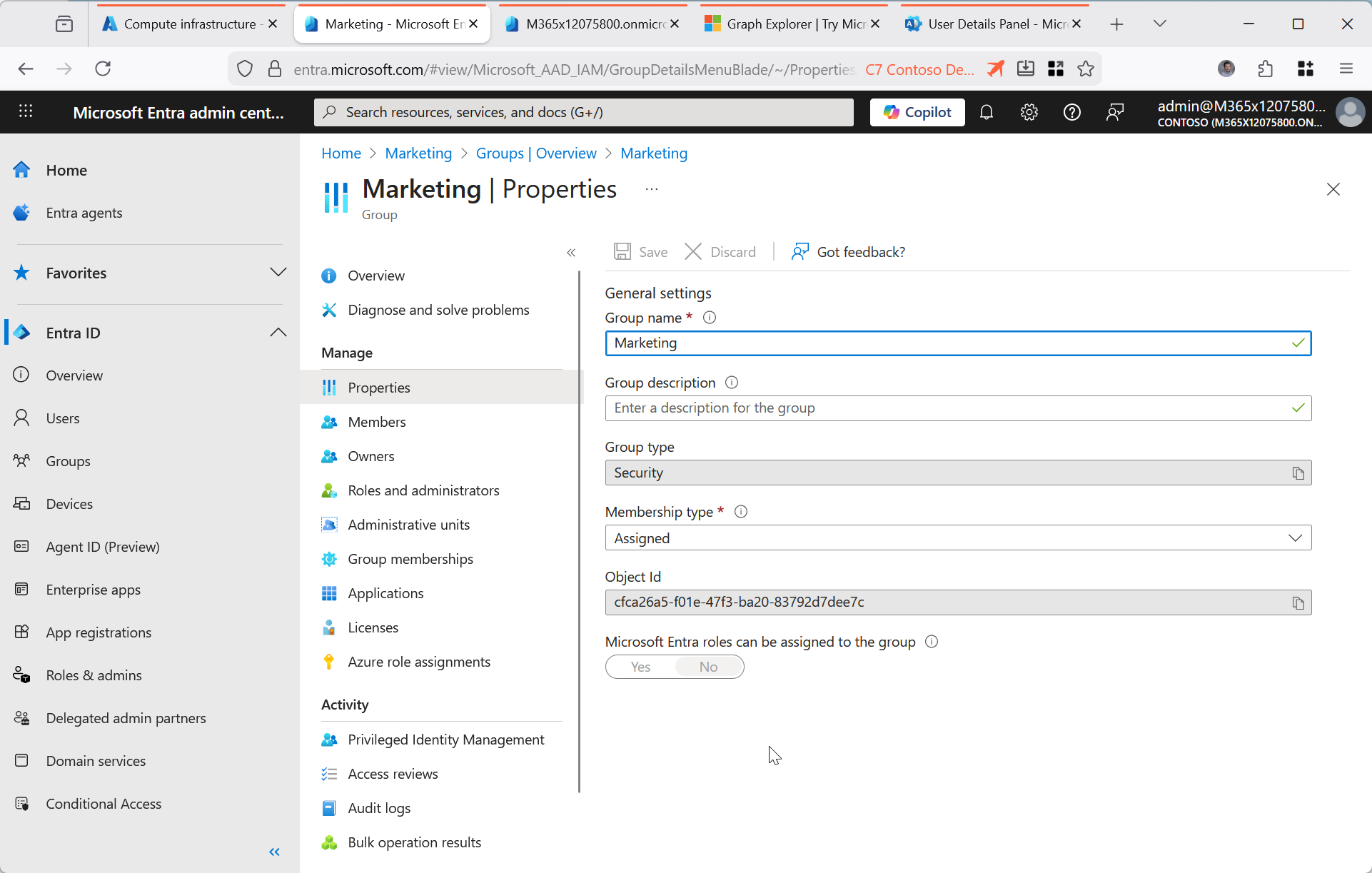
Repeat for all your relevant groups, and then do this for your contacts and then users.
Changing the SOA for Users
First check it is AD managed, then try making a change (and this will fail) and then change the IsCloudManaged property for the user:
GET https://graph.microsoft.com/v1.0/users/{ID}/onPremisesSyncBehavior?$select=isCloudManaged

PATCH https://graph.microsoft.com/v1.0/users/{ID}/
   {
     "DisplayName": "User Name Updated"
   }

PATCH https://graph.microsoft.com/v1.0/users/{ID}/onPremisesSyncBehavior
   {
     "isCloudManaged": true
   }
You will need the “User-OnPremisesSyncBehavior.ReadWrite.All” to change the sync setting and “User.ReadWrite.All” permissions to modify the user object for this to work on user objects. For contact objects you need Contacts-OnPremisesSyncBehavior.ReadWrite.All permissions to change the sync setting and then Contact.ReadWrite.All after that.
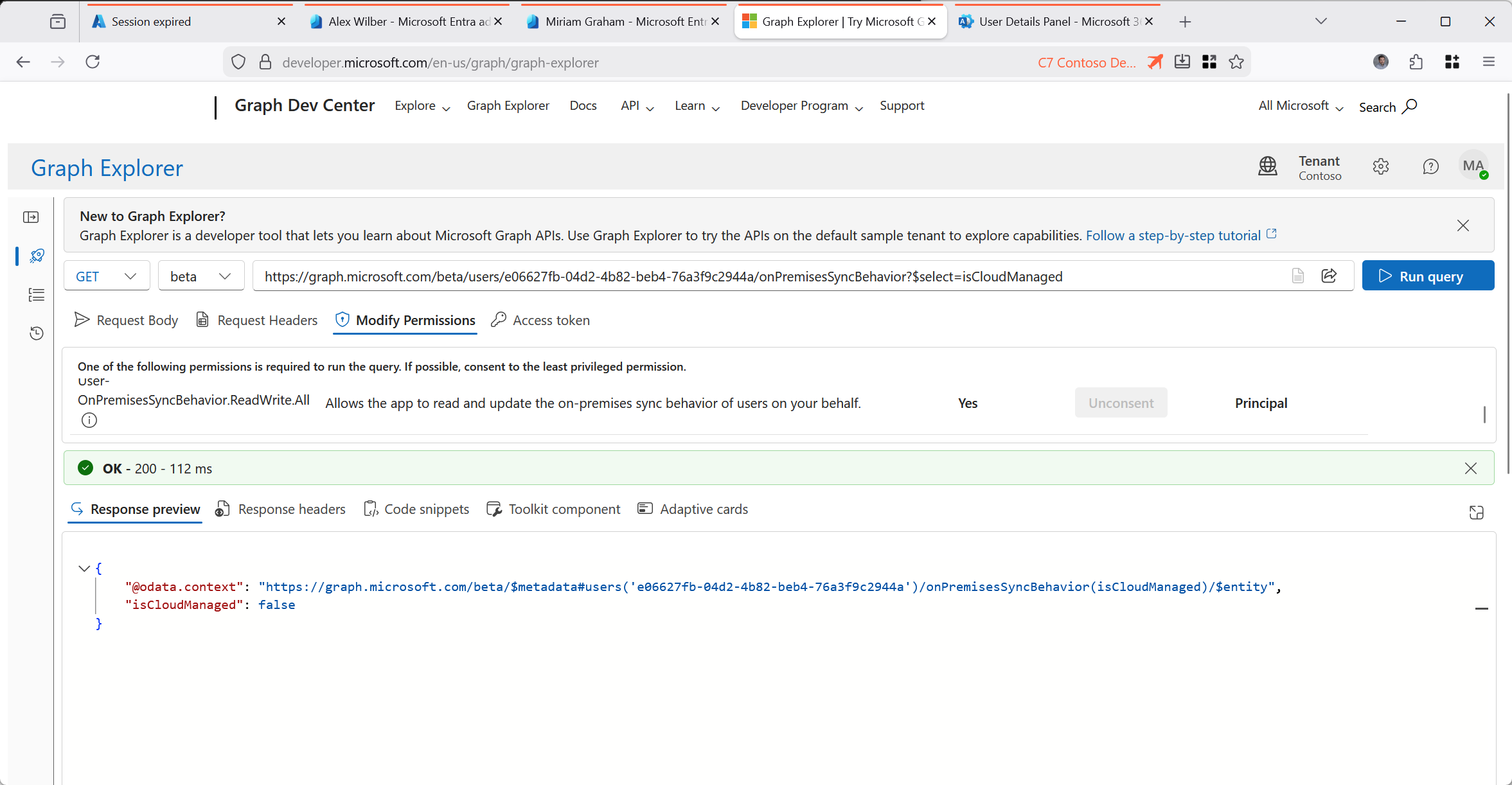
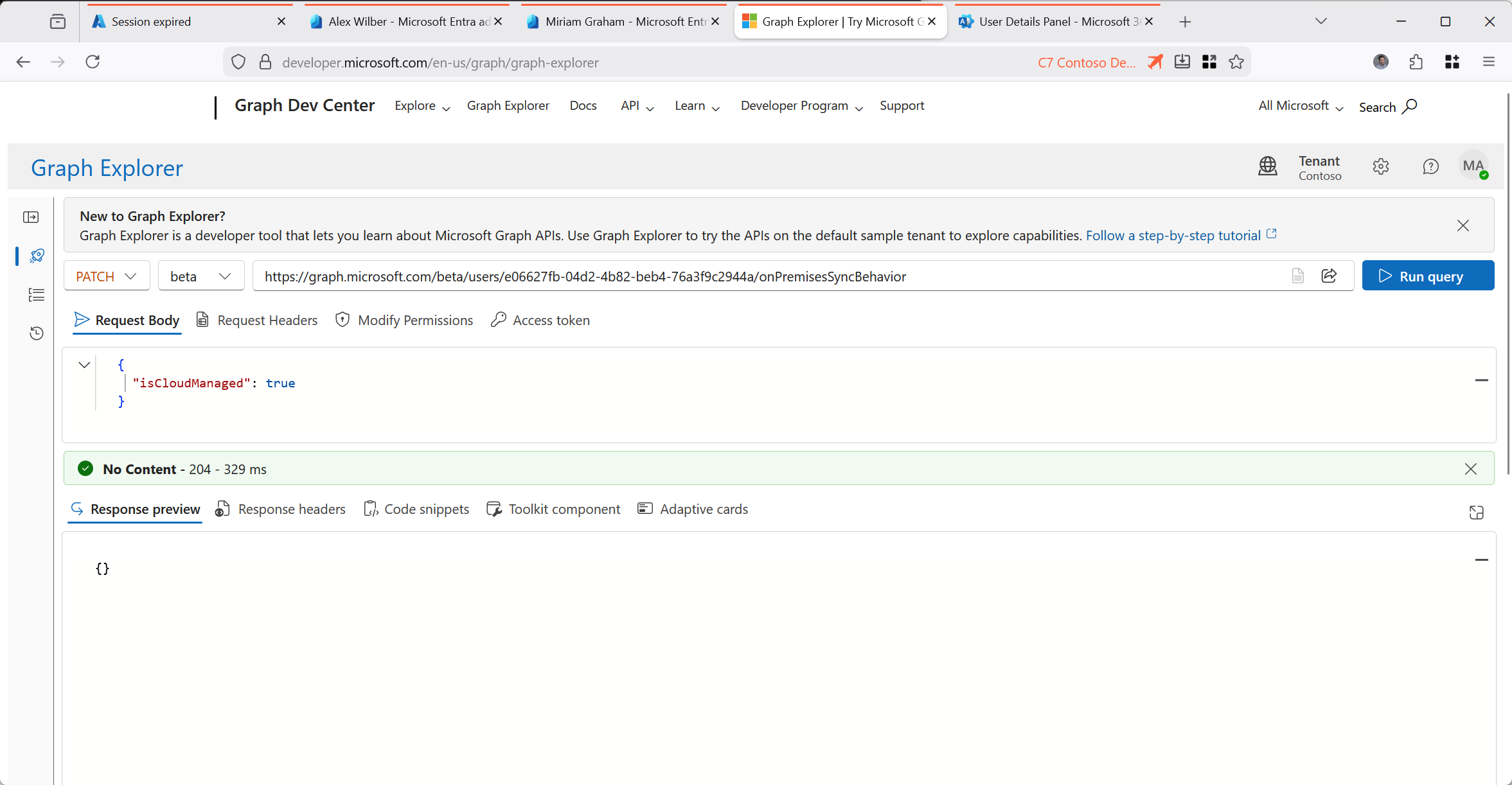
Note that in most of these screenshots the API endpoint is on the Graph Beta endpoint. This has changed after the initial writing of this post and the v1.0 endpoint now supports IsCloudManaged changes.
You can also make changes via PowerShell, but the cmdlet needed is Invoke-MgGraphRequest
Invoke-MgGraphRequest -Method PATCH `
  -Uri "https://graph.microsoft.com/v1.0/users/{id}/onPremisesSyncBehavior" `
  -Body @{ isCloudManaged = $false }
The Effect of Both Settings
So up-to this point we have been looking at IsExchangeCloudManaged for some users, and then, for a different user we set IsCloudManaged. Lets see what this user, who has an Exchange Online licence, looks like in Exchange Online:
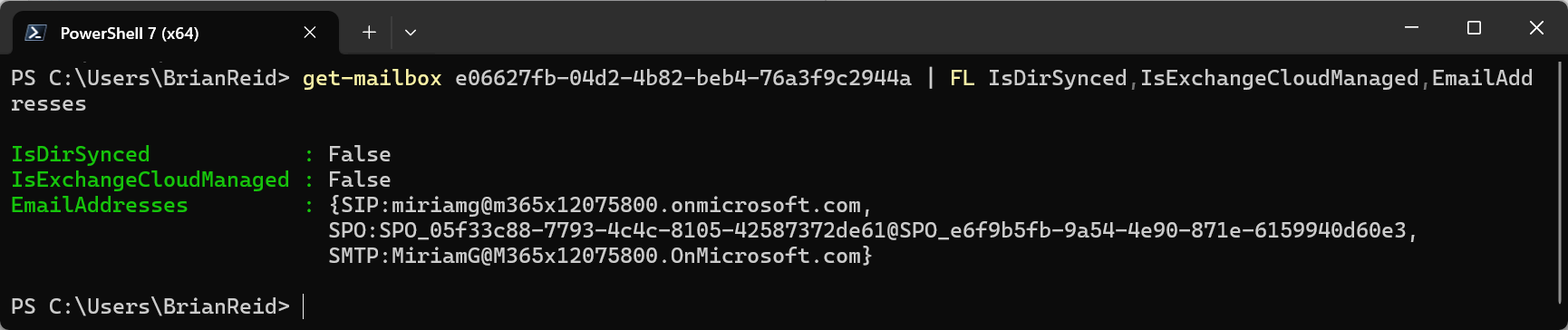
You can see from the above that when you are IsCloudManaged in Entra ID, you are not shown as IsExchangeCloudManaged, but you are also shown as IsDirSynced = False. But to be IsCloudManaged you needed to be synced initially – so becoming IsCloudManaged shows you as no longer synced from on-premises. In the sync tool, even though your user is in the scope of OU or groups to sync, that sync is blocked by the sync tool as it will not sync objects that are IsCloudManaged = True.
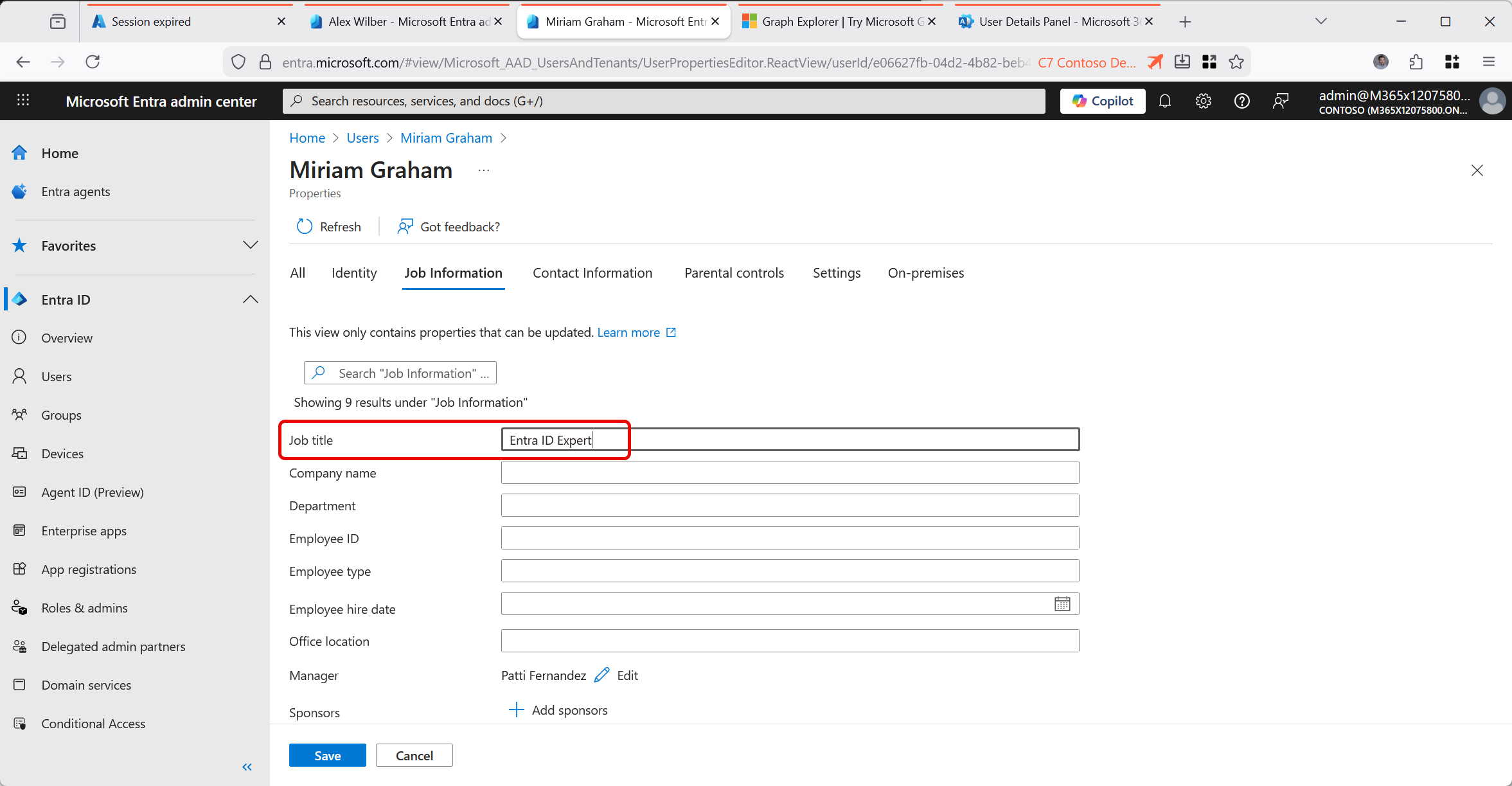
Lets take a look at the last user, MiriamG. This is the one that we have set IsCloudManaged, and so now I can edit this user in the cloud portals (Entra ID portal shown below), and because IsCloudManaged includes the attributes that IsExchangeCloudManaged controls, I can also change Exchange attributes as well:

Switching Back SOA
To turn of IsCloudManaged and set the source of authority back to Active Directory, you set IsCloudManaged=FALSE and the object gets synced from Active Directory again (overwriting any Entra ID/Exchange attributes you had set when it was cloud managed).
Note that even though you change the SOA of the object, the object will remain IsCloudManaged = True until the next successful sync runs. Up to that point you can still manage the object in the cloud, but once both the API endpoint has been updated AND sync has occurred, the object will return to SOA from Active Directory and attributes will update to match what is stored in Active Directory.
There are two cases though where this does not occur – if the BlockCloudObjectTakeoverThroughHardMatchEnabled feature is enabled on the tenant or if the user object in Entra ID holds a privileged role and an On-Premises Immutable ID value.
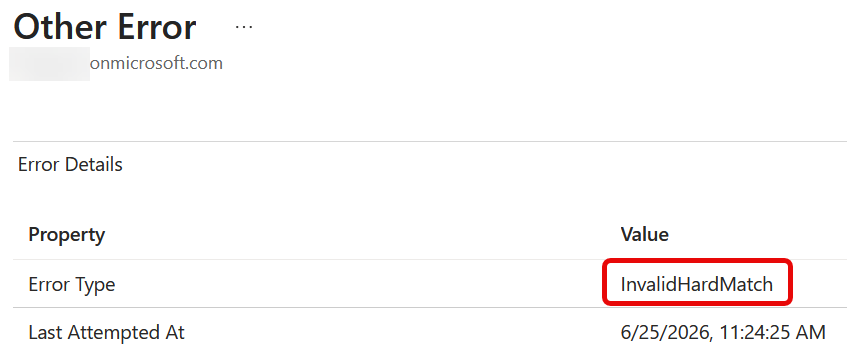
In the above screenshot we see a user showing InvalidHardMatch when viewing the Entra Connect Sync errors (Entra Admin Portal > Entra Connect > Connect Sync > Microsoft Entra Connect Health > Sync Errors > Other. In this example the user was a Global Admin and in June 2026 Microsoft disabled Entra Connect Sync from doing hard-match (match based on ImmutableID) for cloud objects with privileged roles.
Summary
So to summarise, If you set IsCloudManaged then IsExchangeCloudManaged is not needed because IsCloudManaged covers all the objects attributes – the object is no longer synced and so acts like any other previously unsynced (cloud) object. But if you only set IsExchangeCloudManaged then the object remains synced from Active Directory (IsDirSynced = True) for identity attributes but Exchange attributes are not synced any more, and these, and only these, can be changed in Exchange Online admin tools.
So to move away from your last Exchange Server on-premises, you are looking at IsExchangeCloudManaged. And to move away from Active Directory completely, you are looking at IsCloudManaged.
Photo by Mart Production: https://www.pexels.com/photo/women-broken-plastic-curtain-7767677/


Leave a Reply