
Prior to 2024, Intune was set up for Google Enterprise with a Gmail account. This changed in that year and if you had set up Google Enterprise before 2024 you can migrate to a enterprise Google account rather than someone’s Gmail address.
You start this process an an Intune Administrator with a username in your domain, so for example admin@domain.com and not the MOERA domain (for example, admin@tenant.onmicrosoft.com). You might get sent a verification email and so you might want to temporally give this account a mailbox, though I did not need to do this when going through the below steps.
To start, Intune Admin Center > Devices > Android > Enrolment > Managed Google Play:
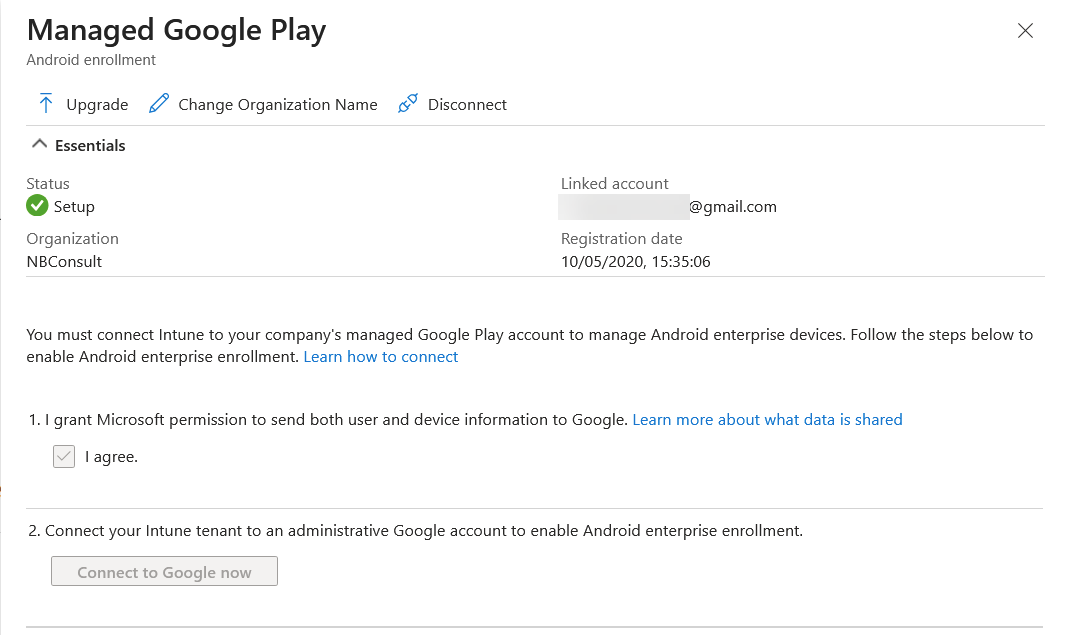
Here you will see an Upgrade button. Click this:

A popup window appears and you are asked to sign into Google Enterprise. If you organization has already done this then you will need to be invited as a Google Enterprise user by an existing admin (at https://admin.google.com). But if you have not done this for your domain, you just need to enter the username of your Intune Admin if it was not already added here for you.
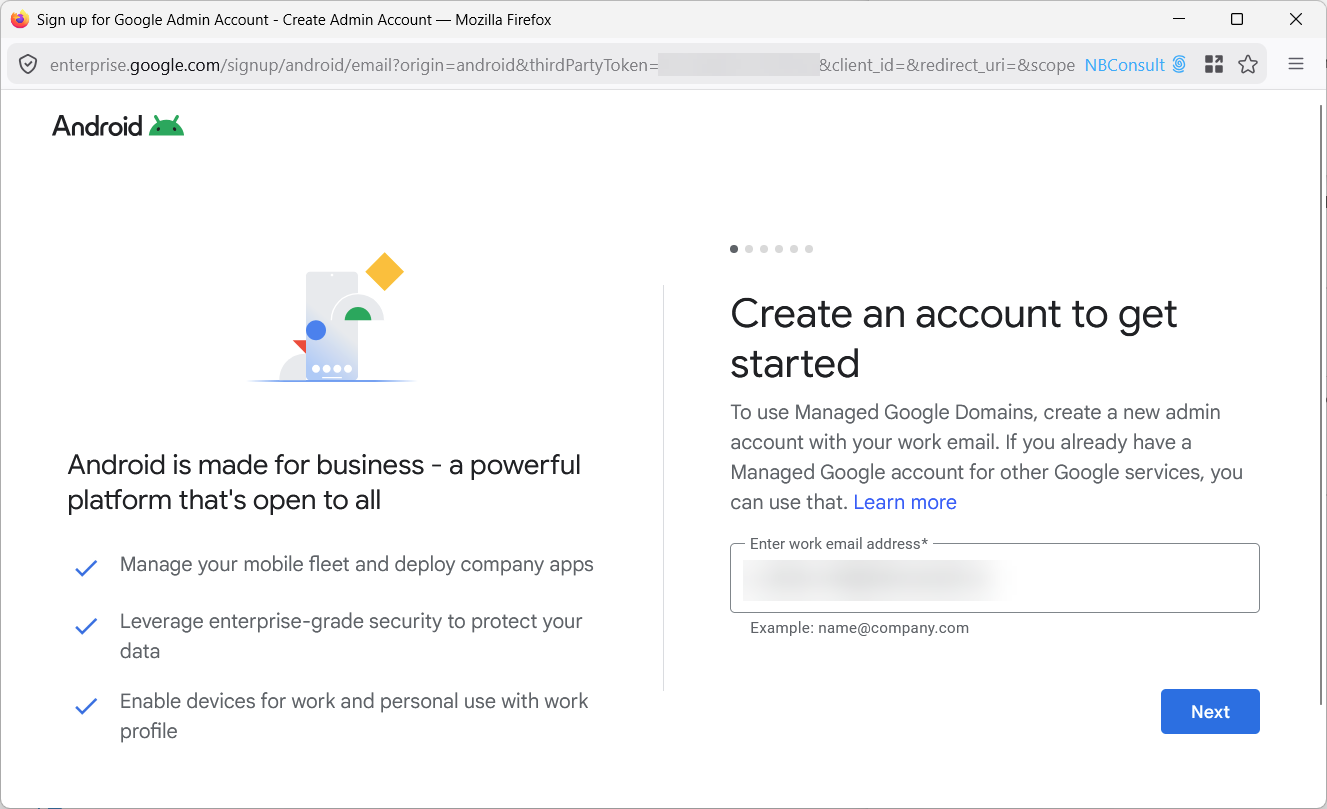
Click Next and you will be told that you have entered an Entra ID and so should sign in with Microsoft:
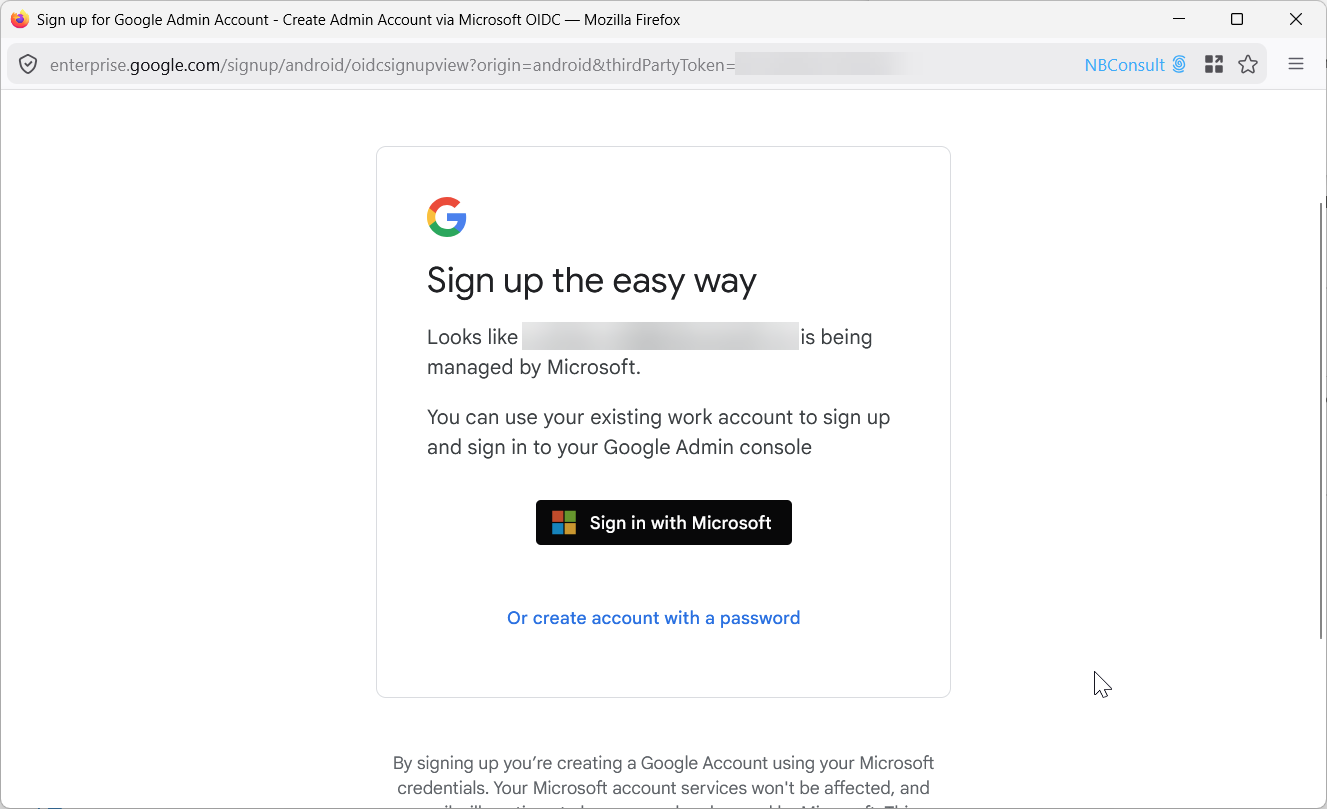
Once you sign in you will be asked to consent to the Google Workspace app. This will be created in your tenant. You do not need to consent for this for all users as doing this just for your user account is enough.
Complete the sign up form, enter your name and company name and add your marketing preference:
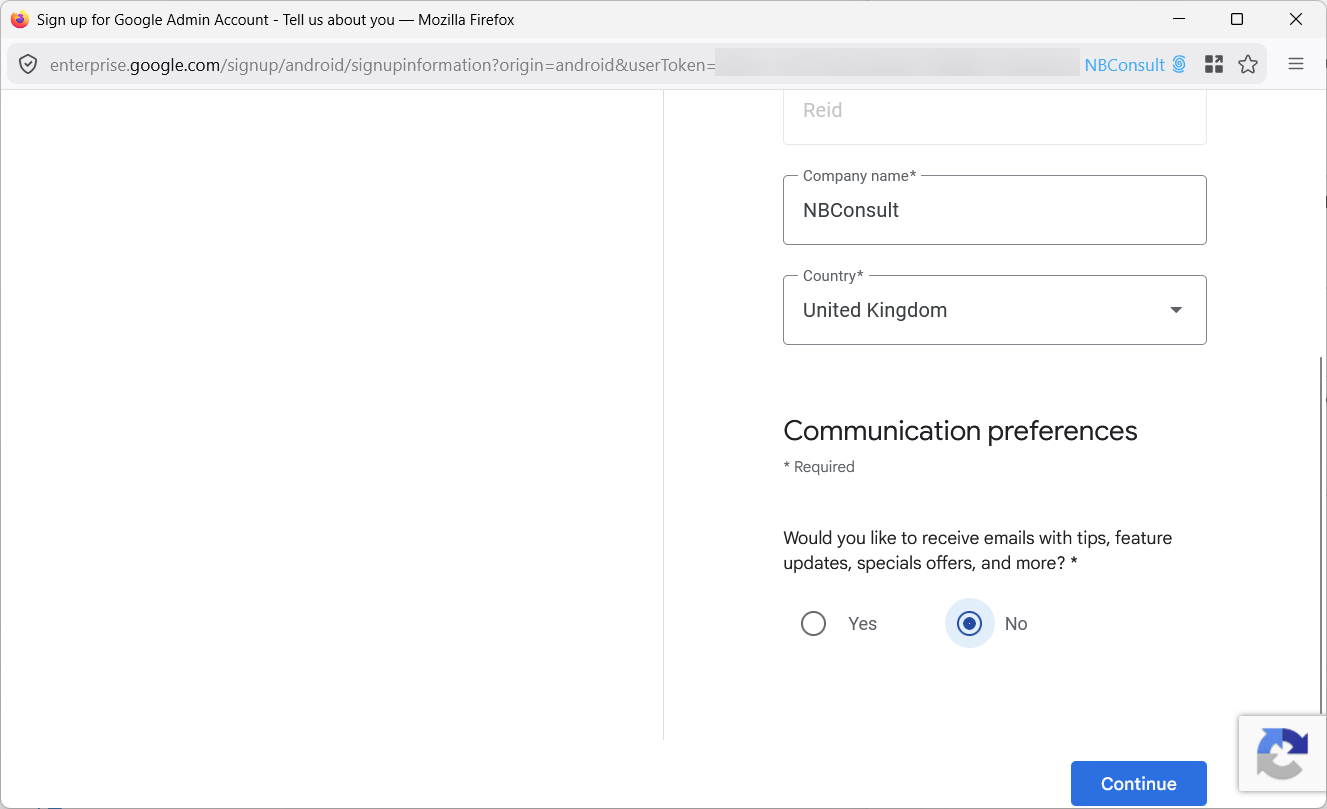
Google will now offer you other services, but Android Enterprise is all you need for Intune. Click Next at the bottom of the page:
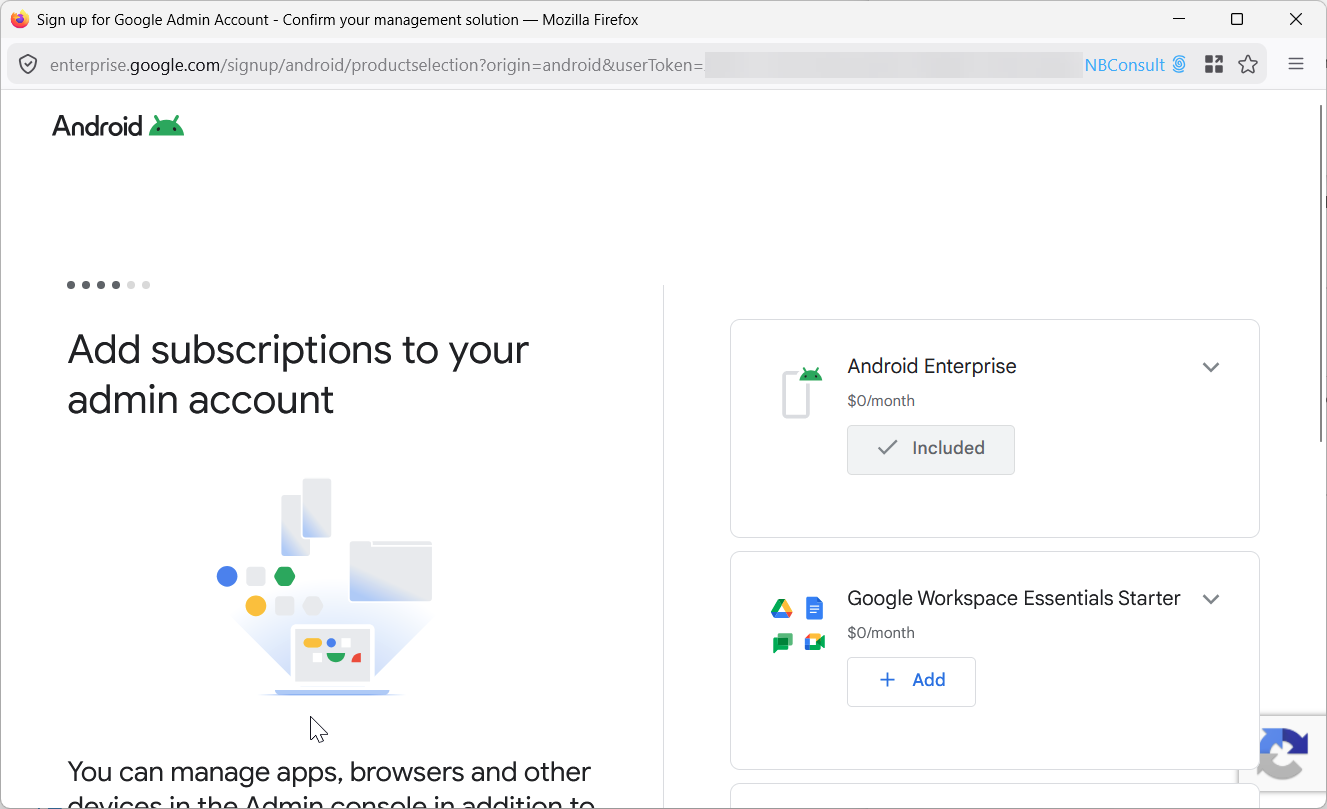
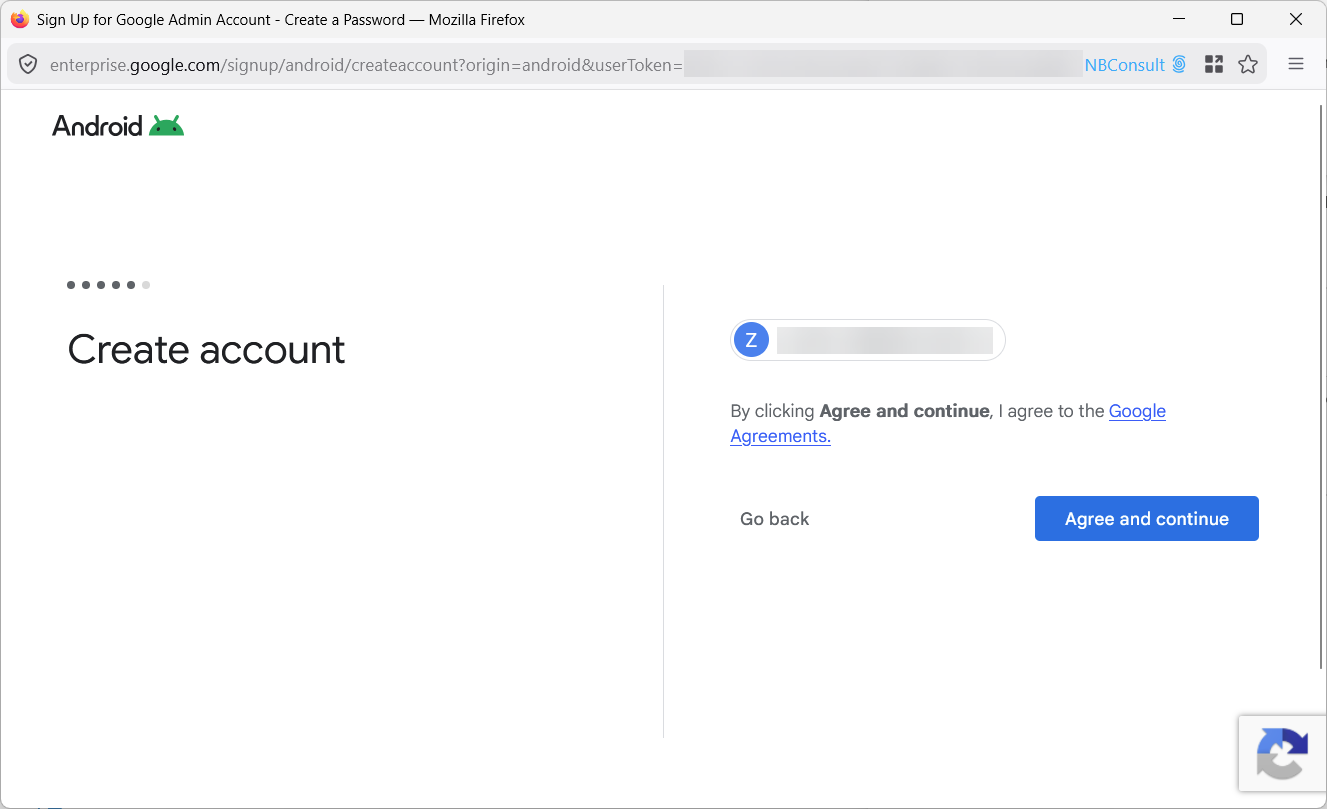
A second agreement is required:
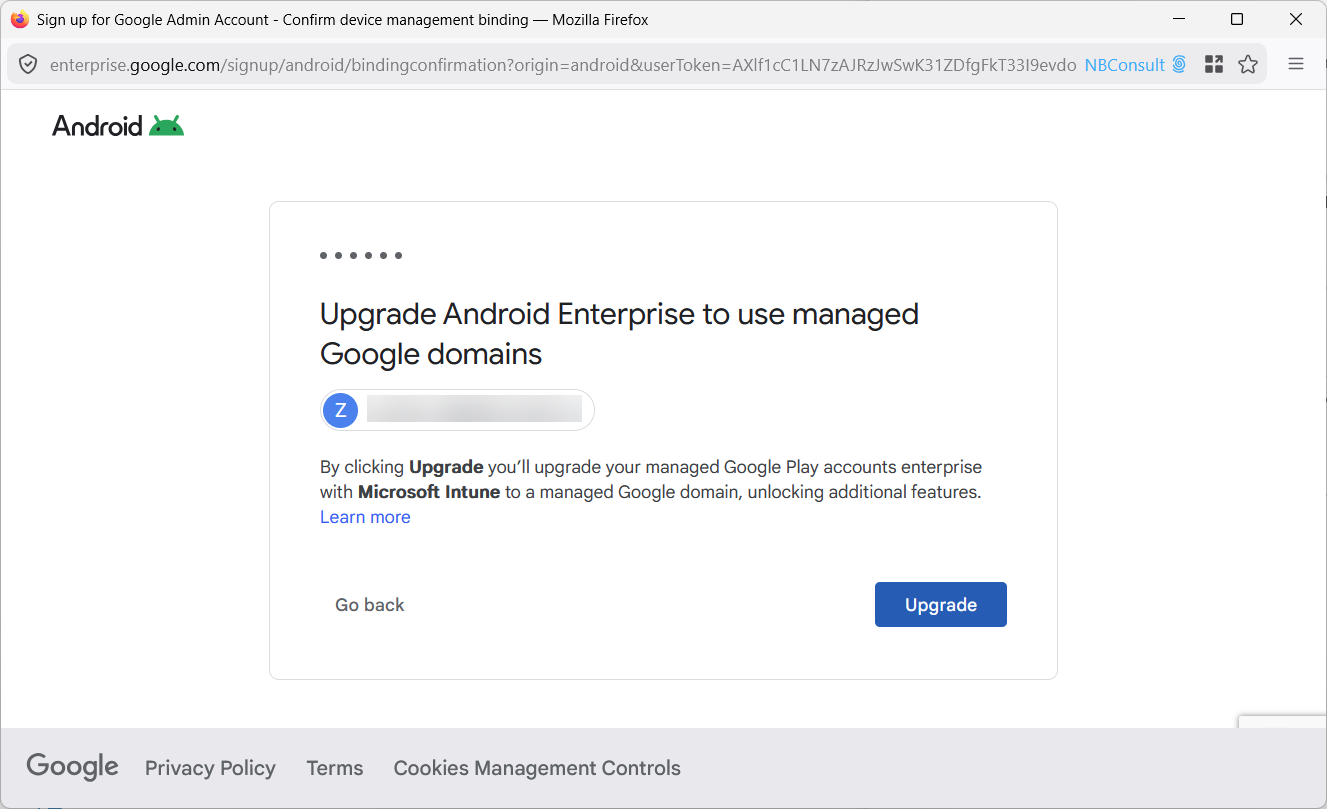
And finally a confirmation to upgrade Android Enterprise to use managed Google Domains:
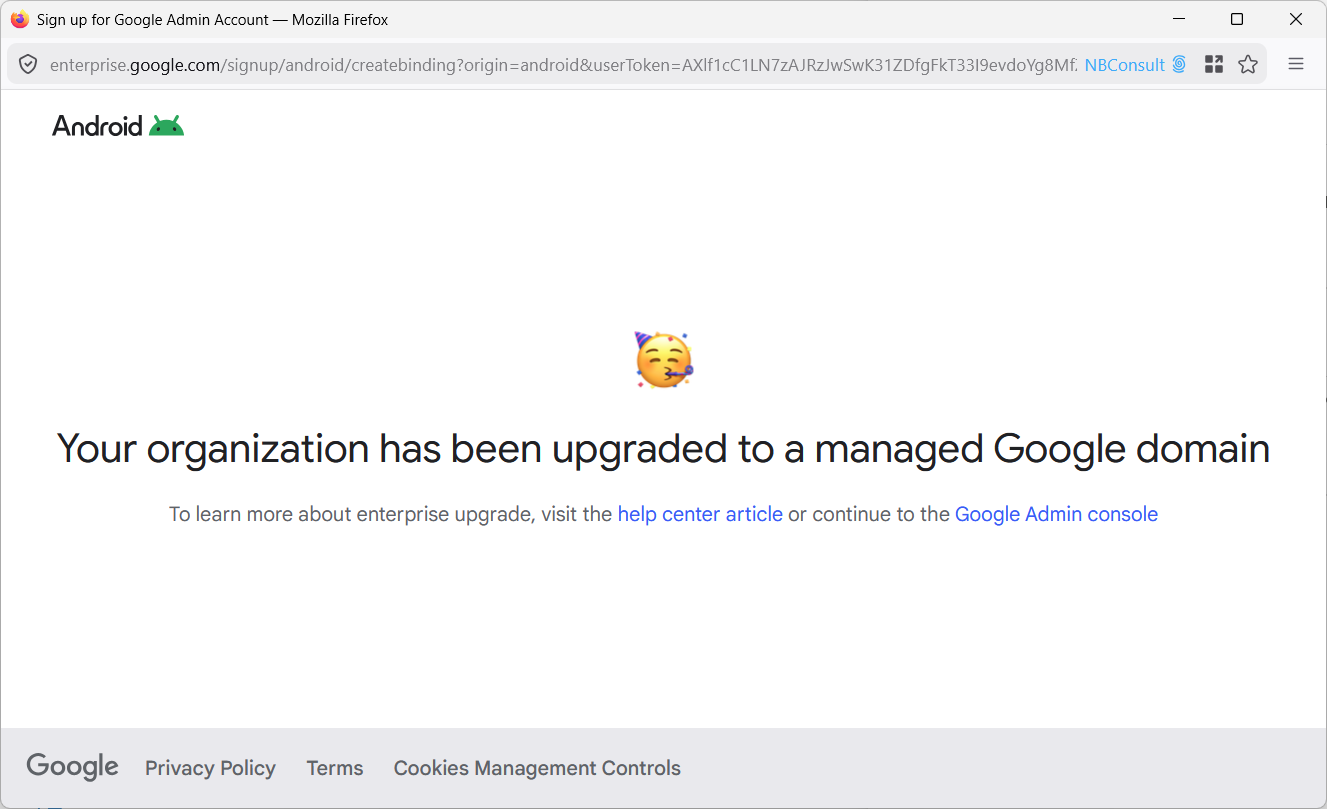
The Google logo will light up colours and move around for a minute or two and then tell you that your organization has been upgraded to a managed Google domain:
You can now add other admins to Google Enterprise. Visit https://admin.google.com and invite someone else in your team. You do not need to do this, but it would mean that you had more than one admin account for Google Enterprise – maybe consider inviting your Entra Break Glass accounts, so you have a way into this service as well in the case of an outage (the accounts need to be in your domain and not your tenant MOERA domain).
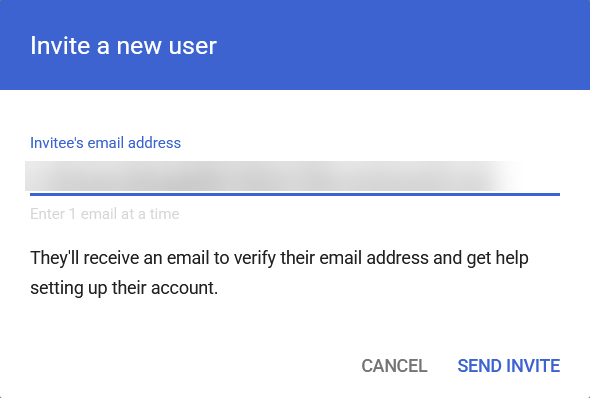
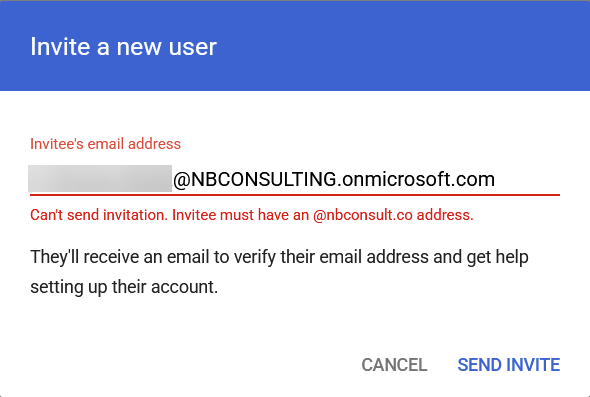
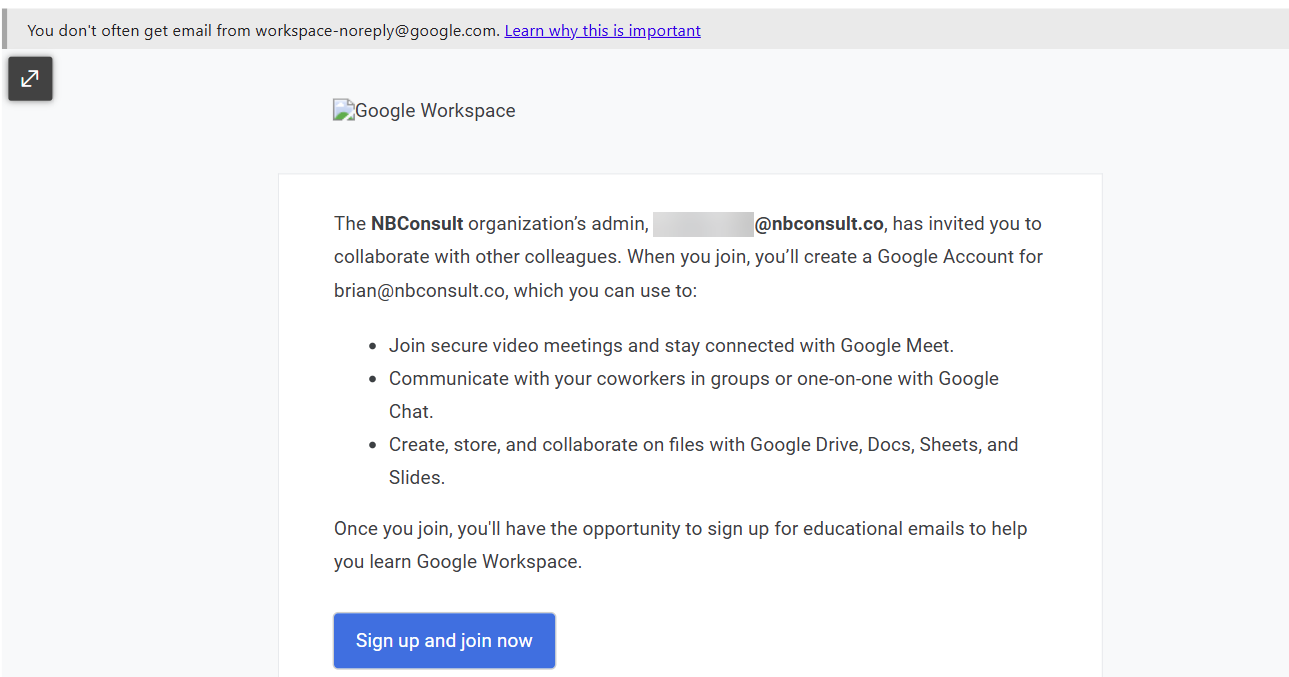
This invitation will set up Google Workspace for this domain. You have a few privacy pages to “next” through. You don’t need to complete these though, as all you need to do is get far enough in the process that your user account appears in the users list in Google Admin.
Once you are in the users list, click the new user and under Admin roles and privileges select Assign Roles. Make this new user a Super Admin
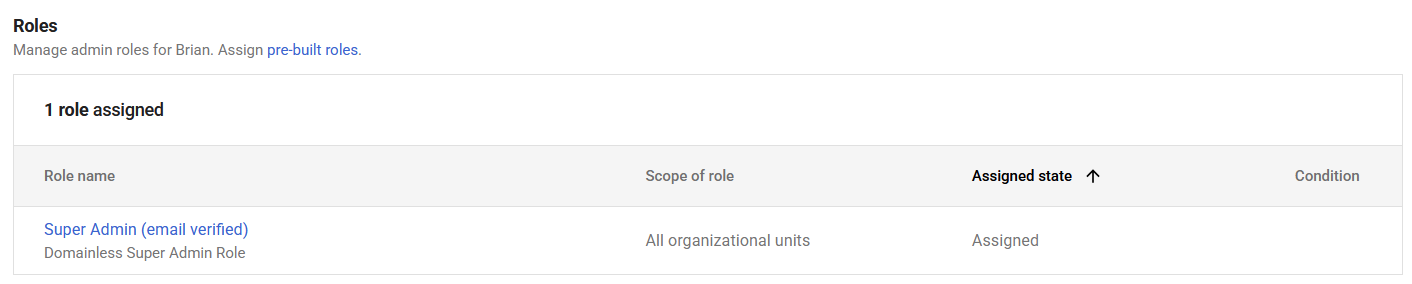
Your upgrade, or setup, to Google Android Enterprise is now complete.
Leave a Reply