
Windows 365 is one of Microsoft’s cloud hosted virtual machine offerings and is generally very simple to set up, especially in a tenant that has not ever been customised! Take on these licences in a tenant that has been around a number of years, or has introduced some improved security or compliance settings and you might not have an easier solution to assigning or provisioning Windows 365 machines to end users. Mainly because the error messages Microsoft show on the portal are next to useless!

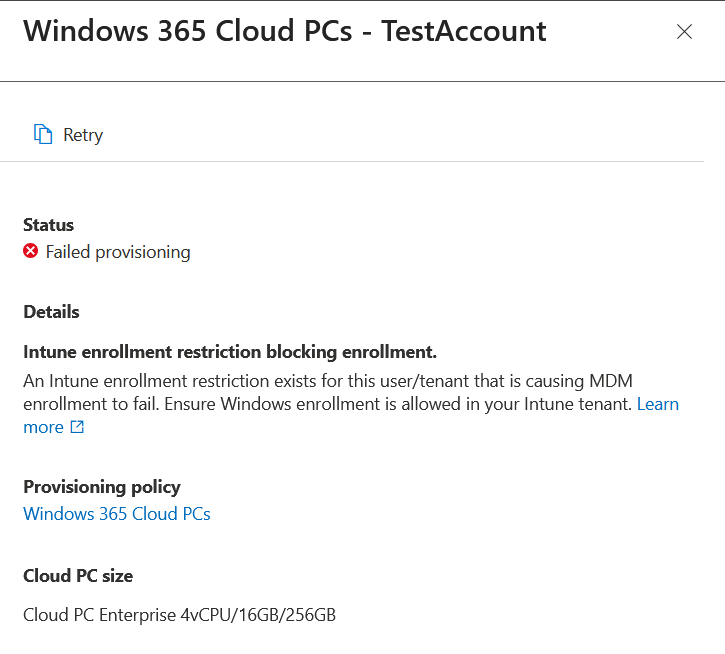
I came across one such issue in the last few days with provisioning. Windows 365 Provisioning said that an enrollment restriction exists for this user/tenant. The problem with this error is that its not detailed enough, becuase Windows enrollment is allowed in the tenant, its just that there are enrollment rules and the documentation does not fully describe exactly who the machine is enrolling as and whether or not its “corporate” or “personal” at the time it enrols, and you can have rules that restrict any of these.
The setting to investigate is in the Intune Admin Center, Devices > Windows > Enrollment > Device Platform Restriction.
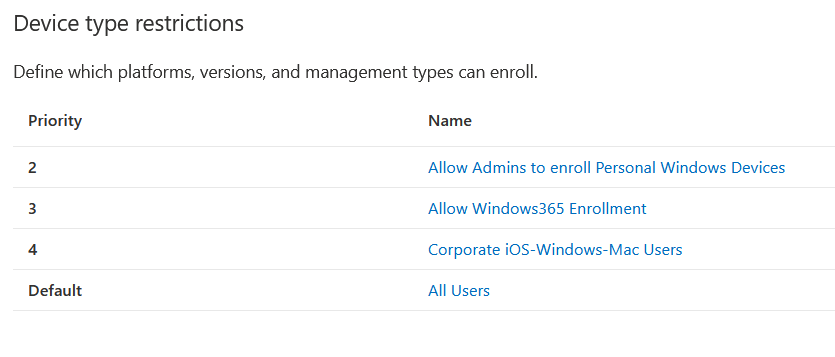
As you can see, we have a “Allow Windows 365 Enrollment” policy, which is assigned to the group that contains the users with Windows 365 licences. This policy allows both company and personal devices to enrol, but that does not work. Nor did company only (corporate, aka “MDM”) devices to enrol:
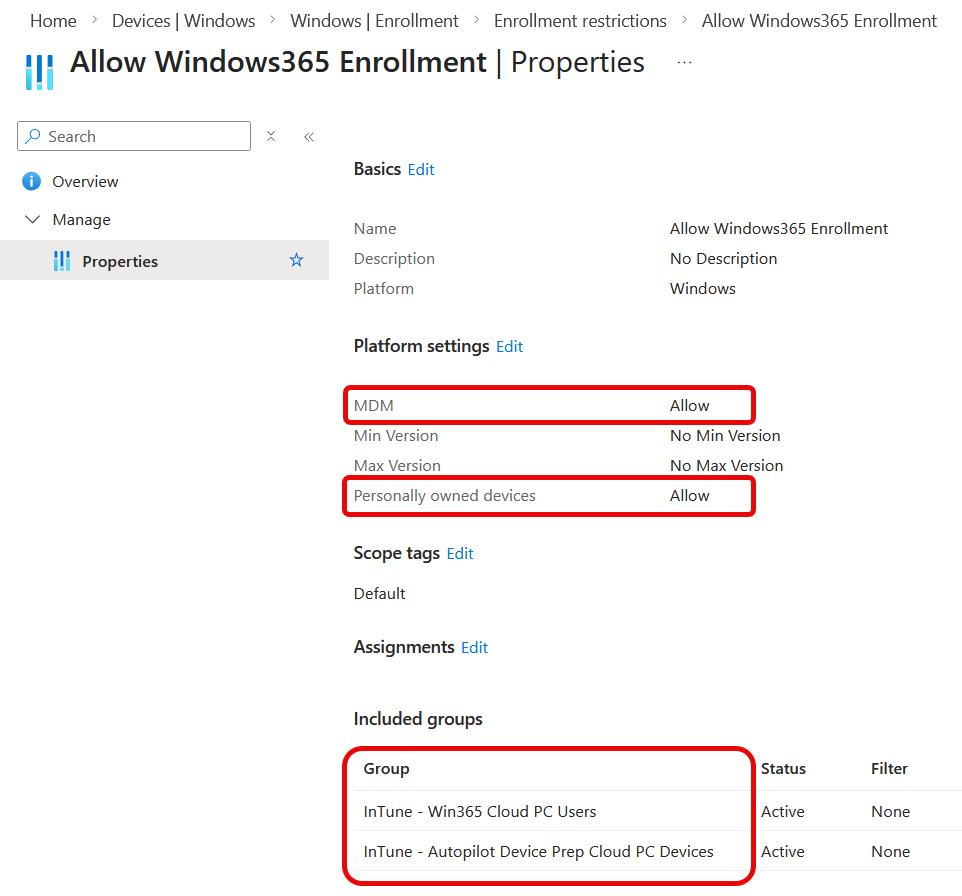
The two groups that I have assigned to this policy are the afore mentioned user group that contains the users with Windows 365 licences and the second group are those that Autopilot Device Preparation policies will place a device into. So in theory both the user and the device that is being provisioned are allowed to enrol corporate or personal devices – but as we see from the earlier status, this failed.
One thing not shown above is the “Default” policy. The default policy applies to “All Users” and in this tenant is restricted so that no devices can be enrolled – only users in the higher policies will be allowed. In normal Windows out of the box experience (OOBE) and Autopilot provisioning, these restrictions work and those that need to register devices can do so. They just don’t work for Windows 365!
The possible reason for this is the throwaway comment in the setup docs, “After the Microsoft Entra ID object is available, the Cloud PC enrolls in Intune. This device enrollment doesn’t need user credentials“. Is this “no user credentials” the issue?
So how do we solve this without allowing all users to enrol personal or corporate devices via the Default “All Users” policy – because that particular configuration works!
So lets see what I need to do to get it working, but not open policy to all users, all devices!
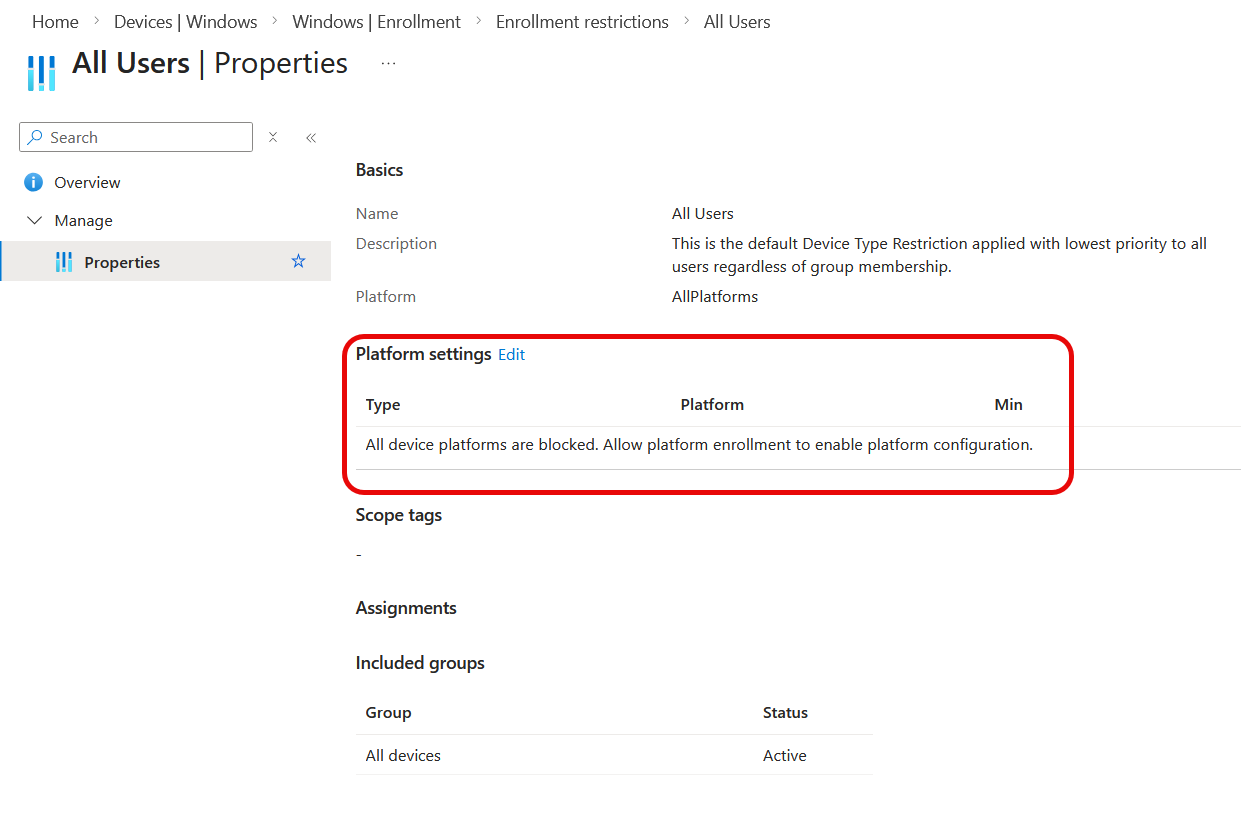
If we have the above configuration then provisioning will fail. Even if we have another policy (as shown earlier) for your users or devices.
So the first option I am going to try is a provisioning policy for Entra Joined devices, no Autopilot Device Provisioning and just allowing corporate devices in the “All Users” enrolment restriction policy.
If we edit this All Users (aka Default) policy and choose to allow “Windows (MDM)”, aka Corporate, devices as shown – we need to remember to turn of the “Allow” option to the right, under personal devices:
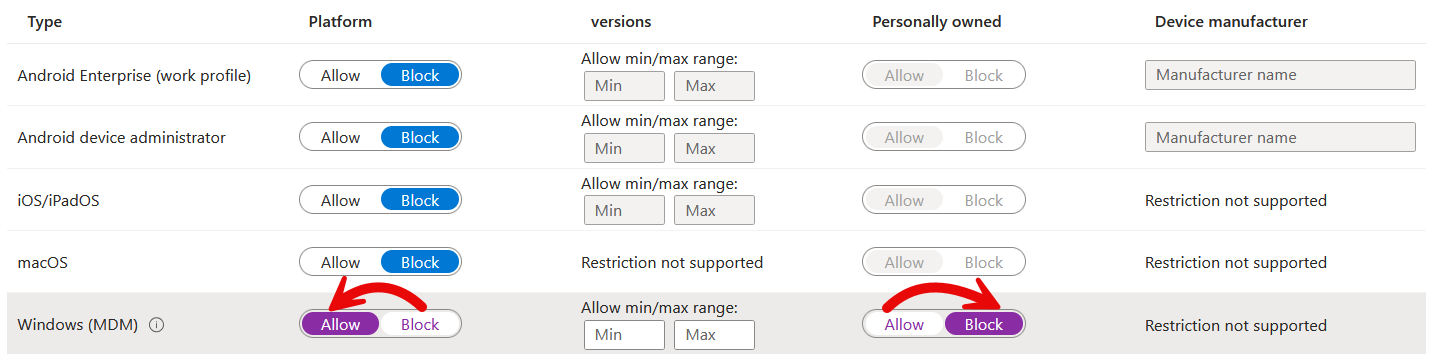
On the main enrolment restrictions page there is another very subtle hint that Cloud PCs need the Default/All Users policy or they will not provision. That hint reads “Default restrictions are lowest priority for all users and govern userless enrollments” – is a userless enrollment a Cloud PC provision?
In the fly out for the Failed status there is a Retry button. Click that and you can retry provisioning for selected devices.
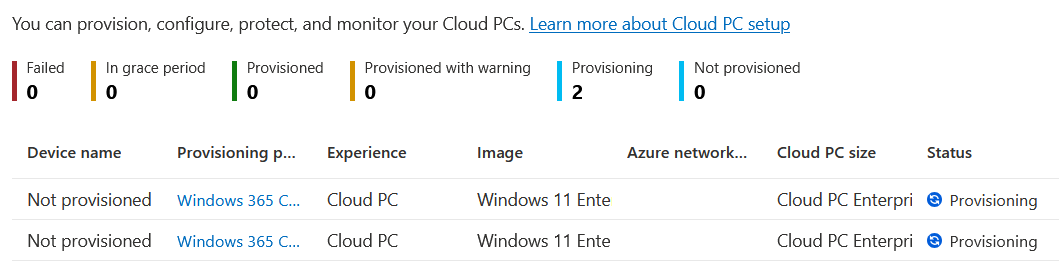
In the above, where I have enabled “Windows (MDM)” and disabled Personal Windows devices, I have a provisioning policy that does not do Autopilot Device Preparation. This means, in theory, that the device that is being provisioned is unknown to Intune/Entra and so when registered will be a personal device – and we have not allowed personal devices – so we expect this provisioning to fail as well.
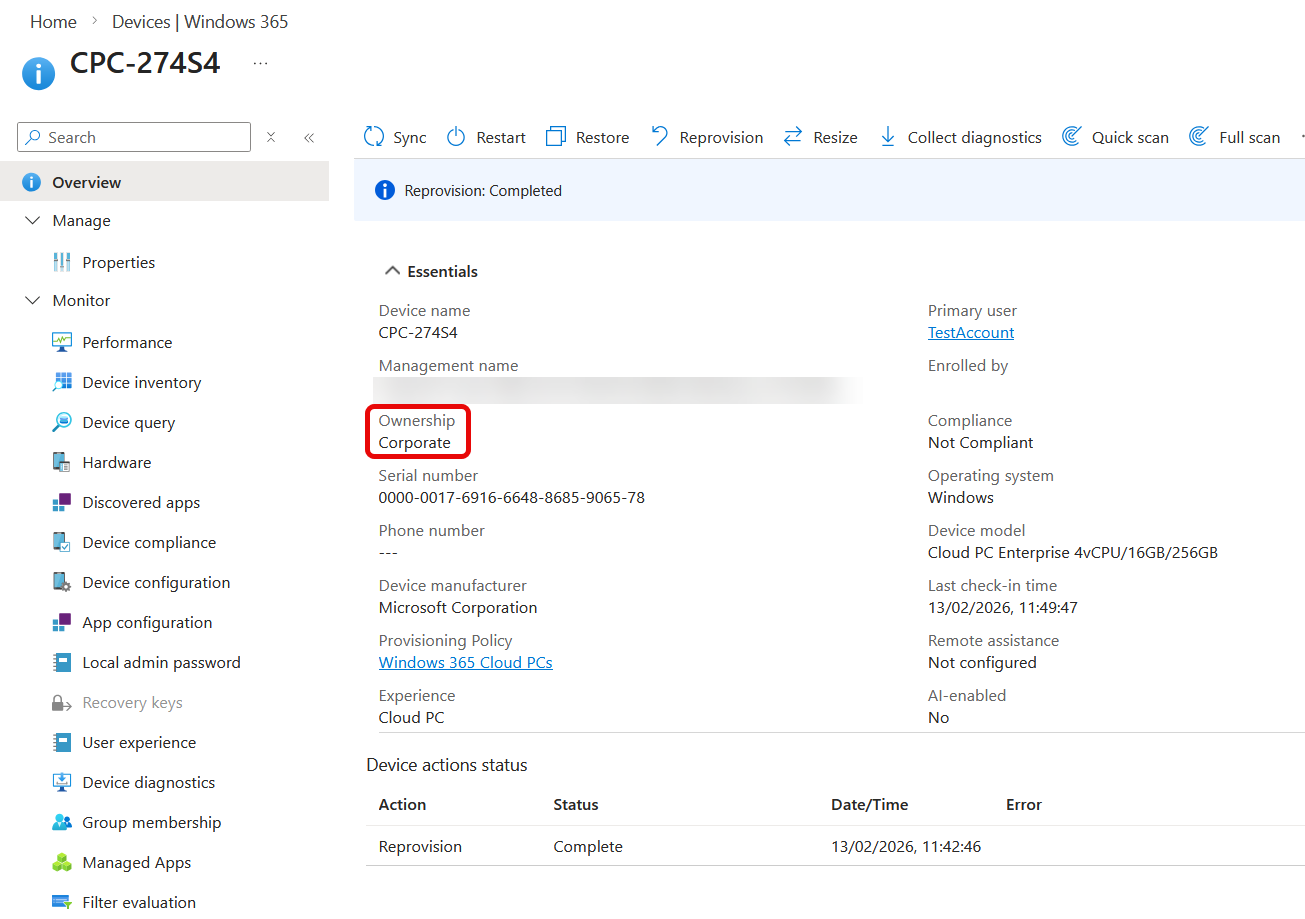
Except this provisioning is successful, and at the end of the provisioning cycle there is a device that is listed as Corporate under ownership:
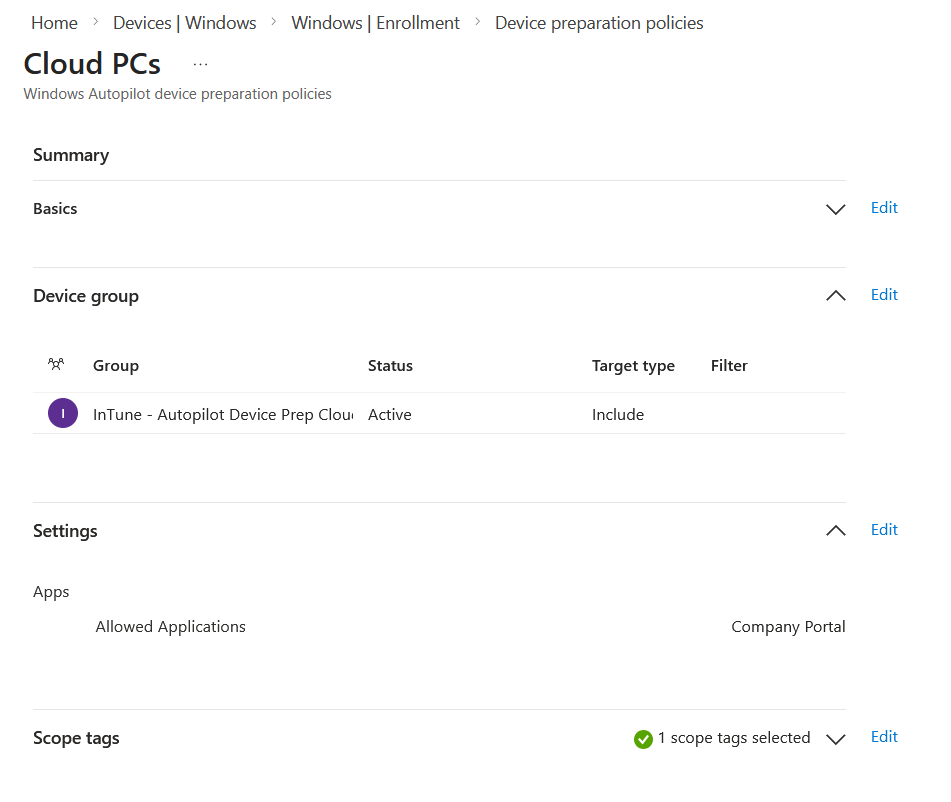
As reprovisioning a Windows 365 Cloud PC is easy (and then wait 30 minutes) I will also attempt a few other changes and see where I get to. I want to see if Autopilot Device Provisioning lets me avoid allowing “Windows (MDM)” devices for All Users. For this I will set All Users to block for both MDM and Personal and then select my existing Autopilot Device Preparation policy in the Cloud PC Provisioning policy. My Device Preparation policy is very simple, it has a name, one assigned group attached to it (with the “Intune Provisioning Client” as the group owner) and one application selected (and that application assigned to the earlier group as a required app to install):
I can now reprovision all my devices from the Provisioning Policy by clicking “Apply this configuration” at the top of the policy page. Note this will reboot and rebuild all devices under this policy – so great for testing and not much more! You can reprovision individual devices from the device page in Intune.
So, 30 minutes (ish) later and I have a failed provisioning again. Even if using Autopilot Device Preparation policies to make corporate devices, I cannot exempt the default/All Users allow “Windows (MDM)” from being turned on if I have Windows 365 Cloud PC.
So, given that for Cloud PCs I need the All Users / Windows (MDM) setting to Allow, what are the implications for this. In general I do not think this is as big an issue as you might think it is. Even though All Users can add corporate devices to the tenant, to be a corporate device requires it to have been added to Intune or Entra or Active Directory first. So though anyone can add or register devices in Entra, these are considered Personal devices if not added via Active Directory (and therefore Entra hybrid joined) or Autopilot (hardware hash uploaded) or in the list of corporate identifiers, and to do most of these three requires an administrator action first – for example the user cannot just join a Windows PC to Entra/Intune as corporate unless Autopilot or corporate device identifiers is in use.
The one problem here is if you have Active Directory, by default users can join personal devices to Active Directory and if they are synced to Entra will join Intune as a corporate device. So if turning on All Users/Allow Windows (MDM) and you have Active Directory with synced devices consider doing one of the following:
- Change the default OU for a computer to an OU that does not sync to Entra by using the redircmp command
- OR block end users from joining devices to Active Directory by restricting the “Add workstations to domain” user right.
Leave a Reply