
There is a lot of documentation about this, but nothing that I could find that was conclusive in turning on Copilot Cowork in an M365 tenant. Lots of documents and search results cover the scenario when Cowork was a Frontier feature, but Cowork because generally available mid-June 2026 and so the Frontier settings are no longer required (or indeed accurate). Also, from a time when Frontier was required, the settings and admin experiences have been moved around and changed, so these are the required steps:
- Purchase a Microsoft Copilot 365 licence. Though Copilot Cowork is paid for by a usage based billing model, it is only available to holders of the Microsoft 365 Copilot licence.
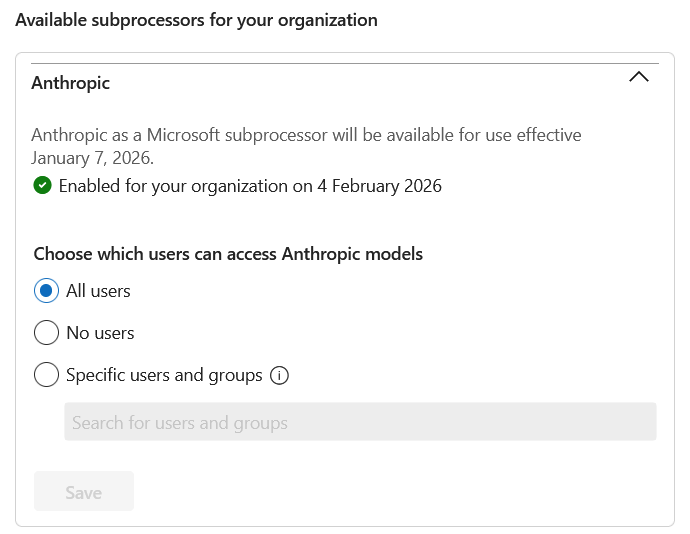
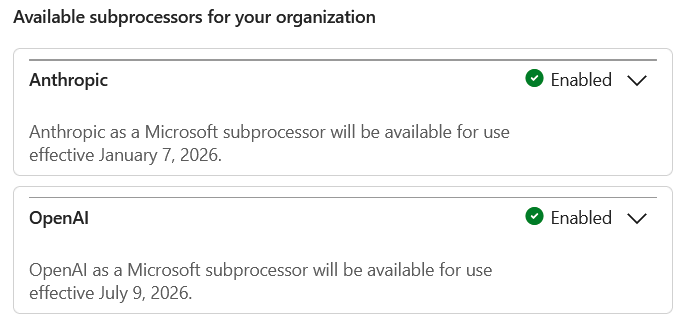
- [Optional] Ensure that Anthropic and/or OpenAI is enabled as a sub-processor within the Copilot tenant settings. For EU and UK tenants this is disabled by default. For other tenants, with some country exclusions, this is enabled by default.
- Enable the Copilot usage based billing model. The cost in credits each month is added (or prepaid if you will use enough) and the Copilot Credit Calculator can be used for this. At the time of writing, Copilot Credits are $0.01 per credit. So as I am UK based this works out today as approx 675,000 credits for a £5000 budget – and this would be enough to consider the 300,000 credit prepayment option for ~£2160 and a 28% discount.
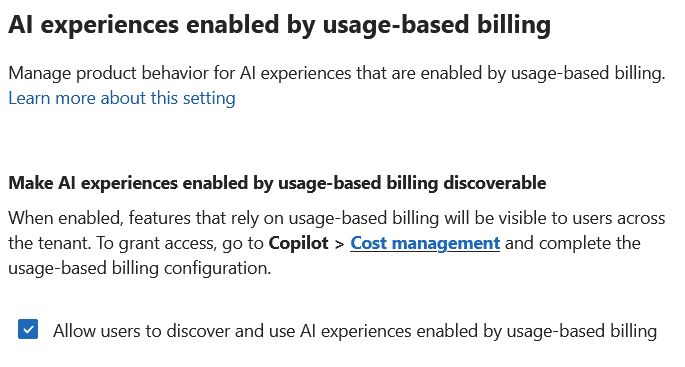
- Ensure the Copilot setting called “AI experiences enabled by usage-based billing” is enabled for your target users. This option is not available until usage based billing is turned on, and defaults to being enabled once usage based billing is turned on, but it might have been turned off so you need to check this setting.
- [Deprecated] Install the Cowork agent to all users who have a usage based billing assignment. Without installing it, users have to add the Cowork agent to their M365 Copilot app manually.
- [Deprecated] Optionally you can pin Cowork for all users or a group of users. These users will see the agent in the agents area to the left of the Copilot 365 app.
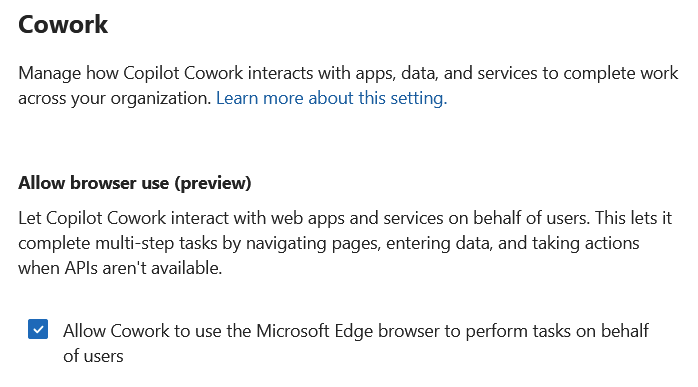
- Consider if Cowork should have access to the internet to complete web based tasks. Cowork operates in Microsoft Edge, using their existing sign-ins and your organisation’s policies. Because the browser tab runs on the user’s machine, browser tasks inherit the same conditional access, DLP, and tenant browsing policies you already apply to your users. This setting is found under the “Cowork” settings tab. And I note that I do not see this setting when I am just configuring a tenant for Cowork the first time and need to come back in a few days for this option to be available for the tenant.
Once you have done all these steps, the Cowork agent should appear in the M365 Copilot app. If you have not deployed the app, it can be installed from the Microsoft Store, pushed with Intune or another deployment service and it will soon get automatically installed with updates to the Microsoft 365 Apps installer (aka Microsoft Office!).
Step 2 above talks about the enabling of models by Anthropic. Anthropic provides Opus and Sonet models (at time of writing) and at release of Cowork in June 2026 was the only model provider available. Since then GPT 5.5 and GPT 5.6 (OpenAI hosted models) has come onstream and Cowork 1 is soon to be released. There is also Fable 5, but this is (again this week at time of writing) a preview model and it has additional data retention requirements. Over time models will change – some will require enabling, but unlike documents written at the release of Cowork and not updated, they will say Anthropic needs enabling – but this is no longer the case. Indeed for organisations in countries where Anthropic was enabled by default you can choose to disable it instead.
If Anthropic models are not enabled then Cowork appears as follows:
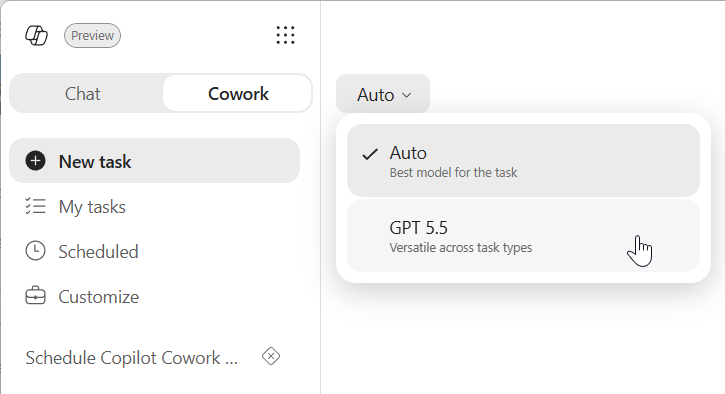
If Anthropic is enabled then (at the time of writing) you will get “Claude Sonnet 5” and “Claude Opus 4.8” as available models. If OpenAI is enabled the this adds the “GPT 5.6 Sol” and the “GPT 5.6 Terra” models.
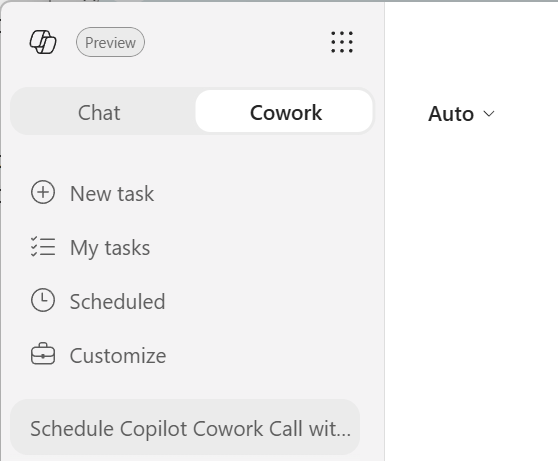
Once Cowork is available the Chat/Cowork slider will allow you to “slide right” and there will be no error messages about it being unavailable. When Cowork is not configured yet the Chat link will still show the Chat/Cowork slider though you cannot use Cowork if the admin has not enabled it – instead the user gets a “Request Access” button so they can tell you they want it even if you know nothing about it yourself! But then you would not be reading this blog post either…
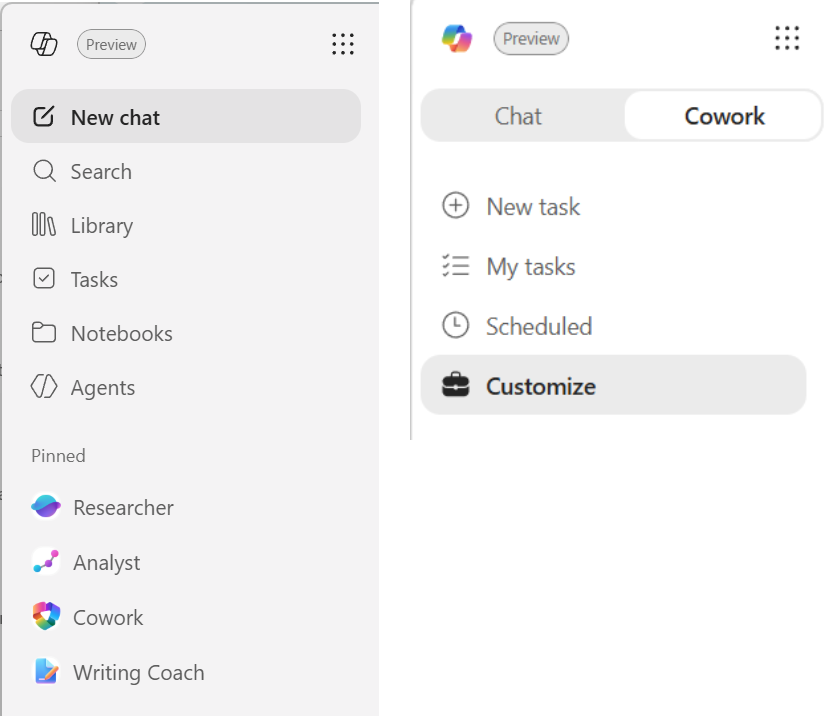
Browsing to https://m365.cloud.microsoft/agents/cowork in Edge results in the browser view to Cowork. The app experience to see Copilot Cowork experience did not work in the app for over 24 hours from enabling it!
#4 configuration setting in the list above is to turn on AI experiences that usage based billing enables. You cannot see this option before usage based billing is enabled and so below is what you will see once the billing is lit up.
And finally, the last option above is to turn on Cowork interaction with the browser. This is currently the Edge browser and no other, and it allows Cowork to open your browser, create a new tab, and do web based work as your user identity. This setting is found in the Cowork section of the Copilot setting in the M365 Admin Center.
Another consideration is network connectivity to Microsoft 365. Cowork expects to be able to reach the “required” endpoints at Microsoft 365 as found in the M365 URLs and Ports document. If any of these endpoints are blocked, the Cowork will not start successfully – for example seeing “We couldn’t confirm your access. Check your connection and try again”. This particular one was resolved by unblocking a Teams endpoint URL.
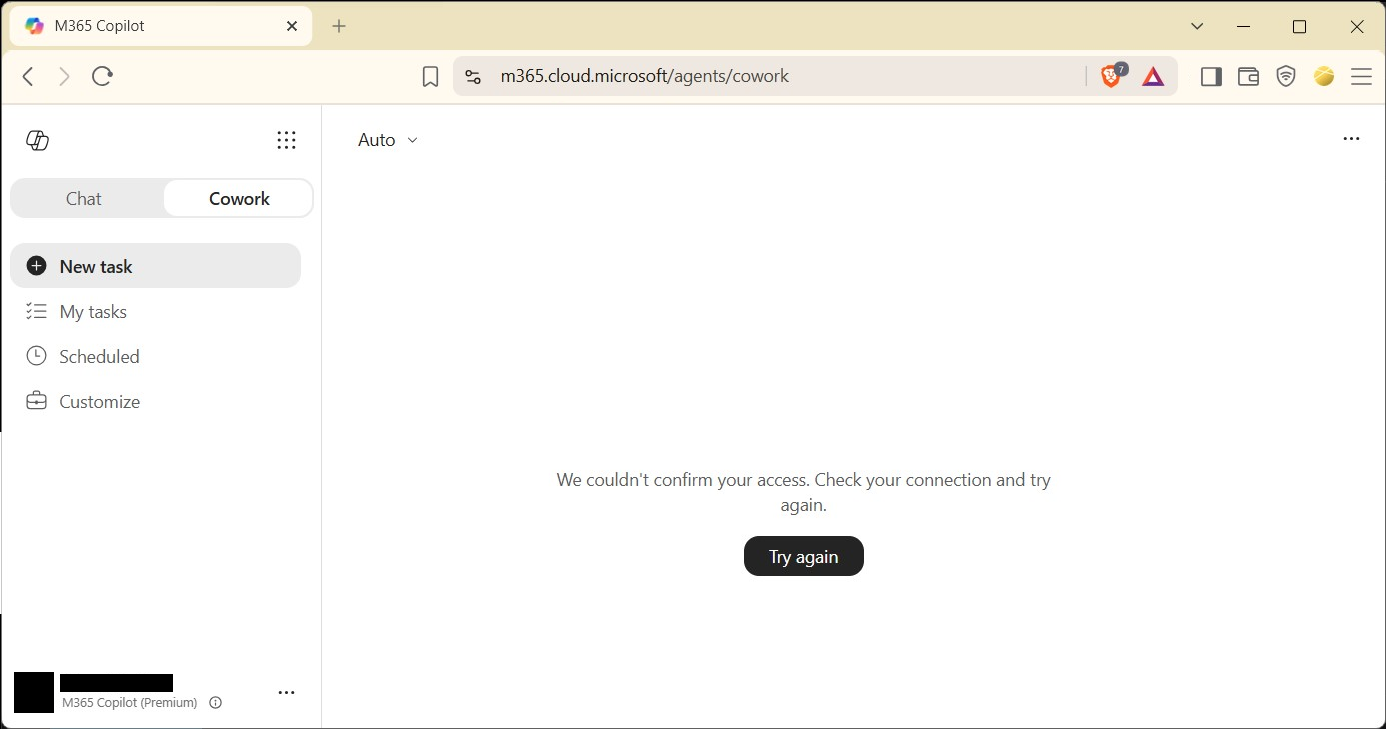
Photo by Kindel Media: https://www.pexels.com/photo/office-team-sitting-at-the-table-7651639/
Leave a Reply